
The message “Cellular network not available for voice calls” usually means your phone can still see a mobile network, but it cannot complete a regular voice call. The cause may be something simple, like weak coverage or a SIM issue, or something more specific, like a network setting, carrier restriction, or problem with your phone’s radio connection.
This guide walks through 10 practical fixes, starting with the easiest things to check first. The exact menus may vary slightly depending on whether you use Android or iPhone, but the troubleshooting approach is the same.
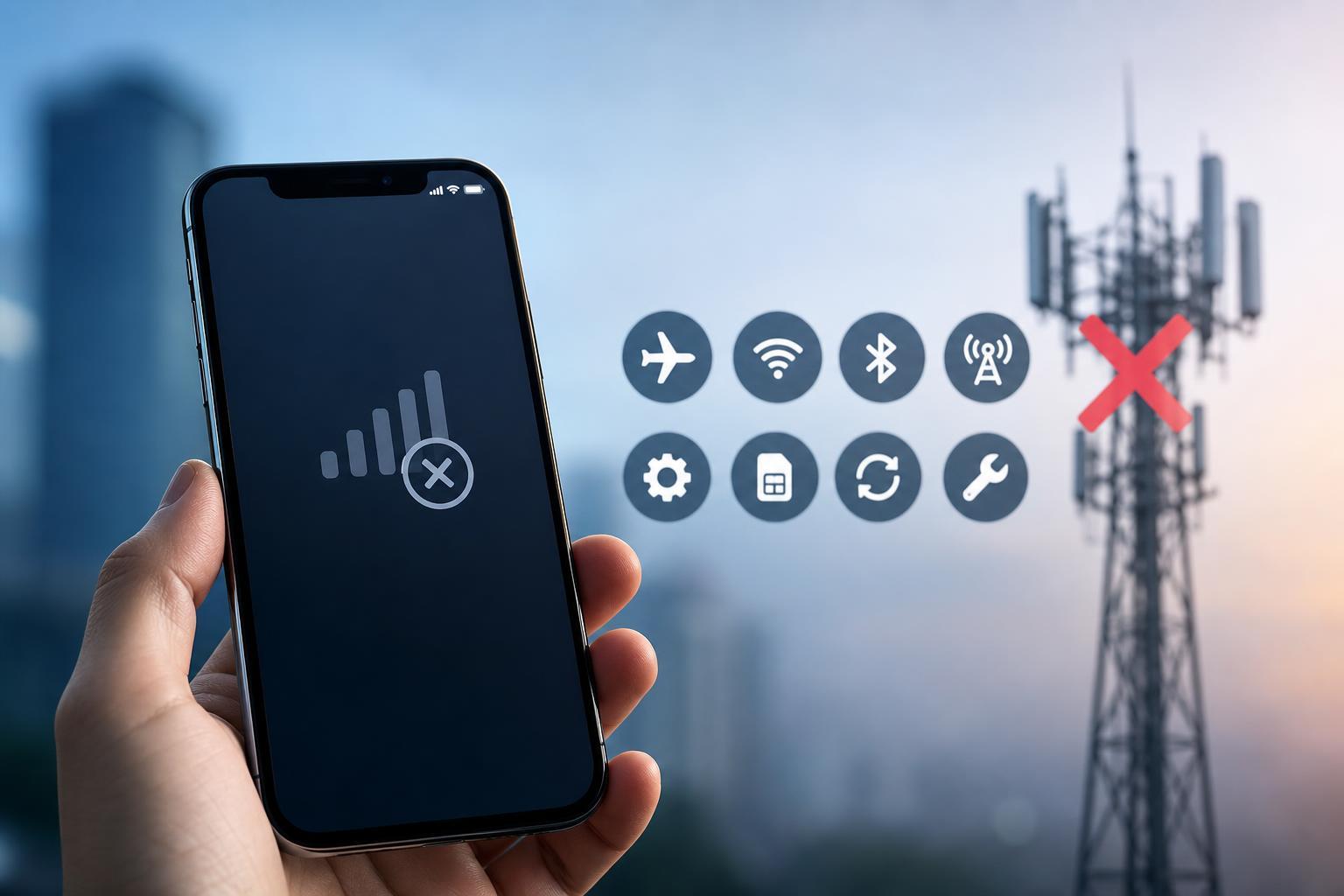
1. Check Whether You Actually Have Voice Signal
Start by looking at the signal bars and the carrier name. If you are in a basement, underground parking area, rural location, or a building with thick walls, your phone may have enough signal for data to appear available but not enough for a voice call to connect reliably.
- Move to a different location, preferably near a window or outside.
- Try calling again after a minute or two.
- Check whether other people on the same carrier are also having problems in your area.
2. Toggle Airplane Mode On and Off
Turning Airplane Mode on briefly forces the phone to drop its current mobile connection and reconnect to the network when you switch it off again. This can clear a temporary registration problem without changing any of your saved settings.
- Open Quick Settings or Control Center.
- Turn Airplane Mode on for about 10 to 20 seconds.
- Turn it back off and wait for the phone to reconnect.
- Try the call again.
3. Make Sure the SIM Card Is Working Properly
A damaged, dirty, loose, or improperly seated SIM card can prevent the phone from registering correctly for voice service. Even if mobile data appears to work sometimes, a SIM problem can still cause voice calls to fail.
- Power off the phone if your model requires it before removing the SIM.
- Remove the SIM tray and inspect the card for dirt, scratches, or visible damage.
- Reinsert the SIM carefully and make sure it sits correctly in the tray.
- If you have a spare compatible SIM, test it in the phone if possible.
4. Confirm That Voice Service Is Not Suspended by Your Carrier
Sometimes the phone is fine, but your mobile account is not. A suspended line, unpaid bill, expired prepaid plan, or carrier-side restriction can block voice calls even when the device still shows some network access.
- Log in to your carrier account or app and check account status.
- Verify that voice service is active, not just data service.
- Look for billing issues, plan limits, or line restrictions.
- If needed, contact the carrier and ask whether your number can place outgoing and receive incoming calls.
5. Restart the Phone Radio by Switching Network Mode
Forcing the phone to switch between network modes can help it re-register with the carrier. This is useful when the device is stuck trying to use a mode that is not working well in your area.
- Open Settings.
- Go to Mobile Network, Cellular, or Connections depending on your phone.
- Look for Preferred Network Type or Voice & Data settings.
- Try switching between available options such as 5G/4G/3G, then wait for the phone to reconnect.
- Test the call again.
6. Turn VoLTE or 4G Calling On
Many carriers now carry voice calls over LTE through VoLTE, often called 4G Calling or HD Voice. If this setting is off, or if the phone and carrier are not negotiating it properly, calls may fail on some networks.
- Open your phone’s mobile network settings.
- Look for VoLTE, 4G Calling, or Enhanced LTE services.
- Turn the option on if it is available.
- If the setting is already enabled, toggle it off and on again to refresh it.
- Try a voice call after the network reconnects.
7. Reset Network Settings
If the issue started after changing settings, moving carriers, installing a profile, or using a VPN or custom APN, a network reset can clear the bad configuration without deleting your personal photos or apps.
- Open Settings.
- Find the reset option under General management, System, or Transfer or Reset iPhone.
- Choose Reset Network Settings or Reset Wi-Fi, Mobile & Bluetooth settings.
- Confirm the reset.
- Reconnect to Wi-Fi and re-enter any saved Bluetooth pairings if needed.
- Test calling again.
8. Check for Carrier Settings or System Updates
Carrier configuration updates and phone system updates can fix compatibility issues between your device and the mobile network. This is especially important after major OS updates or when your carrier changes its network setup.
- On iPhone, check for carrier updates in Settings > General > About.
- On Android, look for system updates and any carrier services updates in the Play Store or device settings.
- Install any pending updates, then wait for the phone to reconnect to the network.
- Test calls again after the update finishes.
9. Remove VPNs, Call-Blocking Apps, or Custom Network Profiles
VPN apps, call filter tools, work profiles, and custom APN settings can sometimes interfere with the phone’s connection to the mobile network or calling services. While they usually do not block ordinary cellular voice service directly, they are worth checking if the problem is persistent.
- Turn off any VPN and try a call again.
- Disable call-blocking or security apps temporarily to test.
- Remove or reset custom APN settings if you changed them.
- If the phone is managed by work or school, ask whether a device profile is restricting mobile calling.
10. Test the SIM in Another Phone or Contact Your Carrier
If none of the earlier fixes work, you need to separate a phone problem from a carrier or SIM problem. Testing the SIM in another compatible phone is one of the best ways to do that.
- Insert your SIM into another compatible unlocked phone if you can.
- Try making a voice call from that device.
- If the SIM fails there too, the problem is likely with the SIM or carrier account.
- If the SIM works in another phone, your original phone may need a deeper software check or repair.
When the Problem Is Likely Hardware-Related
If your phone has poor signal in every location, fails with multiple SIM cards, and still shows the same calling error after a network reset, the issue may be with the phone’s cellular antenna, modem, or internal hardware. Water damage, drops, or a failing radio component can all cause this kind of behavior.
Which Fix Should You Try First?
If you want the fastest path, try these in order: check signal, toggle Airplane Mode, reseat the SIM, verify carrier account status, and then reset network settings. Those steps solve the majority of everyday calling problems without requiring advanced troubleshooting.
- Weak or unstable coverage: move to a better location and try again.
- SIM not seated correctly: remove and reinsert the SIM.
- Carrier/account issue: confirm service is active.
- Settings problem: reset network settings or toggle VoLTE.
- Persistent failure across phones: contact the carrier or inspect the device for hardware problems.





