
Microsoft Lists is more than a simple checklist tool. With the right features, it can help you track tasks, manage requests, organize projects, and keep shared information easy to find. The trick is knowing which options actually save time and which settings make Lists easier to use every day.
These Microsoft Lists tips focus on practical ways to build better lists, reduce repetitive work, and make your data easier to read and update.
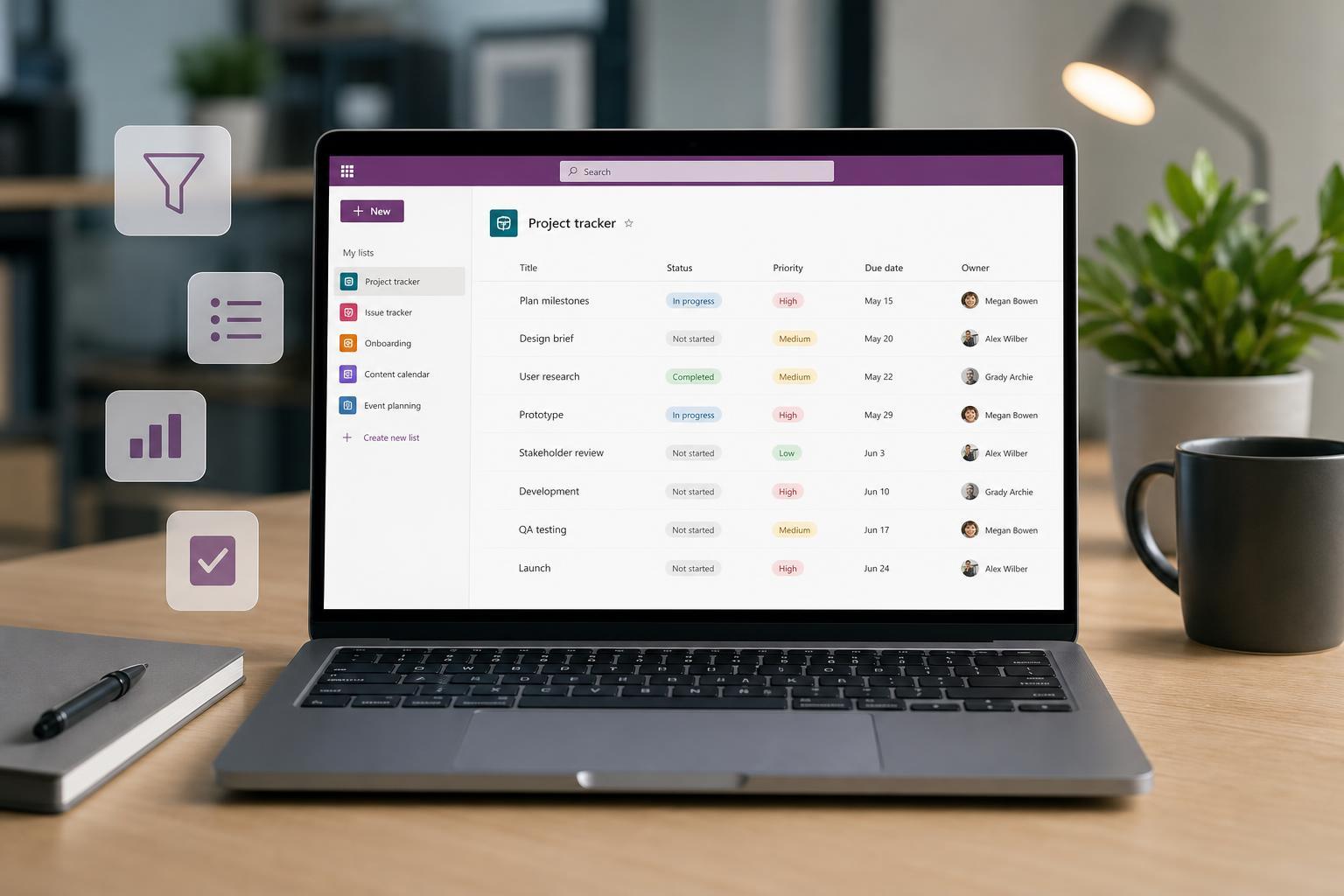
1. Start with the right list template
If you are creating a new list, begin with a template instead of building everything from scratch. Microsoft Lists includes templates for common use cases such as issue tracking, event planning, asset management, and onboarding.
Templates are useful because they already include columns, views, and formatting that fit the task. You can always change them later, but starting with one often saves a lot of setup time.
2. Use columns to structure information properly
The quality of a list depends on how well the columns are set up. Use the right column types for the data you want to store, instead of relying on plain text for everything.
- Choice columns for status or category values
- Date columns for deadlines and scheduling
- Person columns for assigning work to team members
- Number columns for quantities, budgets, or scores
- Yes/No columns for simple flags like completed or approved
Good column design makes filtering, sorting, and formatting much more useful. It also reduces inconsistent entries, which is especially important on shared lists.
3. Create custom views for different tasks
A single list can serve different purposes if you create multiple views. One view might show only open items, another might group entries by status, and another might display only this month’s tasks.
Views help different people focus on the same data in the way that works best for them. They are especially helpful on large lists where scrolling through everything would be inefficient.
- Use filtered views to hide completed or irrelevant items
- Group items by category, owner, or status
- Sort by due date to surface urgent entries first
- Create a compact view for quick scanning
4. Use formatting to highlight important items
Conditional formatting can make important information stand out at a glance. In Microsoft Lists, you can use rules or JSON formatting to change how rows, columns, or values appear based on their contents.
This is helpful for showing overdue items in red, highlighting high-priority requests, or marking completed items in a subtle color. Visual cues reduce the need to manually inspect every entry.
5. Take advantage of filtering and sorting
Filtering and sorting are some of the simplest ways to use Microsoft Lists efficiently. Instead of scanning the entire list, narrow it down to exactly what you need.
You can filter by status, person, date, category, or any other column type that supports it. Sorting helps bring the most relevant items to the top, such as newest requests or nearest deadlines.
- Open the list you want to review.
- Choose the column you want to sort or filter.
- Apply a filter for only the items you need.
- Save the view if you expect to use the same setup again.
6. Use rules to automate simple actions
Microsoft Lists can automate small tasks with rules, such as sending notifications when an item changes or flagging entries when conditions are met. This is not full workflow automation, but it is very useful for routine list management.
Rules are a good way to reduce manual monitoring. For example, you can get notified when a new item is added, when a status changes, or when a date is approaching.
7. Use forms to keep entries consistent
When several people add items to the same list, consistency becomes important. Microsoft Lists forms help standardize how entries are submitted, which reduces missing details and messy data.
Forms are especially useful when the list is used for requests, issues, inventory, or shared tracking. By controlling which fields people see and in what order, you make it easier for them to enter accurate information.
- Limit the form to the most important fields
- Use choice columns to prevent inconsistent text entries
- Mark required fields so critical information is not skipped
- Keep instructions short and clear
8. Keep list item details organized with attachments and comments
If your list is being used for projects, support issues, or document tracking, attachments and comments can keep related information in one place. That reduces the need to dig through email or chat history.
Attachments are useful for screenshots, forms, receipts, or reference files. Comments help teams discuss an item directly in context, which makes follow-up easier.
9. Connect Lists with Microsoft 365 tools
Microsoft Lists becomes much more useful when it is connected to the rest of Microsoft 365. Since it works well with Teams, SharePoint, and Power Automate, you can fit it into the tools people already use.
For example, you can add a list to a Teams channel so everyone can access it in one place. You can also use Power Automate to create more advanced notifications or approval steps when rules alone are not enough.
- Use Teams for shared access in a work channel
- Use SharePoint when the list belongs to a site or project space
- Use Power Automate when you need approvals, reminders, or multi-step workflows
10. Clean up old items and archive what you do not need
A list works best when it stays relevant. Over time, old entries can slow people down because they make views cluttered and harder to scan.
Periodically review completed, stale, or duplicate items. If you do not need them active anymore, move them to an archive list or another storage location. That keeps the main list focused on current work.
How to get the most out of Microsoft Lists
The best Microsoft Lists setups are usually simple, clear, and built around how people actually work. Start with a good structure, use views to show the right information, and automate only the tasks that genuinely repeat often.
If you treat Lists as a flexible workspace instead of just a spreadsheet replacement, it becomes much more effective for tracking work, managing requests, and keeping teams aligned.





