
Second Space is a built-in MIUI feature on many Xiaomi phones that lets you create a separate, private space on the same device. It works a lot like having a second phone profile, with its own apps, accounts, photos, and settings.
This guide explains what Second Space does, how it differs from other privacy features, how to set it up, and the situations where it is genuinely useful.
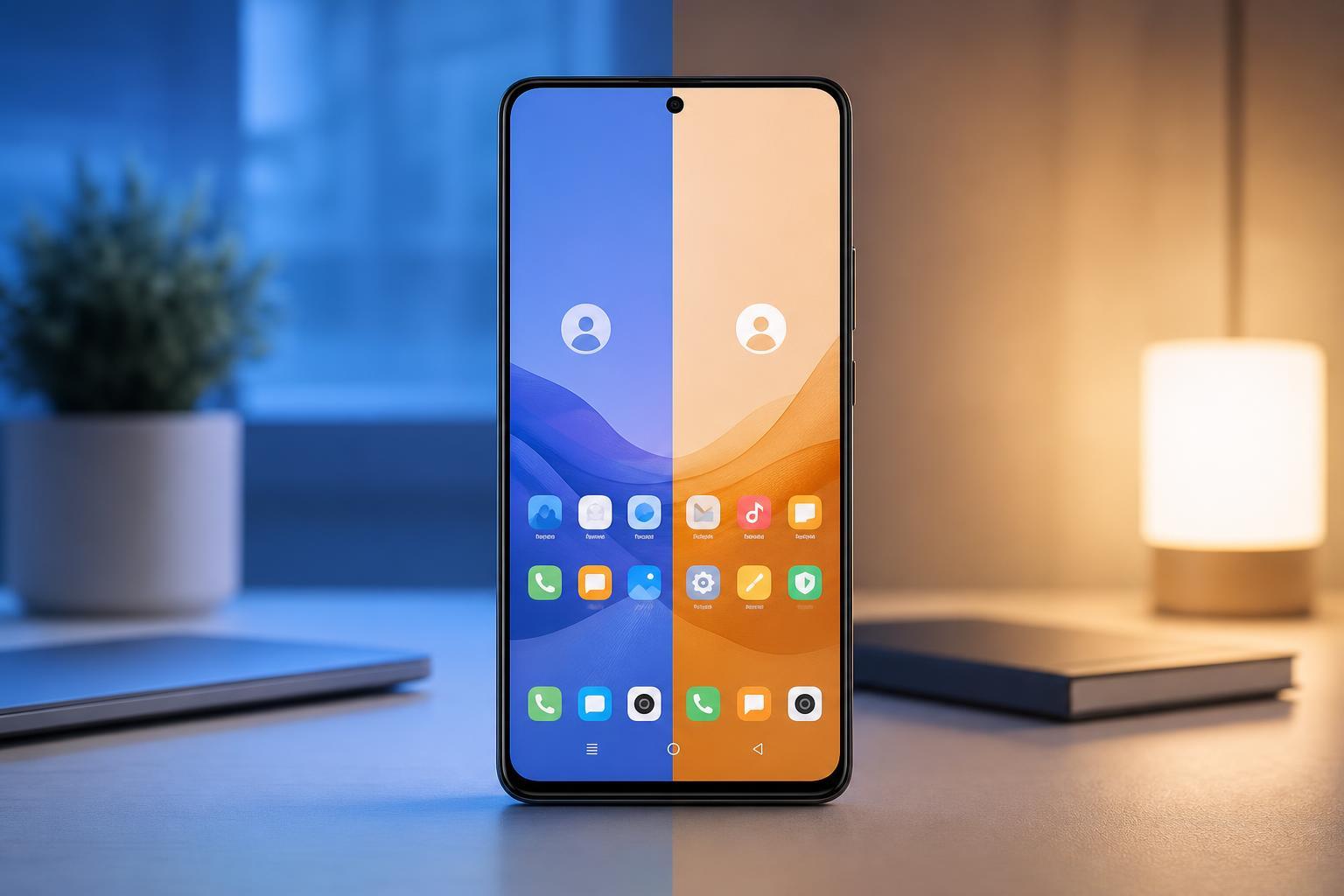
What Second Space in MIUI Actually Is
Second Space creates a separate environment inside your Xiaomi phone. The two spaces share the same physical device, but each space can have its own lock screen, wallpaper, apps, files, and account logins.
Think of it as a private container for a different part of your life. You can keep work apps in one space and personal apps in another, or let another person use the phone without seeing your data.
How Second Space Works
When you create Second Space, MIUI sets up a separate user area on the phone. Apps, contacts, photos, and files added in one space are normally not visible in the other unless you explicitly move or share them.
- Each space can have its own lock method, such as PIN, password, or fingerprint support depending on the phone model.
- You can install the same app in both spaces, but the app data stays separate.
- Photos, downloads, and files can be kept isolated between spaces.
- Notifications and accounts can be managed independently, so the spaces feel like different phone profiles.
Who Should Use Second Space
- Users who want a cleaner separation between personal and work life
- Parents who occasionally share a phone with children
- People who hand their phone to someone else for short periods
- Anyone who wants an extra layer of privacy on a shared device
Second Space is especially helpful if you do not want to carry two phones but still need two distinct environments.
How to Turn On Second Space in MIUI
- Open the Settings app on your Xiaomi phone.
- Go to Special features or Privacy, depending on your MIUI version.
- Tap Second Space.
- Select Turn on Second Space.
- Follow the on-screen setup steps to create the new space and choose a separate lock method.
- Set up the apps and data you want to use in the new space.
What You Can Move Into Second Space
After setup, you can begin using Second Space as a clean profile. Depending on your device and MIUI version, you can move or duplicate different types of content.
- Apps and app data
- Photos and videos
- Contacts
- Files and documents
- Accounts used inside apps
- Lock screen and wallpaper settings
Some data may need to be copied manually, while other items can be set up fresh in the second environment.
How to Switch Between First Space and Second Space
MIUI usually lets you switch spaces using a shortcut, lock screen option, or fingerprint-based access depending on how you configure it.
- Use the on-screen switch if MIUI shows one.
- Unlock Second Space with its assigned password or PIN.
- Use a fingerprint if you assigned one to that space.
- Switch from the Settings menu if your phone does not offer a faster shortcut.
Second Space vs App Lock vs Hidden Apps
These features sound similar, but they solve different problems.
- Second Space: creates a separate user-like environment with separate apps and data.
- App Lock: protects individual apps with a password or fingerprint.
- Hidden Apps: conceals selected apps from the home screen or app drawer.
If you only need to protect one banking app, App Lock may be enough. If you want a more complete split between personal and shared use, Second Space is the better option.
Limitations You Should Know
Second Space is useful, but it is not perfect. There are a few limitations worth understanding before relying on it.
- It can use extra storage because apps and files may be duplicated.
- Some system features and third-party apps may not behave exactly the same in both spaces.
- Notifications and background activity can be less convenient to manage if you use both spaces heavily.
- Data migration between spaces is not always seamless and may require manual steps.
How to Remove Second Space
If you no longer need it, you can delete Second Space from MIUI settings.
- Open Settings.
- Go to Special features or Privacy.
- Open Second Space.
- Look for the delete or remove option.
- Confirm the removal when prompted.
Common Problems With Second Space
Most problems with Second Space come from setup confusion, forgotten credentials, or expectations that do not match how the feature works.
- Cannot find the Second Space option: check the Settings search bar or confirm your MIUI version supports it.
- Cannot switch between spaces: make sure the feature is fully set up and the unlock method is working.
- Apps do not appear in both spaces: install them separately or move them manually if supported.
- Not enough storage: duplicated apps and files can quickly fill the device.
Is Second Space Worth Using?
For many Xiaomi users, yes. It is one of the most practical built-in privacy features in MIUI, especially if you want a simple way to separate two different phone environments without installing extra software.
It is most valuable when you need separation rather than just secrecy. If your goal is to keep different apps, accounts, and files neatly apart, Second Space is usually a better fit than hiding individual items.





