
Deleting a photo from Google Photos does not always mean the same thing as deleting it from your phone. In many cases, the result depends on whether the photo is backed up, whether sync is enabled, and whether you delete it from the Google Photos app, the web, or your device storage.
If you want to free up space, clean up your library, or avoid accidentally losing pictures, it helps to understand exactly what happens after you press delete.
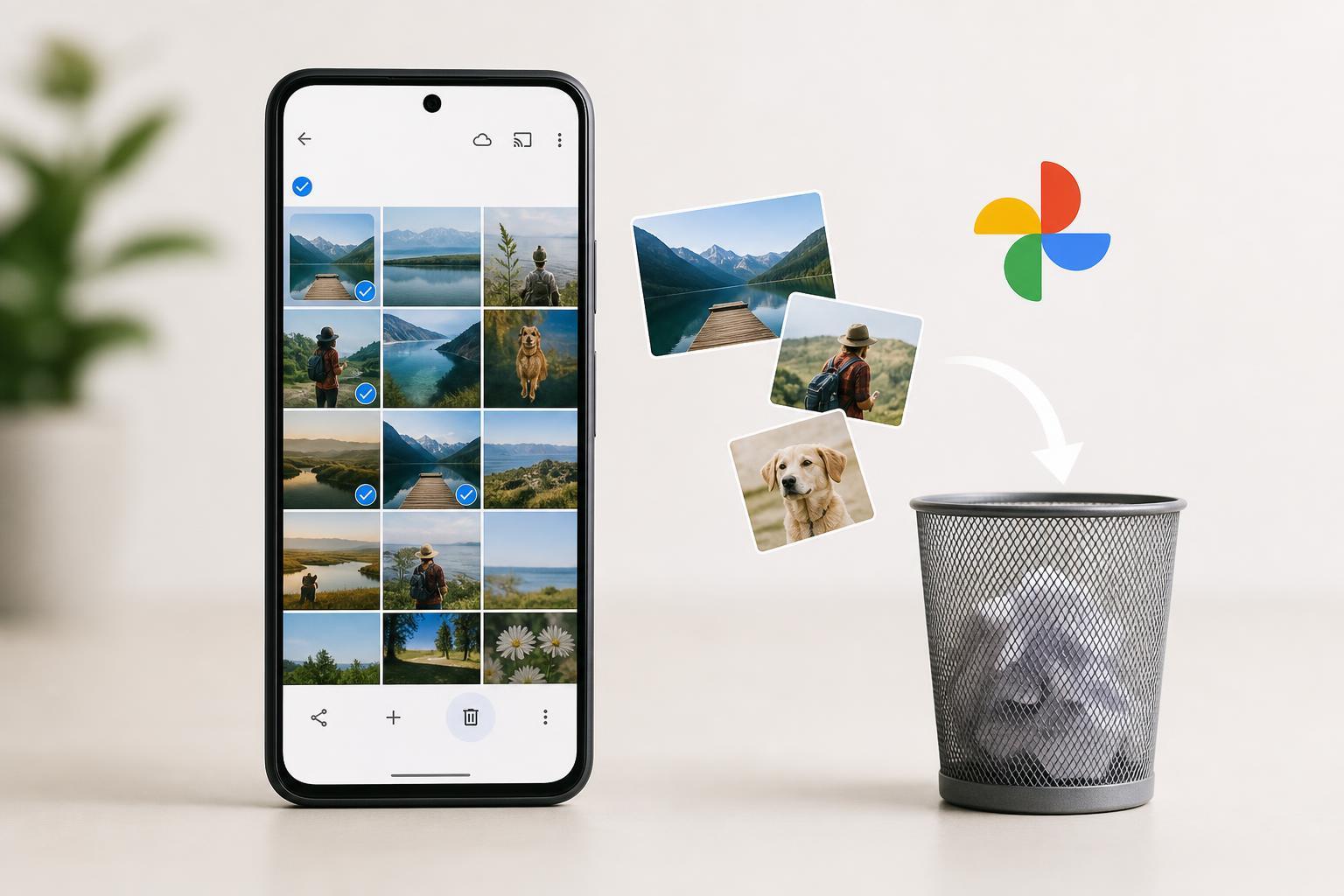
What Happens When You Delete a Photo from Google Photos?
When you delete a photo in Google Photos, the image usually moves to the trash instead of disappearing right away. That means it can often be restored for a limited time before being permanently deleted.
If the photo was backed up to your Google account, deleting it from Google Photos removes it from your Google Photos library and from any other device where that same Google account is synced. If the photo was only stored locally on one device and not backed up, the behavior can be different depending on where you delete it from.
Deleting a Backed-Up Photo
If backup is turned on, a photo in Google Photos is part of your cloud library. Deleting it from Google Photos removes it from that library everywhere your account is used. That means it will no longer appear in the app, in Google Photos on the web, or on other synced devices.
This is the most important thing to remember: deleting a backed-up photo is not just removing a copy from one phone. It is usually removing the cloud version that syncs across your Google account.
What Happens on Your Phone or Tablet?
On Android and iPhone, deleting a photo from Google Photos may or may not also remove the file from the device’s local storage. The result depends on whether the image exists only in Google Photos, in your phone’s gallery storage, or in both places.
- If the photo was backed up and then deleted in Google Photos, it is removed from your Google Photos library and sent to trash.
- If the photo still exists in your device’s local gallery or file storage, that local copy may remain unless you also delete it there.
- If you delete the photo from the device’s gallery app, it may still remain in Google Photos if it was already backed up.
What Happens If You Delete It from Google Photos Web?
Deleting a photo from photos.google.com has the same main effect as deleting it in the app: the photo is moved to trash and removed from your Google Photos library across devices.
This is often the easiest place to manage large batches of photos because the interface makes it simpler to select multiple images at once.
What Happens to Shared Albums and Links?
If you delete a photo that was shared in an album or through a link, the photo may stop being visible to other people depending on how it was shared and who owns the content. Shared album behavior can be confusing because the photo may disappear for everyone if it was your uploaded image, but other people’s copies in the shared album may still remain if they were added separately.
Can You Recover Deleted Photos?
Yes, usually. When a photo is deleted, it normally goes to the trash first. From there, you can restore it before it is permanently removed.
- Open Google Photos.
- Go to Trash or Bin.
- Select the photo you want back.
- Tap Restore.
Once the trash period ends, the photo is permanently deleted from Google Photos and is much harder to recover.
If You Want to Free Up Space
Deleting a photo from Google Photos is not always the same as freeing up storage on your device. If your goal is to save phone storage, you may need to remove local copies as well, or use Google Photos storage management tools.
- Use Google Photos’ storage tools to review large items and blurry photos.
- Delete unwanted photos from both Google Photos and your device if you want them gone everywhere.
- Make sure important pictures are backed up before deleting local files.
How to Avoid Accidentally Losing Photos
The safest approach is to confirm whether a photo is backed up before deleting it. If it matters, download a copy to your computer or another storage location first.
- Open the photo and check whether it is backed up to your Google account.
- If needed, download or copy it to another device.
- Delete the photo only after you are sure you no longer need it in Google Photos.
- Check Trash if you change your mind.
The Short Version
In most cases, deleting a photo from Google Photos sends it to trash, removes it from your Google Photos library, and syncs that change across your account. The photo is usually recoverable for a period of time, but once trash is emptied or expires, it is gone from Google Photos permanently.





