
If your Samsung Galaxy phone no longer vibrates for calls, notifications, or touch feedback, the problem can come from a simple setting, a software glitch, or a hardware fault. The good news is that vibration issues are often easy to narrow down once you check the right settings in order.
This guide walks through the most useful fixes for Samsung Galaxy phones, starting with the most common causes and moving toward more advanced checks if vibration still does not work.
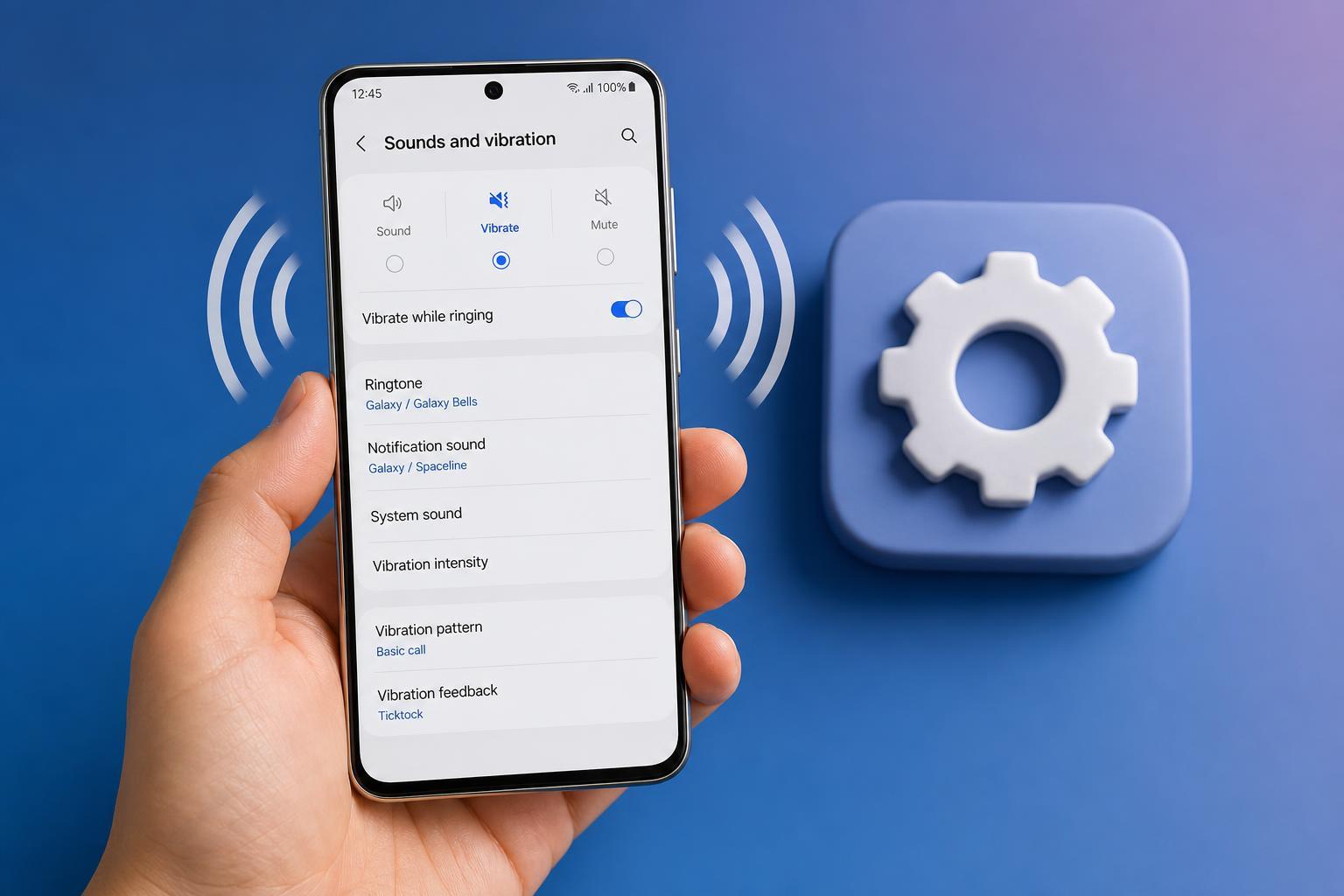
1. Check That Vibration Is Actually Turned On
Samsung phones can be set to silent or sound mode without vibration being enabled. If the phone is not vibrating for calls or notifications, start by checking the sound mode and vibration options.
- Open Settings and tap Sounds and vibration.
- Check whether the phone is set to Sound, Vibrate, or Mute.
- If available, make sure Vibrate while ringing or similar vibration options are enabled.
- Test the phone by asking someone to call or send a notification.
2. Turn Up the Vibration Intensity
If the phone vibrates only faintly or seems dead, the vibration intensity may be set too low. Samsung lets you adjust vibration strength for different types of alerts.
- Go to Settings > Sounds and vibration.
- Tap Vibration intensity.
- Increase the sliders for incoming calls, notifications, and system feedback.
- Save the changes and test the phone again.
3. Enable Touch Vibration and System Feedback
If the problem is only with keyboard taps, navigation gestures, or button feedback, the main vibration motor may still be working. In that case, the system feedback options may be disabled.
- Open Settings > Sounds and vibration.
- Look for options such as System vibration, Touch interactions, or Vibration feedback.
- Turn on the feedback options you want to use.
- Test the keyboard or navigation buttons to confirm the change.
4. Check Do Not Disturb and Notification Settings
Do Not Disturb can silence alerts and may also affect vibration behavior depending on your settings. Some apps can also have their own notification channels turned off.
- Open Settings and check whether Do Not Disturb is enabled.
- If it is on, review which alerts are allowed to vibrate or make sound.
- Go to Settings > Notifications and check whether the affected apps are allowed to send notifications.
- Open the app’s notification settings if needed and make sure vibration is allowed for that alert type.
5. Test Vibration in Safe Mode
A recently installed app can interfere with notifications, accessibility features, or device behavior. Safe Mode starts the phone with only built-in apps, which helps you tell whether a third-party app is causing the problem.
- Press and hold the power button.
- Touch and hold Power off until Safe Mode appears, then confirm.
- Once the phone restarts, test vibration with a call or notification.
- If vibration works in Safe Mode, uninstall recently added apps one by one until the problem is gone.
6. Restart the Phone Only After Checking Settings
A restart is not a cure-all, but it can clear a temporary software glitch that prevents vibration from working correctly after settings changes or app conflicts. It is most useful after you have already checked the vibration options above.
After restarting, test vibration again with a call, text message, or keyboard feedback. If the problem returns quickly, the cause is probably a setting, app, or hardware issue rather than a one-time glitch.
7. Update One UI and App Software
Software bugs can affect notification behavior, haptics, and system vibration. Samsung and app developers often fix these issues through updates.
- Open Settings > Software update.
- Tap Download and install.
- Install any available update and let the phone restart if needed.
- Also update apps through the Galaxy Store and Google Play Store.
8. Clear Cache for the Problem App or System Interface
If vibration fails only for one app, clearing that app’s cache may help. If the issue affects the whole phone, the system UI or settings cache may be involved. Clearing cache does not usually delete your personal data.
- For one app, go to Settings > Apps, select the app, and tap Storage > Clear cache.
- If the problem seems system-wide, consider clearing cache for the Samsung Keyboard, the phone app, or other relevant system apps if available.
- Test vibration again after clearing the cache.
9. Run a Hardware Check for the Vibration Motor
If none of the software fixes help, the vibration motor may be damaged or disconnected. This can happen after drops, moisture exposure, or internal wear.
- Open the Samsung Members app if it is installed.
- Run the diagnostics test for vibration or the vibration motor.
- If the test fails, the motor or its connection may need repair.
- If the phone recently suffered impact or water exposure, this makes hardware damage more likely.
10. Back Up and Reset the Phone if the Problem Persists
If vibration still does not work after all other checks, a factory reset may help rule out a deep software problem. This should be a last resort because it erases your data unless you back it up first.
- Back up your photos, files, contacts, and app data using Samsung Cloud, Google, or Smart Switch.
- Go to Settings > General management > Reset.
- Choose Factory data reset and follow the prompts.
- Set up the phone again and test vibration before reinstalling too many apps.
How to Tell Whether It Is Software or Hardware
A few clues can help you decide where the problem is coming from. If vibration works in Safe Mode, after a settings change, or after clearing an app’s cache, the issue is probably software-related. If the phone never vibrates in any mode and the diagnostics test fails, hardware damage is more likely.
- Works in Safe Mode: a third-party app is likely involved
- Works after changing vibration settings: the issue was probably a setting
- Fails in diagnostics: the vibration motor may be faulty
- Stopped after a drop or water exposure: hardware damage becomes more likely
When to Get the Phone Repaired
If your Samsung Galaxy still does not vibrate after checking settings, updating software, testing Safe Mode, and running hardware diagnostics, it is time to contact Samsung support or a qualified repair shop. A failed vibration motor usually requires hardware repair rather than another settings change.
If the phone is still under warranty or covered by insurance, repair is usually better than opening the device yourself. For most users, that is the safest and most cost-effective next step.





