
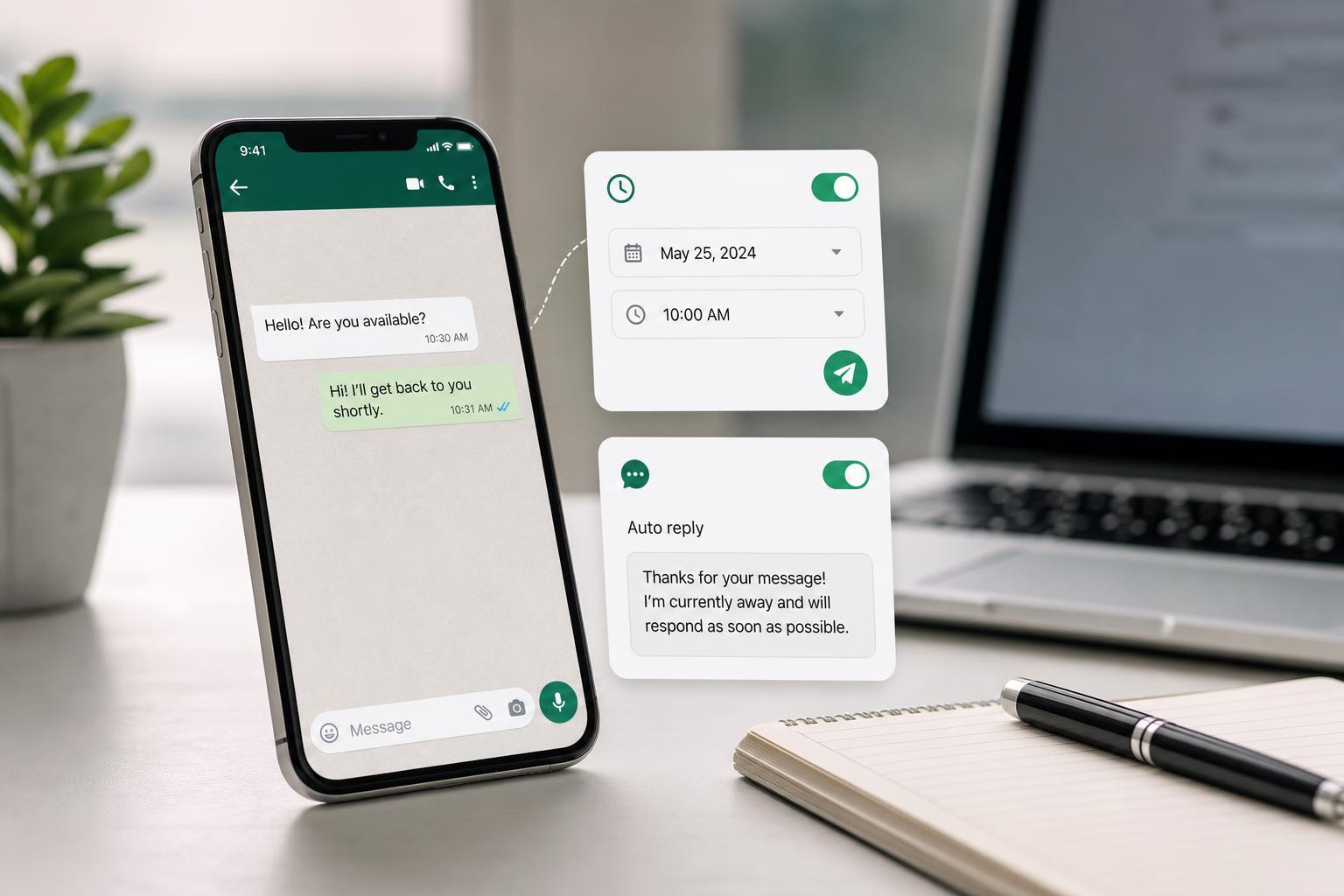
WhatsApp does not offer a built-in message scheduler for personal chats, and its auto-reply options are limited depending on the app you use. If you want to send messages later or reply automatically, you usually need a business feature or a third-party automation tool.
This guide explains what WhatsApp can and cannot do, which methods actually work on Android and iPhone, and how to avoid common problems such as missed scheduled messages or unreliable auto replies.
What WhatsApp Can Do Natively
WhatsApp has a few features that sound similar to scheduling and auto reply, but they are not the same as a full message scheduler. The standard WhatsApp app does not include a built-in option to write a message now and have it send automatically at a later time.
- Personal WhatsApp: no native message scheduling
- WhatsApp Business: supports automated greeting and away messages
- Broadcast lists: send one message to many people at once, but not on a timer
- Pinned chats and reminders: useful for follow-up, but not true scheduling
How to Schedule WhatsApp Messages on Android
On Android, scheduling is usually done with a third-party app because WhatsApp itself does not offer the feature. These apps often use accessibility permissions or notification access to help send the message at the right time.
- Install a reputable scheduling app from the Google Play Store that supports WhatsApp messaging.
- Open the app and grant only the permissions it needs to work.
- Choose WhatsApp as the target app and select the contact or group.
- Type your message and set the date and time.
- Confirm whether the app requires you to keep your phone unlocked, connected to the internet, or manually tap a final send button.
How to Schedule WhatsApp Messages on iPhone
On iPhone, scheduling is more limited because iOS restricts background automation for messaging apps. In many cases, you can create a reminder or shortcut that helps you prepare a WhatsApp message, but fully automatic sending is often not possible without workarounds.
- Open the Shortcuts app and check whether a WhatsApp-related automation is available on your device.
- If your setup only supports reminders, create a time-based reminder to open WhatsApp and send the message manually.
- If you use a third-party scheduling tool, confirm that it is compatible with iPhone and does not require unsafe account access.
- Test the workflow before relying on it for an important message.
How to Set Up Auto Reply in WhatsApp Business
If your goal is to reply automatically to incoming messages, WhatsApp Business is the safest and most practical option. It includes built-in auto-reply tools that work without risky third-party access.
- Install WhatsApp Business and sign in with the number you want to use for business messaging.
- Open Business tools or Business settings.
- Set up a greeting message to reply when someone contacts you for the first time or after a period of inactivity.
- Set up an away message for times when you are unavailable.
- Choose the schedule for the away message, such as always sending, sending outside business hours, or using a custom schedule.
- Select who should receive the message, such as everyone, new contacts, or specific groups.
- Greeting messages help create a quick first response
- Away messages are useful outside business hours
- You can usually control who receives the automated reply
- This is better for customer contact than personal messaging automation
Using Third-Party Tools Safely
Third-party scheduling apps can be useful, but they come with limits and privacy concerns. Some tools rely on accessibility services to tap buttons for you, while others may only create reminders or prefilled drafts.
- Check whether the app needs your WhatsApp account credentials. It should not.
- Look for clear explanations of how messages are sent.
- Review permissions carefully before enabling accessibility access.
- Test with a low-risk message before using it for something important.
- Avoid tools that appear outdated, poorly reviewed, or overly aggressive with permissions.
Common Problems and Why Scheduled Messages Fail
When scheduled WhatsApp messages do not send, the cause is usually tied to phone permissions, app restrictions, or the device being unavailable at the scheduled time.
- The phone was off, dead, or disconnected from the internet
- Battery saver or app restrictions stopped the scheduler from running
- Accessibility or notification permissions were removed
- The app requires the phone to be unlocked at send time
- The third-party app only created a reminder instead of sending automatically
If you are troubleshooting a failed scheduled message, check whether the app specifically says it can send messages in the background. On Android, battery optimization settings can interfere with automation. On iPhone, system limits may prevent fully automatic sending altogether.
Which Option Should You Use?
The right method depends on what you are trying to do. For personal reminders or occasional planned messages, a simple scheduling app may be enough. For business communication, WhatsApp Business is usually the better choice because it has official auto-reply tools.
A Safer Way to Think About WhatsApp Automation
Before using any automation tool, decide whether you need scheduled sending, automatic replies, or just a reminder to message someone later. That simple distinction helps you choose the right method and avoids disappointment when an app cannot do everything you expected.
For most people, WhatsApp Business handles auto replies well, while Android users have the most flexibility for scheduled sending. iPhone users usually need to rely on reminders, shortcuts, or business features rather than full message automation.





