
Instagram does not offer a built-in download button for profile pictures, but there are still a few simple ways to save them on a PC or Android device. The best method depends on whether the account is public, private, or using a higher-resolution avatar view.
Before You Start
A profile picture can usually be viewed larger than the tiny circle shown in the Instagram app, but that does not always mean you can download the original full-size image. In many cases, you are only saving the enlarged version Instagram makes available.
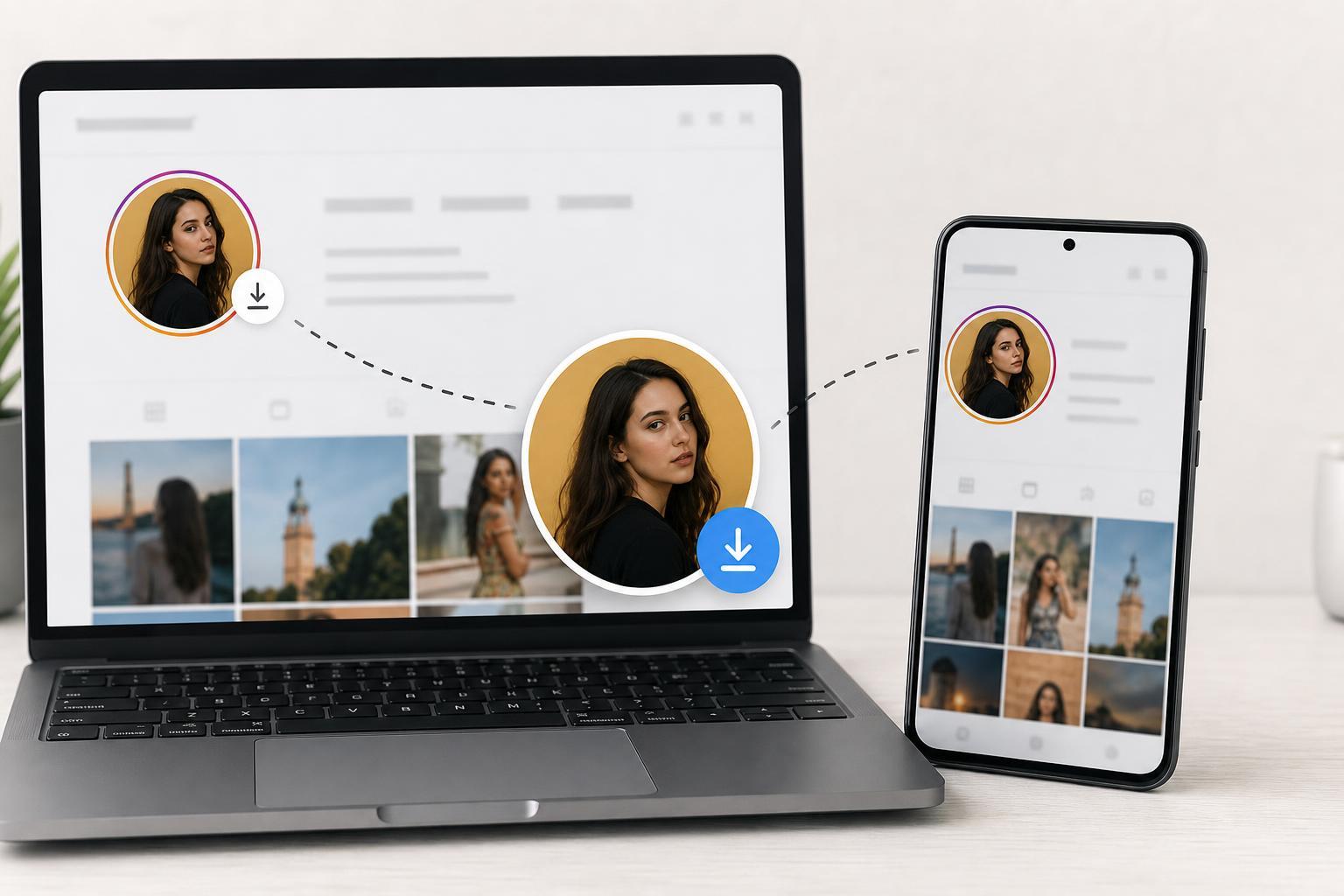
- Public profiles are usually easier to view and save.
- Private accounts may limit what you can see without following them.
- Some third-party tools can work, but they may show ads or request unnecessary permissions.
- Always avoid logging into suspicious websites with your Instagram password.
Method 1: Use a Browser on PC
On a PC, the easiest approach is often to open the profile in a web browser and use a site feature or browser tool that displays the profile photo at a larger size.
- Open Instagram in a browser and go to the profile you want.
- Check whether the profile picture appears larger when you click the avatar or open the profile page directly.
- If the image opens in a larger view, right-click it and choose Save image as if that option is available.
- If Instagram does not offer a direct save option, use the browser's page view or a trusted profile-picture viewer tool to display the image at a larger size, then save it from there.
Some browsers also let you inspect or open the image in a new tab, which can make saving easier. If the image is shown as a separate file in a new tab, you can usually save it normally.
Method 2: Use Instagram Profile Picture Viewer Sites
Several websites can display a larger version of a public Instagram profile picture. These tools are convenient when you only want the avatar and do not need to sign into Instagram.
- Copy the Instagram profile link or username.
- Open a profile-picture viewer website in your browser.
- Paste the username or profile URL into the site.
- Open the larger profile image that the site displays.
- Save the image to your PC or download it from the site if that option is offered.
Method 3: Save an Instagram Profile Picture on Android
On Android, you can use the Instagram app, a mobile browser, or a trusted viewer site. The process is similar, but saving is usually easier from the browser than from the app.
- Open the profile in Chrome or another browser.
- Use a profile-picture viewer website or open the profile image in a larger view if the browser allows it.
- Long-press the image when it is displayed clearly.
- Choose Download image or Save image, depending on your browser.
- Find the file in your Downloads folder or Gallery app.
If the image is not long-pressable, the site may be loading it inside a frame or as a background element. In that case, try another browser or another viewer site that shows the image directly.
Method 4: Take a Screenshot When Nothing Else Works
If the profile picture is only available in a small preview and no direct download method works, a screenshot may be the simplest fallback.
- Open the profile picture at the largest size you can.
- Use your device's screenshot shortcut.
- Crop the screenshot to just the profile image.
- Save the cropped version for personal use.
Why Some Profile Pictures Are Hard to Download
Instagram limits how profile images are shown, and the app often prioritizes speed and privacy over giving access to the original file. That means some accounts will show only a compressed version, especially if the picture is small or has already been reduced by Instagram.
- The account is private and the image preview is restricted.
- Instagram only provides a compressed avatar version.
- The viewer website is outdated or blocked.
- The browser is hiding the image behind scripts or overlays.
Which Method Should You Try First?
If you are on a PC, start with the browser method because it is the simplest and usually the cleanest. If that does not expose a larger image, try a browser-based viewer site. On Android, a mobile browser with a viewer site is often the easiest route. Use a screenshot only when you cannot access the image directly.
Keep Your Account Safe
Profile-picture download tools should never need your Instagram password just to show a public image. If a site asks you to log in for something this simple, treat that as a warning sign. Stick to tools that only require a username or profile URL, and close any page that feels suspicious or overloaded with ads.
If you want, I can also turn this into a shorter step-by-step version or add a section for private accounts and common errors.





