
If your Samsung Galaxy Watch refuses to connect to your phone, the problem is usually caused by a Bluetooth issue, a missing app permission, a pairing glitch, or a setup problem after an update or reset. The good news is that most connection issues can be fixed without replacing the watch or the phone.
This guide walks through four practical fixes, starting with the easiest checks and moving to more complete reset and re-pairing steps when needed.
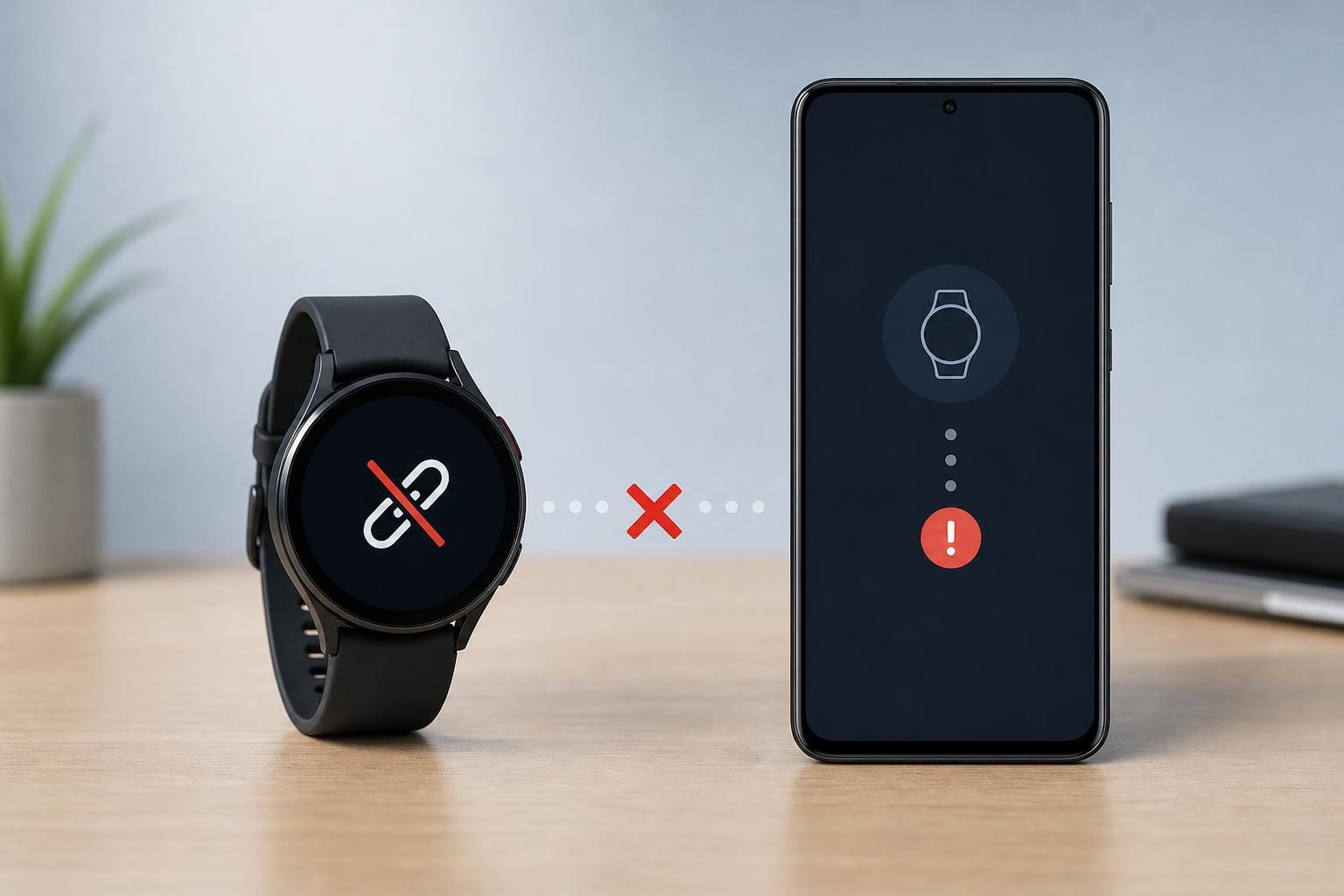
1. Check Bluetooth, Wi‑Fi, and Basic Connection Requirements
Before you dig into app settings, make sure the watch and phone are actually able to communicate. A Galaxy Watch depends on Bluetooth for the initial connection, and some features also rely on Wi‑Fi or mobile data after pairing.
- Turn Bluetooth on for your phone and make sure Airplane Mode is off.
- Keep the watch close to the phone during setup or reconnecting.
- If your watch has been paired before, check whether it is still connected to another phone.
- Make sure the watch battery is not critically low, since very low power can interrupt pairing.
- Confirm that your phone is compatible with your specific Galaxy Watch model and software version.
If the watch has already been paired with a different phone, it may need to be disconnected from that device first. In some cases, a watch that looks available in Bluetooth settings still will not pair properly until the old connection is cleared.
2. Repair the Watch Through the Galaxy Wearable App
For most Samsung Galaxy Watches, the best way to reconnect is through the Galaxy Wearable app rather than through the phone’s Bluetooth menu alone. The app handles the watch setup, permissions, software checks, and pairing process more reliably.
- Open the Galaxy Wearable app on your phone.
- If the watch is already listed, remove or disconnect it from the app.
- On the watch, open the pairing or reset screen if it is prompting you to connect.
- Start the pairing process again from Galaxy Wearable instead of pairing directly from Bluetooth settings.
- Follow the on-screen prompts until the app finishes setup and installs any required companion components.
If the watch was recently reset, the app may ask you to sign in again or restore a backup. Let the pairing process finish completely before checking notifications or app syncing, because the connection can appear incomplete until setup is done.
3. Update the App, Watch Software, and Phone Permissions
Outdated software or blocked permissions can stop the watch from connecting correctly, even when Bluetooth is turned on. The Galaxy Wearable app and the watch companion services need access to Bluetooth, nearby devices, location, and sometimes notifications to complete setup properly.
- Update the Galaxy Wearable app and any related Samsung watch plugin apps from the app store.
- Install pending phone updates if your device has not been updated recently.
- On the phone, review app permissions for Bluetooth, location, nearby devices, notifications, and background activity.
- If the watch is partially connected, open the Galaxy Wearable app and check for a watch software update.
- After updating, try pairing again if the connection is still unstable.
4. Remove the Pairing and Reset the Watch if Needed
If the connection is still broken, the pairing data may be corrupted. This is common after switching phones, restoring from backup, or repeatedly failing setup attempts. In that case, removing the old pairing and resetting the watch can give you a clean start.
- In Galaxy Wearable or Bluetooth settings, remove the watch from the phone.
- On the watch, open the reset option if you can access the settings menu.
- Factory reset the watch only if simpler pairing fixes have failed.
- After the reset, pair the watch again through Galaxy Wearable and complete all setup steps.
- Restore a backup only after the watch is successfully connected and stable.
If the watch connects after a reset, the problem was likely caused by corrupted pairing information rather than a hardware failure. If it still will not connect, the next things to check are the phone itself, the Galaxy Wearable app installation, and whether the watch is supported on that device.
How to Tell What Is Actually Causing the Problem
- The watch appears in Bluetooth settings but not in Galaxy Wearable: usually an app or pairing issue.
- The watch never appears during scanning: usually permissions, Bluetooth, or compatibility.
- The watch pairs but disconnects quickly: often battery, software, or a corrupted connection profile.
- The watch worked before and stopped after a phone change: usually the old pairing must be removed first.
- The watch will not connect after a reset: possible app, firmware, or compatibility problem.
When to Check for a Deeper Compatibility Issue
If none of the four fixes work, the phone may not fully support the watch model you are trying to use, or a required Samsung component may be missing from the phone. This is more likely if the watch is older, the phone is from a different ecosystem, or the problem started after an operating system update.
- The phone can see the watch, but setup never completes.
- The Galaxy Wearable app keeps closing or refusing to install required add-ons.
- The watch pairs with one phone but not with another phone that should be compatible.
- Connection issues started immediately after a major phone update.
At that point, reinstalling the wearable app, updating the phone, and confirming model compatibility are the most useful next checks. If the watch still will not connect, the issue may need Samsung support or service attention.
What to Try First
If you want the shortest path to a fix, start with Bluetooth and compatibility checks, then reconnect through the Galaxy Wearable app, then update permissions and software, and finally reset the watch if the pairing data seems stuck. That sequence solves most Galaxy Watch connection problems without unnecessary steps.





