
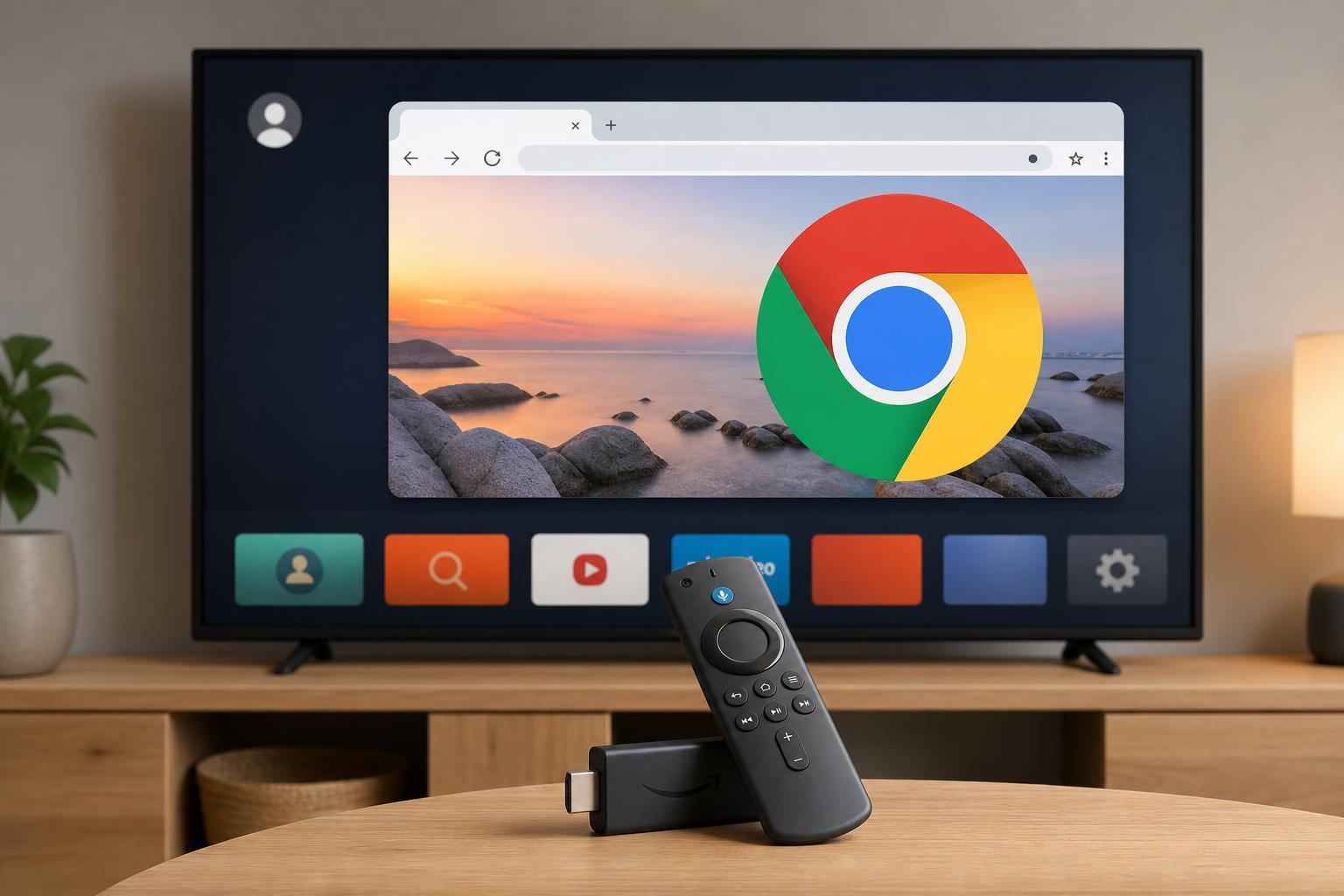
Google Chrome is not available as a normal app in the Amazon Appstore for Fire TV Stick, but that does not always mean you cannot use it. Depending on what you want to do, you can install Chrome indirectly, use a browser that works better with the Fire TV remote, or access Chrome from another device through casting or remote control tools.
The best method depends on whether you want full Chrome on the Fire TV Stick itself, or simply a way to visit websites on your TV with as little hassle as possible.
What You Need to Know Before You Start
Fire TV Stick devices are built to run apps from Amazon’s store, and many Android apps are not designed for TV navigation. Chrome is one of them. Even if you manage to install it, the browser interface is made for touchscreens and mouse input, not a TV remote.
Best Ways to Use Chrome on a Fire TV Stick
- Sideload Chrome’s APK if you specifically want Chrome on the Fire TV Stick itself.
- Use a Fire TV-compatible browser such as Silk if your goal is simply to browse the web.
- Cast or mirror Chrome from a phone, tablet, or computer if you want to view a webpage on the TV without using Chrome directly on the Fire TV Stick.
- Use a remote mouse app or Bluetooth mouse to make sideloaded Chrome easier to control.
Method 1: Sideload Google Chrome on Fire TV Stick
This is the closest option to running Chrome directly on your Fire TV Stick. It usually involves downloading Chrome’s Android APK file and installing it manually. The exact steps can vary slightly depending on your Fire TV software version.
- On the Fire TV Stick, open Settings.
- Go to My Fire TV or Device & Software, depending on your model.
- Open Developer Options.
- Turn on Apps from Unknown Sources for the app you will use to install the APK, such as Downloader or File Commander.
- Install a file-downloading app from the Amazon Appstore if you do not already have one.
- Use the app to download the Chrome APK from a trustworthy source.
- Open the downloaded file and follow the prompts to install it.
- After installation, go to Your Apps & Channels and look for Chrome or the sideloaded app launcher you used.
Make Sideloaded Chrome Easier to Use
Even after installation, Chrome can be difficult to navigate with the Fire TV remote alone. A Bluetooth mouse, wireless air mouse, or a remote-control app can make a big difference.
- A Bluetooth mouse helps you point and click through Chrome more naturally.
- A wireless keyboard makes searches and logins much easier.
- An air mouse combines pointer control with simple remote-style buttons.
- A remote mouse app can help if your phone and Fire TV are on the same network.
Method 2: Use Amazon Silk Instead
If your goal is to browse websites on the TV, Amazon Silk is usually the better choice. It is made for Fire TV, works with the remote, and is much easier to navigate than Chrome.
Silk is often the fastest way to open pages, search the web, read articles, or access simple web apps on a TV screen. It will not look or behave exactly like Chrome, but it is far more practical on Fire TV.
Method 3: Cast Chrome to Your Fire TV Stick
If you already use Chrome on a phone, tablet, or computer, you may not need to install it on the Fire TV Stick at all. You can cast or mirror the browser window to the TV instead.
- Open Chrome on your phone, tablet, or computer.
- Connect the sending device and the Fire TV Stick to the same Wi-Fi network.
- Use your device’s casting or screen-mirroring feature.
- Select the Fire TV Stick from the list of available devices.
- Open the webpage you want to view and display it on the TV.
If Chrome Installs but Will Not Open Correctly
A sideloaded app can fail for a few reasons, especially on Fire TV hardware. Common problems include an incompatible APK version, unsupported processor architecture, a file that was meant for phones only, or an app that needs Google services not available on Fire TV.
- The APK may be for the wrong Android version.
- The file may be built for a different processor type.
- The browser may expect Google Play services or another dependency.
- The app may install but not display properly on a TV interface.
- The app may open, then crash when loading certain pages.
If that happens, try a different APK version from the same trusted source, or switch to Silk if your main goal is general browsing.
Safer and More Practical Alternatives
- Amazon Silk for full Fire TV remote support
- Casting Chrome from another device
- Using a Bluetooth keyboard and mouse with a sideloaded browser
- Remote desktop or browser mirroring from a PC or Mac
Which Option Should You Choose?
- Choose sideloaded Chrome if you specifically need Chrome features or Chrome-only web behavior.
- Choose Silk if you want the easiest normal browsing experience on Fire TV.
- Choose casting if you already use Chrome on another device and only need it on the TV occasionally.
- Choose a mouse or keyboard accessory if you plan to browse often on the Fire TV Stick.
In practice, Chrome on Fire TV Stick is possible, but it is rarely the most comfortable solution. For most people, a Fire TV-friendly browser or casting is the better experience.





