
Samsung Smart Switch is one of the easiest ways to move your data from one Galaxy phone to another. It can transfer a lot of your personal content, and it also gives you a practical backup option if you want a copy of your phone data before upgrading or resetting.
This guide explains how Smart Switch works, what it can move, and how to use it on a Galaxy phone through cable, wireless, or computer backup methods.
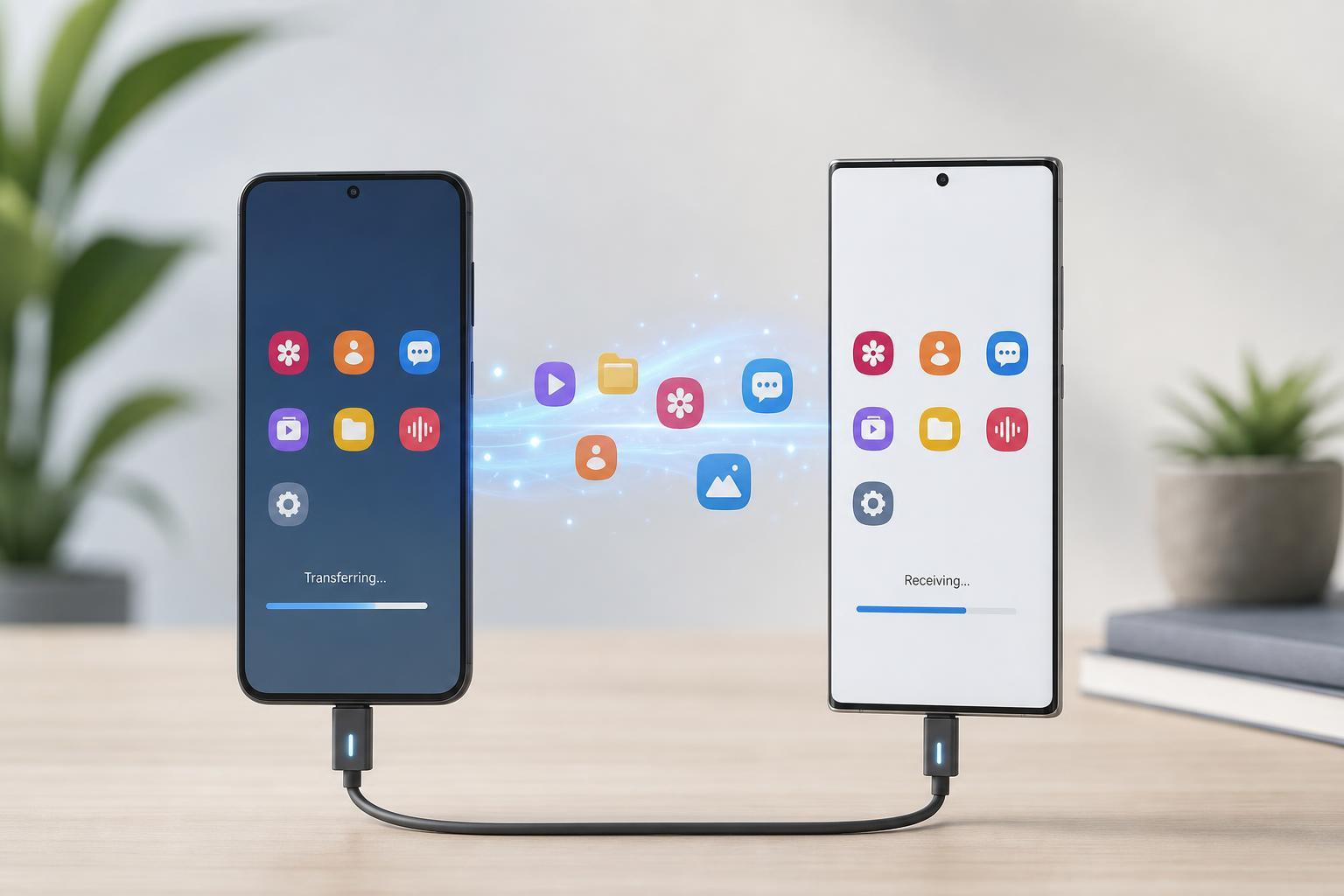
What Samsung Smart Switch Can Transfer
Smart Switch is designed to move the information most people care about when setting up a new Galaxy phone. The exact items available can depend on the source device, destination device, and connection method, but it commonly handles a large part of your everyday data.
- Contacts, call logs, messages, and calendar data
- Photos, videos, audio files, documents, and downloaded files
- Some apps and app data
- Home screen layout and certain device settings
- Notes, alarms, Wi-Fi details, and other supported settings
Before You Start
A little preparation can prevent transfer problems. Make sure both phones have enough battery and enough free storage space for the data you want to move.
- Charge both devices before starting
- Connect both phones to Wi-Fi if you plan to transfer wirelessly
- Update Smart Switch if prompted
- Keep both phones unlocked during the transfer
- Check that the source phone contains the data you want to move
How to Transfer Data from One Galaxy Phone to Another
You can move data directly from one phone to another with Smart Switch. This is the most common option when upgrading to a new Galaxy device.
- Open Smart Switch on both phones. If it is not already installed, download it from the Galaxy Store or Google Play.
- On the new phone, choose Send data or Receive data when prompted, then select Galaxy/Android as the source if asked.
- Choose whether you want to connect wirelessly or by cable.
- On the old phone, approve the connection request.
- Select the data types you want to transfer.
- Tap Transfer and wait for the process to finish without closing the app or disconnecting the devices.
When the transfer is complete, Smart Switch usually shows a summary of what was moved. Check important items such as photos, contacts, messages, and notes before you erase or reset the old phone.
How to Back Up a Galaxy Phone with Smart Switch
Smart Switch can also create a backup of your phone on a computer. This is useful if you want a copy of your data before changing phones, performing a factory reset, or troubleshooting a major software problem.
- Install Samsung Smart Switch on your Windows PC or Mac.
- Connect your Galaxy phone to the computer with a USB cable.
- Allow the computer to access the phone if your device asks for permission.
- Open Smart Switch on the computer and wait for it to recognize your phone.
- Click Backup and let the process finish.
- Keep the phone connected until Smart Switch confirms the backup is complete.
If you later connect a new Galaxy phone to the same computer, you can use Smart Switch to restore the backup to the new device.
How to Restore a Smart Switch Backup
If you already made a Smart Switch backup, restoring it to a Galaxy phone is straightforward. This is useful when setting up a replacement phone or recovering data after a reset.
- Install and open Smart Switch on the new Galaxy phone or on your computer if you created the backup there.
- Connect the target phone if you are restoring from a computer backup.
- Choose Restore or Receive data when prompted.
- Select the backup file or source device you want to use.
- Pick the data categories you want to restore.
- Start the restore and wait until Smart Switch finishes.
Wireless Transfer vs Cable Transfer
Smart Switch supports more than one transfer method, and the best one depends on your situation.
- Wireless transfer: convenient and cable-free, but it can be slower for large transfers
- Cable transfer: usually faster and more stable, especially for large photo and video libraries
- Computer backup and restore: useful for keeping a separate copy of your data and moving data in stages
What to Do If Smart Switch Does Not Work Properly
If Smart Switch does not detect a device, stops partway through, or seems to transfer only some data, the issue is often caused by the connection method, permissions, or storage limits.
- Check that both phones are unlocked and close together
- Try a different USB cable or adapter if using a wired transfer
- Make sure the source phone has enough storage space available for backup or transfer operations
- Confirm that Smart Switch has the required permissions
- Close other apps that may interfere with the connection
- Try restarting the transfer from the beginning if it stalls
How to Decide Which Method to Use
If you are moving to a new Galaxy phone, direct phone-to-phone transfer is usually the quickest option. If you want a backup before a reset or want an extra copy stored on a computer, use the PC or Mac backup method.
- Use wireless transfer for convenience
- Use cable transfer for speed and reliability
- Use computer backup when you want a safer archive of your phone data
- Use restore when setting up a replacement phone or recovering after a reset
A Few Practical Tips
Smart Switch is a simple tool, but it works best when you treat it as part of the setup process instead of an afterthought. Planning the transfer, checking battery and storage, and choosing the right connection method usually leads to a smoother move.





