
WhatsApp compresses videos to save data and speed up sending, but that can leave your clips looking softer, blurrier, or more pixelated than you expected. If you want your videos to look as good as possible on iPhone or Android, there are a few reliable ways to reduce quality loss.
The best method depends on whether you want to send the video as a normal WhatsApp video, attach it as a document, or upload it in a higher-quality format before sharing it.
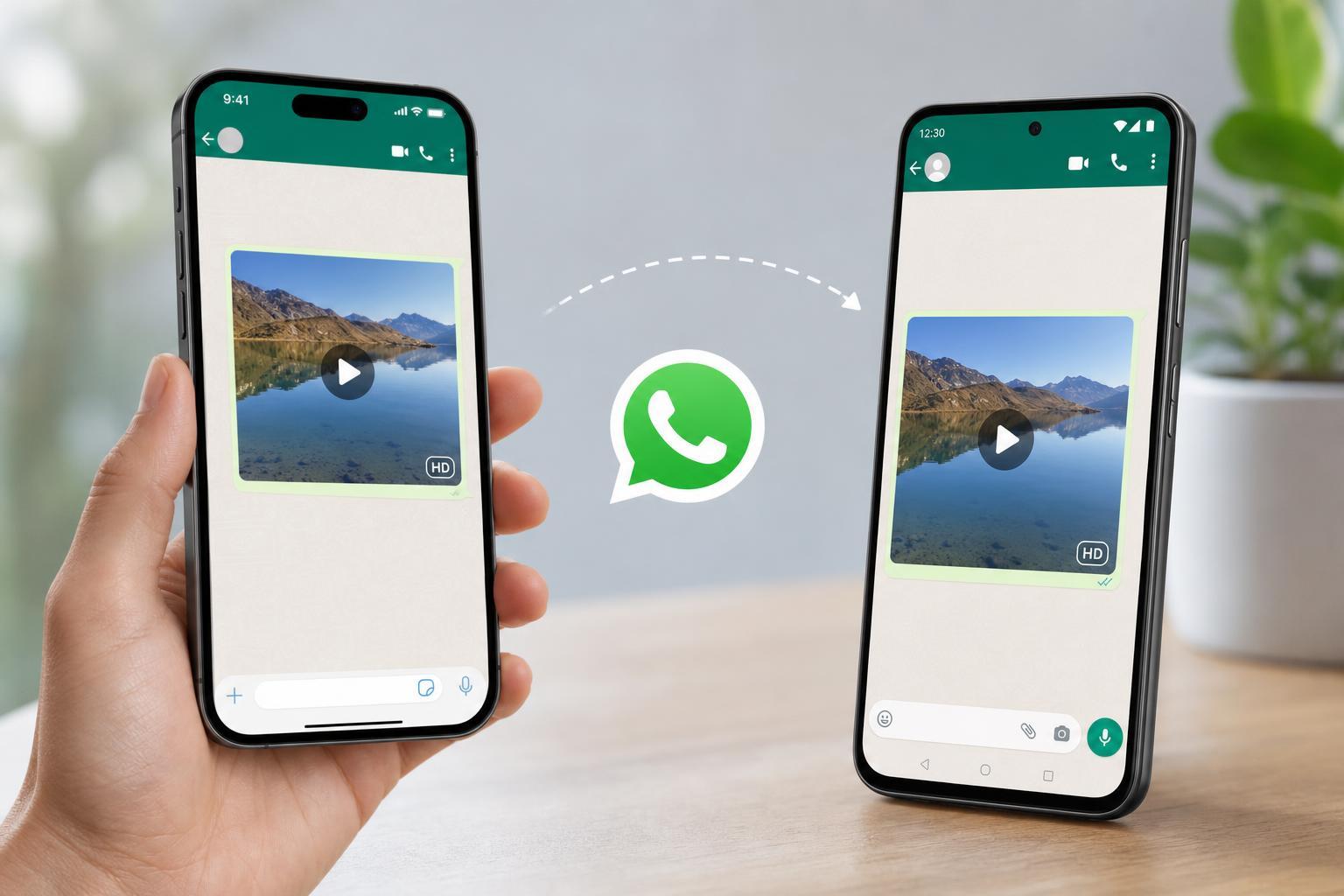
What Happens to Videos Sent on WhatsApp
When you send a video the usual way in WhatsApp, the app often compresses it. That means it reduces the file size so the video sends faster and uses less data, but the trade-off is lower image quality.
Compression can affect sharpness, fine detail, text in the video, and how smooth the motion looks. If you recorded in 4K or high resolution, WhatsApp may still shrink the file unless you choose a method that preserves more of the original quality.
Use WhatsApp’s Higher Quality Video Option
WhatsApp now includes a built-in option for higher-quality video sharing on many versions of the app. This is the easiest place to start because it lets you send a video without changing the file yourself first.
- Open the chat in WhatsApp.
- Tap the plus button on iPhone or the paperclip icon on Android.
- Choose Video or Gallery/Photos and select your clip.
- Look for a quality option before sending, such as HD or a high-quality setting.
- Select the higher-quality option and then send the video.
Send the Video as a Document Instead of a Video
If you want to avoid the most aggressive compression, sending the file as a document is often the best workaround. WhatsApp treats document uploads differently from regular videos, so the original file is more likely to stay intact.
- Save the video to your iPhone or Android device first.
- Open the WhatsApp chat.
- Tap the attachment button.
- Choose Document rather than Gallery or Video.
- Browse to the video file and select it.
- Send it as a document.
Adjust the Video Before You Send It
If you are recording or exporting the video yourself, the settings you choose before sending can make a big difference. A clean export gives WhatsApp less work to do and can help the final result look better.
- Export at 1080p if you want a good balance between quality and file size.
- Use 4K only if the extra detail is important and the file size is acceptable.
- Keep the frame rate consistent, especially for gameplay or action clips.
- Avoid re-saving the same video multiple times, since each export can reduce quality.
- Use a modern format supported by your phone, such as MP4 with H.264 or H.265 when available.
iPhone: Best Ways to Keep Video Quality High
On iPhone, the Photos app makes it easy to share videos directly, but that route may still lead to compression in WhatsApp. If quality matters, saving the file and attaching it as a document is often the safer option.
- Open the video in Photos or Files.
- If needed, save or export the file to the Files app.
- In WhatsApp, open the chat and tap the attachment button.
- Choose Document and select the video from Files.
- Send the file.
If you are using AirDrop, iCloud Drive, or another file app to move the video around first, make sure you are sending the original file and not a smaller preview version.
Android: Best Ways to Keep Video Quality High
On Android, the process is similar. If you send the video from the gallery picker, WhatsApp may compress it more heavily than if you attach the file directly from storage.
- Open your file manager or gallery app and locate the video.
- Make sure the full-size file is saved on the device.
- In WhatsApp, open the chat and tap the attachment icon.
- Choose Document instead of Gallery.
- Pick the video file and send it.
If your phone offers a built-in sharing menu, check whether it gives you a file or document option. The exact steps vary by manufacturer, but the goal is the same: send the original file, not a recompressed copy.
Other Ways to Share Better Video Quality
If WhatsApp still does not give you the quality you want, there are a few practical alternatives:
- Upload the video to cloud storage and share the link in WhatsApp.
- Use a file transfer app if the recipient needs the original file.
- Trim the clip before sending so the smaller file keeps more detail.
- Send only the key part of the video instead of the full recording.
How to Check Whether the Video Was Compressed Too Much
After sending, compare the video on the recipient’s device with the original on your phone. Look for blurry text, blocky areas in dark scenes, or soft edges around faces and objects.
- Text and subtitles look fuzzy or hard to read.
- Fast motion appears smeared or choppy.
- Fine details such as trees, hair, or game graphics look smeared.
- The file size is much smaller than the original.
- Colors look banded or rough in darker scenes.
Which Method Should You Use?
- Use WhatsApp’s high-quality option first if it is available.
- Use Document for the best chance of preserving original quality.
- Use a cloud link if the video is very large or must remain untouched.
- Use a careful export setting if you are creating the video yourself before sharing.
A Simple Rule to Follow
If you want the easiest answer: send normal short clips with WhatsApp’s high-quality option when available, but send important videos as documents when quality matters most. That approach works well on both iPhone and Android and avoids the worst compression issues.





