
If you want files from your Android phone to appear in OneDrive without copying them manually, the best approach is to use OneDrive’s built-in backup features and, where available, automatic photo or camera upload options. Android does not offer full native folder sync to OneDrive for every folder, so the exact setup depends on what you want to keep up to date.
This guide explains what OneDrive can sync automatically on Android, how to enable the available backup options, and what to do if you need a specific folder to stay mirrored in the cloud.
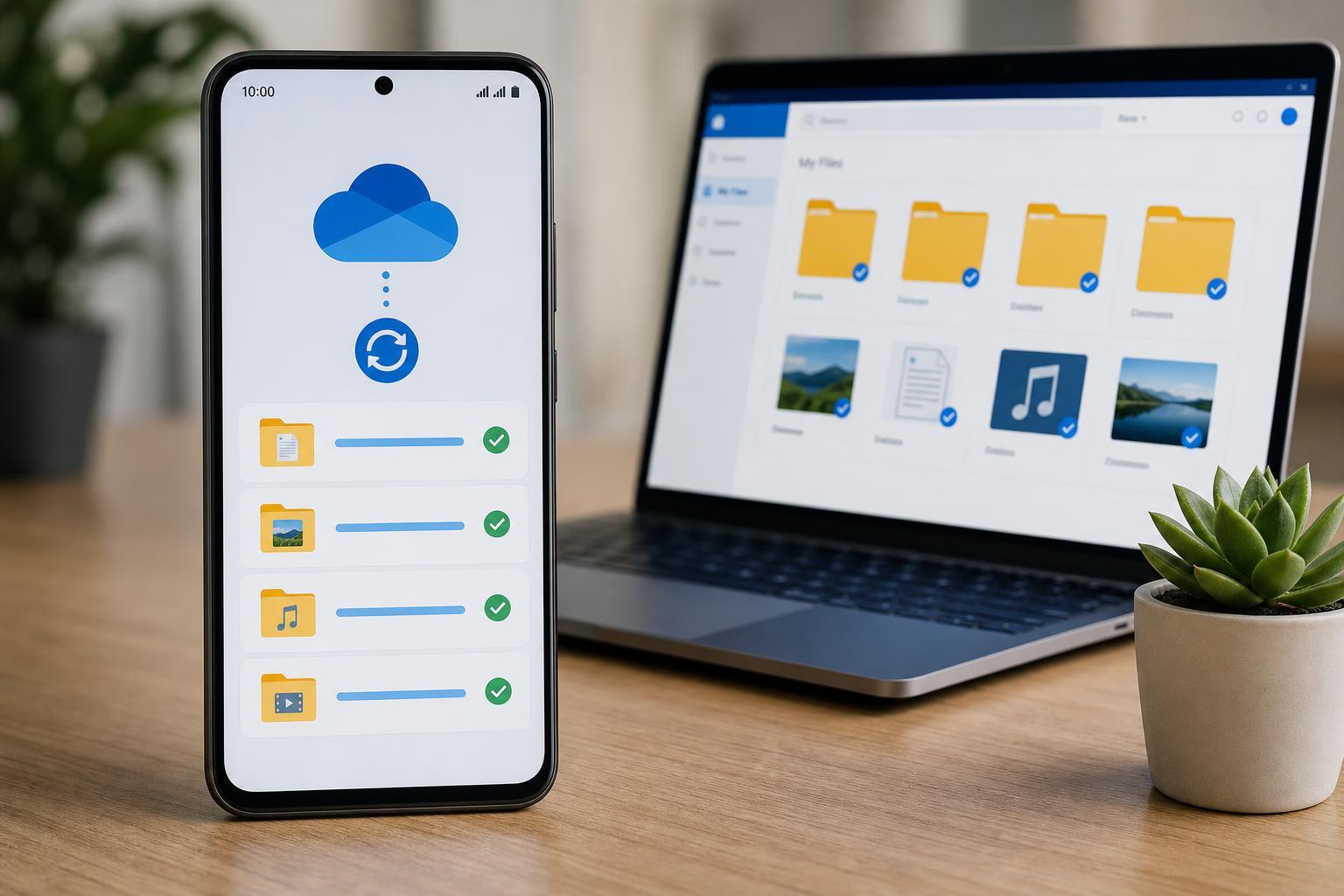
What OneDrive Can and Cannot Sync on Android
On Android, OneDrive is best at automatically backing up photos, videos, and some app-related files through its own features. It does not work like a full two-way folder sync tool for every folder on your phone in the same way a desktop sync client might.
- Camera photos and videos can usually be uploaded automatically.
- Selected files can be uploaded manually from the OneDrive app or Android share menu.
- Some Samsung devices include tighter OneDrive integration with Gallery or related apps.
- General folders such as Downloads, Documents, or app-specific folders are not always available for true automatic continuous sync without third-party tools.
Turn On Camera Upload in the OneDrive App
For most users, the most useful automatic sync feature is camera upload. This keeps photos and videos from your Android device backed up to OneDrive without needing to upload them one by one.
- Install and open the OneDrive app on your Android phone.
- Sign in with the Microsoft account you want to use for backup.
- Tap your profile icon or the Me tab, then open Settings.
- Look for Camera upload or Camera backup.
- Turn it on and choose whether to include videos as well as photos.
- Review any prompts about battery optimization, permissions, or Wi-Fi-only uploading.
Give OneDrive the Permissions It Needs
If uploads do not start, the app may be blocked from accessing your files, photos, or background activity. Android can be strict about permissions and battery limits.
- Open Android Settings.
- Go to Apps and find OneDrive.
- Open Permissions and allow access to photos, videos, or files if requested.
- Check Battery settings and make sure OneDrive is not being heavily restricted.
- If your phone has a separate auto-start or background activity control, allow OneDrive to run in the background.
How to Back Up a Specific Folder on Android
If your goal is to sync a folder such as Downloads, Screenshots, or a folder used by a scanner or messaging app, the OneDrive app itself may not provide a direct automatic sync option. In that case, you have two realistic choices: upload the files manually or use a folder-sync app that supports OneDrive.
- Use the OneDrive app to upload files manually from the folder when needed.
- Use a third-party Android folder sync app that can watch a local folder and upload changes to OneDrive.
- On some devices, check whether your phone maker provides its own cloud integration with OneDrive for gallery or file backup.
Use a Third-Party App for True Folder Sync
If you really need automatic syncing for a non-camera folder, a dedicated sync app is often the most practical option. These apps can monitor a chosen folder on Android and copy new or changed files to OneDrive.
- Choose an app that explicitly supports OneDrive and local folder monitoring.
- Set the source folder carefully so you do not sync more than you intend to.
- Decide whether you want one-way backup or two-way sync before enabling it.
- Test with a small folder first to confirm files appear correctly in OneDrive.
- Check whether the app needs extra permissions for background operation or battery optimization exemptions.
Check Whether Sync Is Working
After setup, confirm that the folder or camera uploads are actually reaching OneDrive. A successful setup should show recent uploads in the OneDrive app and in your OneDrive cloud storage from another device or web browser.
- Open OneDrive and look for recent uploads or backup status.
- Use the OneDrive website on another device to verify that the files are present.
- Take a test photo or save a test file to the synced folder.
- Wait a few minutes, then check whether it appears in OneDrive.
- If it does not appear, review permissions, network access, and battery restrictions.
Common Reasons Android Sync Fails
When OneDrive seems to be set up correctly but files still do not appear, the problem is usually one of a few common issues.
- The app does not have file or photo permissions.
- Battery optimization is stopping background uploads.
- The phone is set to restrict background data.
- The folder you want is not supported by the built-in OneDrive app.
- The device is offline or OneDrive is waiting for Wi-Fi.
- The Microsoft account signed in on the phone is not the one you expected.
If You Only Need Files in OneDrive Once
Not every folder needs true continuous sync. If you only want to move a batch of files from Android to OneDrive one time, the simplest method is often to select the files in your file manager or gallery and use Share or Upload to send them to OneDrive manually.
- Good for one-time transfers.
- Avoids the complexity of sync rules and background permissions.
- Useful for documents, screenshots, downloads, and exported files.
- Helps prevent accidental repeated uploads or duplicates.
When to Use Samsung or Device-Specific Integration
Some Android phones, especially Samsung devices, offer deeper OneDrive integration in the Gallery or related Microsoft features. If your phone includes that option, it may be easier than setting up a separate sync workflow.
A Practical Way to Choose the Right Setup
If you are trying to decide how to set Android folders to auto-sync with OneDrive, use this simple rule: camera rolls and media backups are best handled through OneDrive’s built-in tools, while general folders usually need manual uploads or a third-party sync app.
- Use OneDrive camera upload for photos and videos.
- Use manual upload for occasional file transfers.
- Use a third-party sync app only when you need a specific folder backed up automatically.
- Check permissions and battery settings whenever uploads stop unexpectedly.
What This Means for Android Users
The short version is that OneDrive on Android is excellent for automatic photo and video backup, but it is not a universal folder-sync tool by default. Once you know that limitation, it becomes much easier to choose the right method for the folder you want to protect.
For most people, enabling camera upload and verifying permissions is enough. If you need more control, a dedicated sync app can fill the gap for folders like Downloads or Documents.





