
WhatsApp usually compresses photos and videos to make them faster to send, but that can reduce detail and sharpness. If you want your images and clips to look better on the other end, WhatsApp now gives you a few ways to send them in higher quality.
In this guide, you’ll learn how to send HD photos and videos in WhatsApp, when the HD option is available, and what to do if you want the best possible quality for a file.
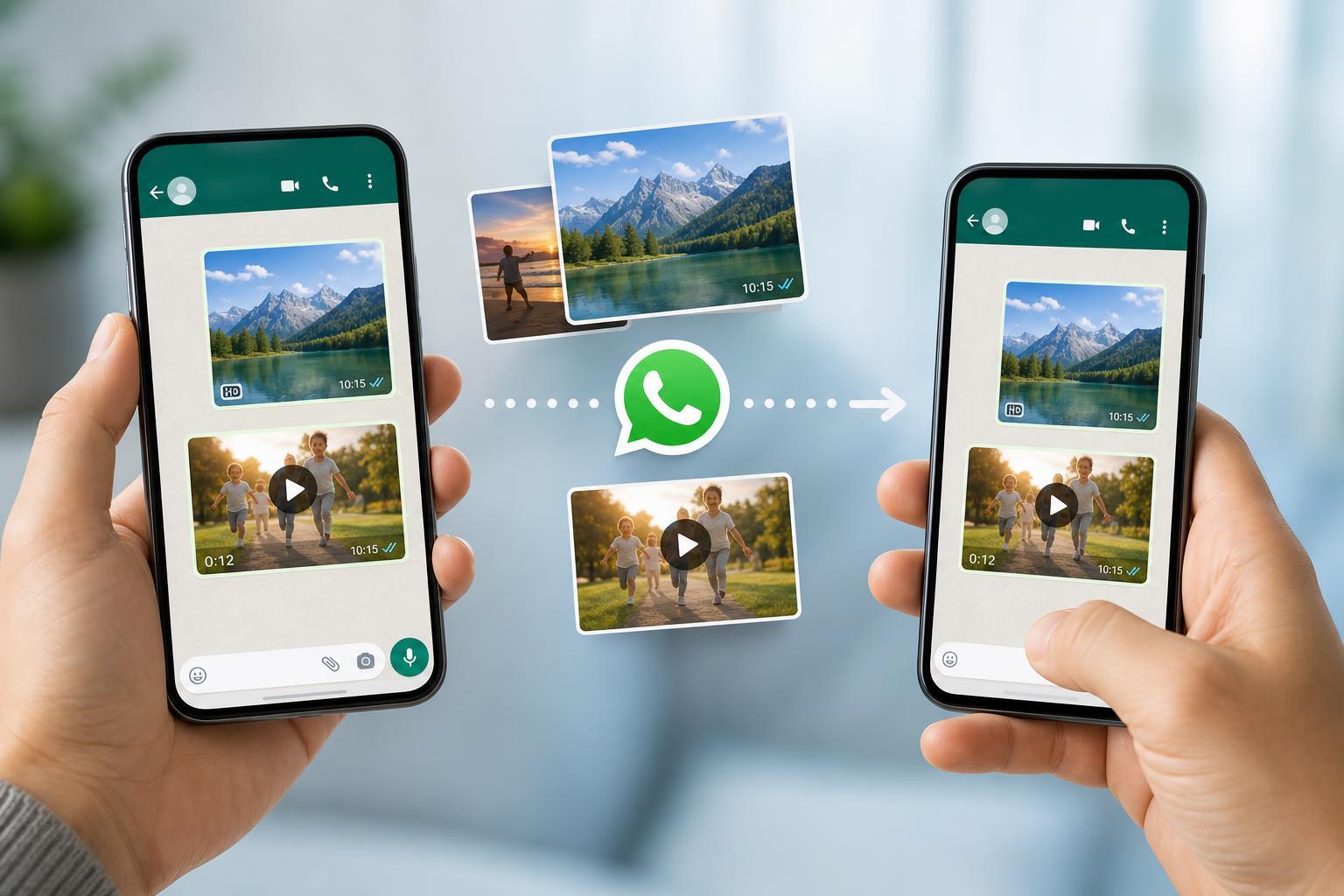
Send an HD Photo in WhatsApp
- Open the chat where you want to send the photo.
- Tap the attach button or camera/gallery icon, then choose the photo.
- After selecting the image, look for the HD option near the top of the editing screen.
- Tap HD and choose the higher-quality option if prompted.
- Send the photo as usual.
When HD is available, WhatsApp keeps more detail than the standard compressed version. This is useful for clearer screenshots, travel photos, product photos, and anything where sharpness matters.
Send a Higher-Quality Video in WhatsApp
- Open the chat and tap the attach button.
- Select the video you want to share.
- If WhatsApp offers an HD option or quality selector, choose the higher-quality setting before sending.
- Send the video once the quality choice is set.
Video quality options can vary depending on your app version, phone, and the length or size of the clip. If you do not see an HD option for video, WhatsApp may be using its default compression for that file.
Use Document Mode for the Best Quality
If preserving quality matters more than convenience, send the file as a document instead of as a normal photo or video. This is often the best way to avoid WhatsApp’s image and video compression.
- Tap the attachment icon in the chat.
- Choose Document instead of Gallery or Photos.
- Browse to the photo or video file on your device.
- Select the file and send it.
Why WhatsApp Reduces Quality by Default
WhatsApp compresses media so it uploads faster, uses less storage, and sends more reliably on slower mobile connections. That tradeoff is convenient for casual sharing, but it can soften details, reduce text clarity in screenshots, and make videos look less sharp.
- Faster uploads and downloads
- Lower data usage
- Smaller storage impact
- Better performance on slower connections
When You May Not See the HD Option
If HD is not appearing, the most likely reasons are that your WhatsApp version is outdated, the feature has not rolled out to your device yet, or the file type does not support the option in the way you expect.
- Update WhatsApp from the App Store or Google Play
- Check whether the file is a photo or supported video type
- Try another image to see whether the HD button appears
- Make sure you are not already in a mode that limits quality, such as some camera-sharing flows
Which Method Should You Use?
- Use HD for everyday sharing when you want better quality without extra steps.
- Use document mode when quality matters most and you want the original file preserved.
- Use normal sending when speed and convenience matter more than image detail.
For most people, HD mode is the easiest balance between convenience and quality. For important photos and videos, document sharing is usually the safer choice if you want to avoid visible compression.





