
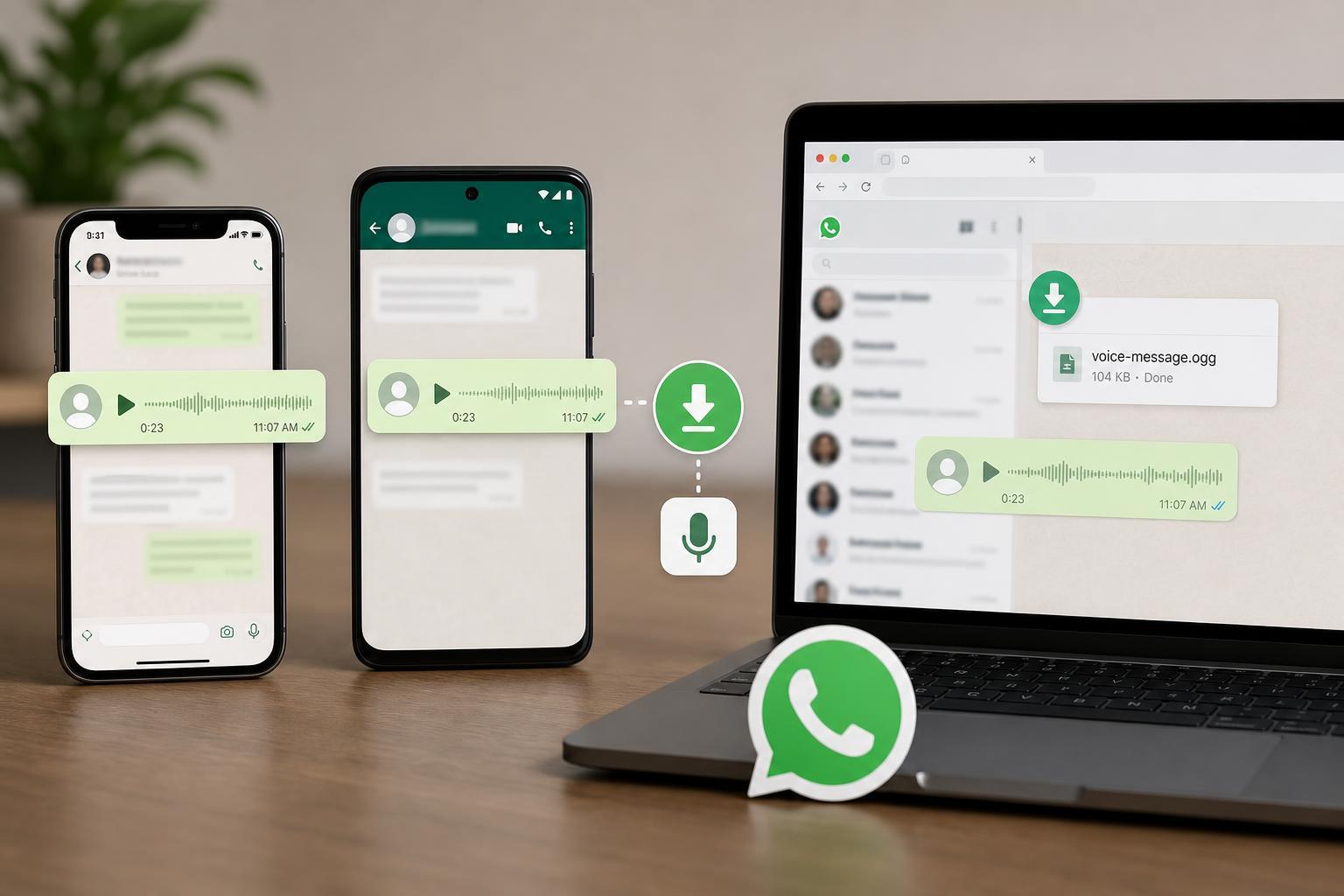
WhatsApp audio messages are easy to listen to, but saving them can be less obvious than saving a photo or document. The exact method depends on whether you are using an iPhone, Android phone, or WhatsApp Web, and in some cases you may need to use the share, export, or file manager options built into your device.
This guide explains the practical ways to save WhatsApp audio so you can keep important voice notes, move them to another app, or back them up for later use.
What Counts as “Saving” WhatsApp Audio?
Before you start, it helps to know that “saving” can mean a few different things. You may want to keep the audio inside WhatsApp for later, export it to your phone’s storage, send it to another app, or store it on a computer.
- Keep the message in the chat for later playback
- Export the audio as a file to Files, Downloads, or another folder
- Share the audio to Mail, Notes, Drive, or a cloud app
- Save the message from WhatsApp Web to your computer
How to Save WhatsApp Audio on iPhone
On iPhone, WhatsApp voice messages are usually easiest to save by using the Share option from the message itself. This lets you move the audio into Files, Mail, Notes, cloud storage, or another app that can keep a copy.
- Open WhatsApp and go to the chat that contains the audio message.
- Press and hold the voice message.
- Tap Share from the menu that appears.
- Choose where you want to save or send it, such as Files, Mail, Notes, or a cloud storage app.
- Follow the prompts to complete the save or export.
If you want to store the file locally on the iPhone, saving to the Files app is usually the cleanest option. From there, you can move it into a folder on iCloud Drive or On My iPhone.
How to Save WhatsApp Audio on Android
On Android, you can often save or export a WhatsApp audio message by sharing it to a file manager, cloud app, email, or another app that accepts audio files.
- Open WhatsApp and open the conversation containing the audio message.
- Press and hold the voice message.
- Tap the Share icon or the three-dot menu, depending on your version of WhatsApp.
- Choose a destination such as Files, Drive, Gmail, or another app.
- Save or send the audio file to finish exporting it.
If your device gives you access to WhatsApp media folders through a file manager, the audio may also be available in local storage. This can be useful if you want to copy the file manually to another folder or SD card.
How to Save WhatsApp Audio on WhatsApp Web
WhatsApp Web is useful when you want to save an audio file directly to your computer. In many cases, the simplest approach is to open the message and use your browser’s download or save options if WhatsApp makes the file available that way.
- Open WhatsApp Web in your browser and sign in.
- Open the chat containing the audio message.
- Click the audio message or open its options if available.
- Look for a download, save, or forward option.
- If the file opens in the browser, use the browser’s download control or right-click save option where applicable.
If you only need the audio on your computer once, downloading it through WhatsApp Web is often faster than transferring it from your phone.
If You Can’t Find the Save Option
Some audio messages do not show an obvious save button. That usually means the best method is to use the Share option or export the message through another app instead of looking for a direct download button.
- Try long-pressing the audio message on mobile
- Open the message menu and look for Share, Forward, or Export
- Use Files on iPhone or a file manager on Android
- On a computer, try opening the message in WhatsApp Web and check for download controls
- If the audio is important, send it to yourself through Mail, Notes, Drive, or a similar app
Best Places to Save Important Voice Messages
If the audio matters and you do not want to lose it, save it somewhere that is easy to back up and search later.
- iPhone Files app with iCloud Drive
- Google Drive or OneDrive
- Email to yourself for a quick backup
- Notes app for short-term access
- A dedicated folder on your computer
Useful Things to Remember
- Voice messages can be harder to manage than photos because they are often stored as chat attachments rather than visible media files.
- If you delete the original message in WhatsApp, you may lose the easiest way to access the audio unless you saved a copy first.
- Cloud storage is usually safer than keeping the only copy on one phone.
- If the audio is sensitive, be careful about sending it to email or cloud apps that other people can access.
Which Method Should You Use?
If you are on an iPhone or Android phone, the Share option is usually the best first choice. It is the most reliable way to move the audio into Files, Drive, email, or another storage app. If you are on WhatsApp Web, try the browser or message download controls to save the file to your computer.
For most people, the easiest workflow is simple: save the audio once, then copy it into a backup location so you are not relying on a single chat message to keep it safe.





