
WhatsApp makes it easy to send stickers, but it can also become cluttered with packs you no longer use. Depending on what you want to remove, you may need to delete a sticker pack, clear recent stickers, or remove a sticker you accidentally added to favorites.
This guide explains the different ways to remove stickers from WhatsApp on Android and iPhone, and shows you how to keep your sticker tray organized.
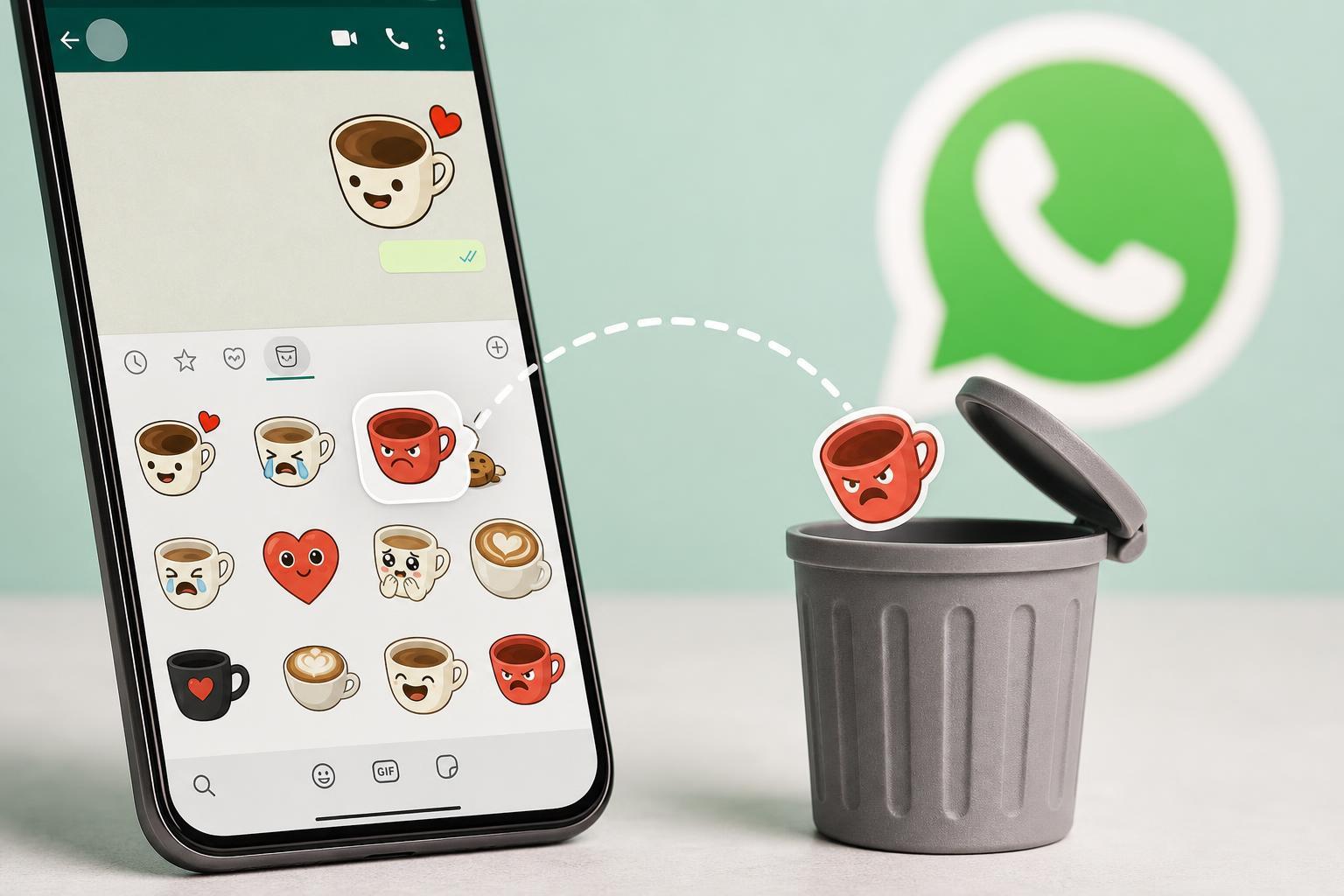
What You Can Actually Remove in WhatsApp
Before you start, it helps to know that WhatsApp treats stickers in a few different ways. The steps you use depend on whether the sticker is part of a pack, a recently used sticker, or one you saved as a favorite.
- Delete a sticker pack you installed from WhatsApp's sticker store
- Remove a sticker from your favorites
- Clear items from the recent stickers section
- Delete sticker packs added through a third-party app
Remove a Sticker Pack in WhatsApp
If you added a sticker pack from the built-in WhatsApp sticker store, you can remove the entire pack from the sticker picker.
- Open WhatsApp and go to any chat.
- Tap the emoji icon next to the message box.
- Tap the sticker icon.
- Swipe to the sticker pack you want to remove.
- Tap the three dots or open the pack’s details, depending on your version of WhatsApp.
- Choose Remove or Delete.
Remove a Sticker From Favorites
If you accidentally starred a sticker, you can take it out of your favorites list so it no longer appears there.
- Open the sticker panel in any chat.
- Go to the Favorites section.
- Press and hold the sticker you want to remove.
- Tap Remove from favorites or the trash/delete option, if shown.
Clear Recent Stickers
WhatsApp keeps a recent stickers section to make reused stickers easy to find. If a sticker keeps showing up there, it may simply be in your recent history.
- Open the sticker panel.
- Look for the Recents section, usually marked by a clock icon.
- Press and hold the sticker you want to hide from that list.
- Choose Remove or Delete if your version offers it.
Delete Third-Party Sticker Packs
If you installed stickers through a separate app, the pack may still remain available inside WhatsApp until you remove it from the source app or uninstall the sticker app itself.
- Open the sticker app you used to create or download the pack.
- Find the sticker pack inside the app.
- Delete or remove the pack there.
- If needed, uninstall the sticker app from your phone.
How to Keep WhatsApp Stickers Organized
If your sticker list keeps getting messy, a few habits can make it easier to manage.
- Use favorites only for stickers you send often
- Remove packs you never use
- Avoid installing too many third-party sticker packs
- Check recents before assuming a sticker is permanently stored
- Update WhatsApp if sticker options look different from this guide
If the Remove Option Is Missing
Sometimes the remove or delete option does not appear. This usually means one of three things: the sticker is only in Recents, the pack is built into WhatsApp differently on your device, or the sticker came from an app that must be removed separately.
- Try opening the pack’s details from the sticker tray
- Check whether the sticker is in Favorites or Recents
- Look in the original sticker app if you installed one
- Update WhatsApp to the latest version
What to Do If You Only Want to Hide a Sticker
If you do not want to delete the whole pack, the easiest option is usually to stop using the sticker. Over time, WhatsApp's recent sticker list changes as you send new stickers, so old ones become less visible.
Quick Summary
To remove stickers from WhatsApp, first identify whether the sticker is part of a pack, a favorite, a recent item, or a third-party sticker pack. Then remove it from the correct place. In many cases, you can delete the whole pack, but not a single sticker inside it.





