
WhatsApp group chats can get noisy fast, especially when messages keep coming in at all hours. If you want to stop a group from interrupting you without leaving it, muting the chat is the right option.
This guide shows you how to mute a WhatsApp group permanently, what the mute settings actually do, and what to check if you still see too many alerts afterward.
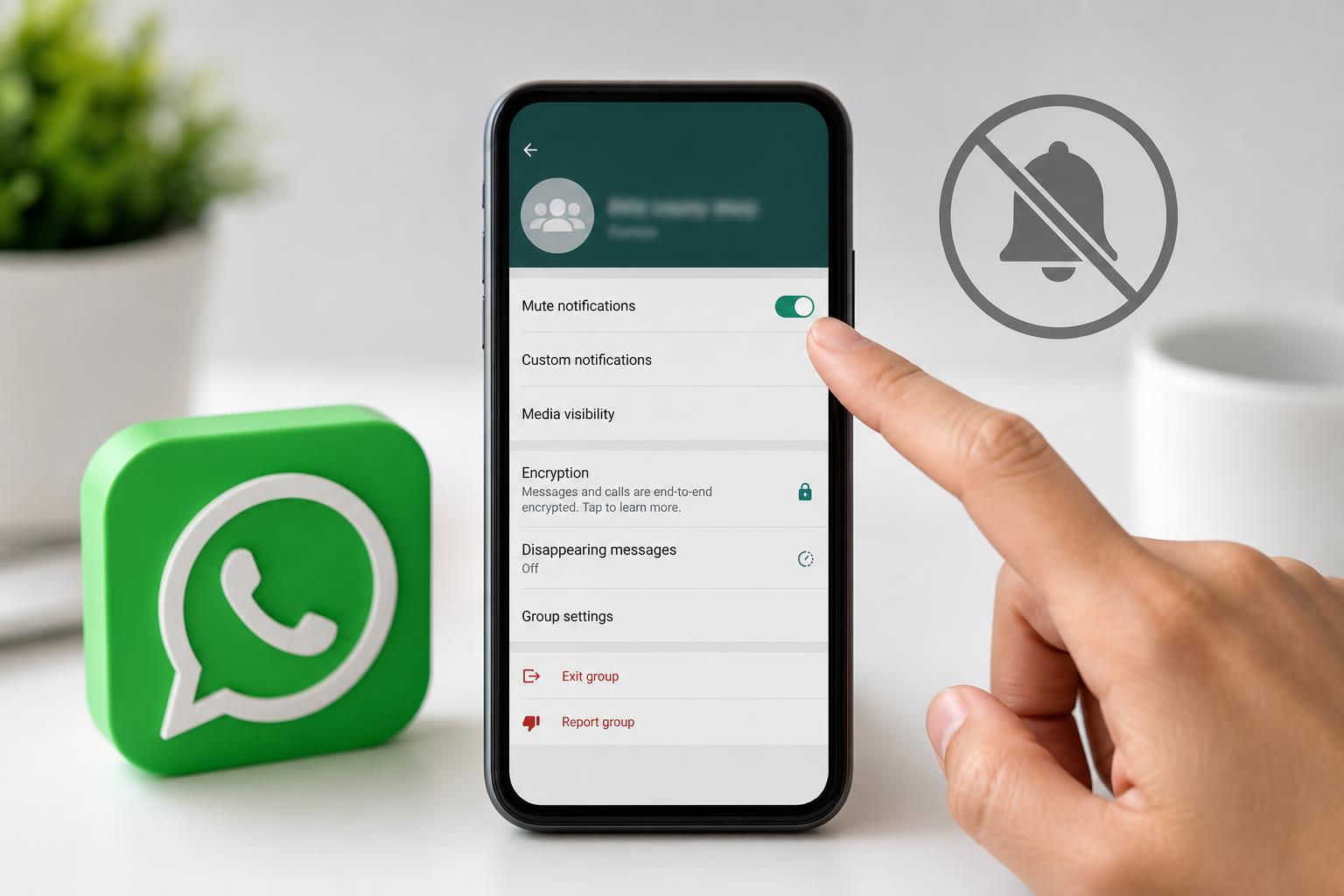
What Muting a WhatsApp Group Actually Does
Muting a group stops notification alerts for that chat. You will no longer get sounds, vibration, or pop-up alerts from new messages in the muted group, depending on your phone’s notification settings.
WhatsApp does not offer a true permanent mute option separate from the built-in mute durations. The longest mute choice is typically enough to keep a group silent for a very long time.
How to Mute a WhatsApp Group on Android
- Open WhatsApp and go to the group chat you want to silence.
- Tap the group name at the top of the chat screen to open the group info page.
- Tap Mute notifications.
- Choose the longest mute duration available, usually 8 hours, 1 week, or Always.
- Confirm your choice if prompted.
If your version of WhatsApp shows an Always option, that is the closest thing to permanently muting the group. If you only see time-based options, choose the longest one available.
How to Mute a WhatsApp Group on iPhone
- Open WhatsApp and open the group chat.
- Tap the group name at the top of the screen.
- Tap Mute.
- Select the longest available mute duration, such as Always, if it appears.
- Close the info screen to save the change.
On iPhone, the wording may vary slightly depending on your WhatsApp version, but the process is the same: open the group details and choose the longest mute option offered.
How to Mute a Group from the Chat List
- On Android, press and hold the group chat in your chat list.
- On iPhone, swipe left on the group chat or open its info options, depending on your WhatsApp layout.
- Tap the mute option or the bell icon if shown.
- Choose the longest duration available.
This method is faster if you do not want to open the conversation first. It is useful when you want to silence several busy groups one after another.
Can You Mute WhatsApp Groups Forever?
In practice, yes, if your WhatsApp version includes an Always mute option. That setting keeps the group silent until you manually unmute it.
If Always is not available, the longest time limit is the best substitute. WhatsApp has changed mute duration options over time, so the exact choices can differ by app version and device.
How to Check Whether the Group Is Still Muted
- The chat usually shows a muted bell icon in the conversation list.
- The group will still appear in your chats, but it should not make sound or vibrate for new messages.
- If you still receive alerts, the group may not have been muted correctly, or system notification settings may be overriding it.
Why You Might Still Get Notifications After Muting
If a muted group still seems noisy, the issue is often not the mute setting itself. The most common causes are app notification categories, mention alerts, or phone-level notification rules.
- You were only muted for a limited time and the mute expired.
- Your phone’s notification settings are allowing banners, badges, or sounds from WhatsApp.
- Mentions or replies may still stand out depending on your notification preferences.
- The group may be pinned or highlighted, making it feel more visible even when muted.
How to Make Sure WhatsApp Groups Stay Silent
- Confirm that the group shows as muted in your chat list.
- Open your phone’s notification settings for WhatsApp and check that sounds are not being forced on by system settings.
- Review WhatsApp notification settings for group chats if you want less visual clutter.
- If the group is especially active, consider archiving it after muting so it stays out of the way.
Unmuting a WhatsApp Group Later
- Open the muted group chat.
- Tap the group name to open the info screen.
- Tap Unmute notifications or the muted bell icon.
- Choose to restore notifications for that chat.
Unmuting is useful if the group becomes important again, such as for work updates, family events, or travel coordination.
Best Approach If a Group Is Too Active
- Mute the group if you want to stay in it but stop alerts.
- Archive the chat if you want it out of sight as well.
- Leave the group if you no longer need the messages at all.
What to Remember
The simplest way to permanently mute a WhatsApp group is to choose the longest mute duration available, or Always if your version of WhatsApp offers it. If notifications still appear, check your phone’s broader notification settings and confirm the group is actually muted.





