
Some Android apps are limited by region, device type, or publisher rules, which can make them impossible to find in the Google Play Store in your country. In many cases, there are still legitimate ways to install them, but the right method depends on why the app is unavailable in the first place.
This guide explains the main options, the risks to watch for, and how to avoid broken installs, account issues, and unsafe downloads.
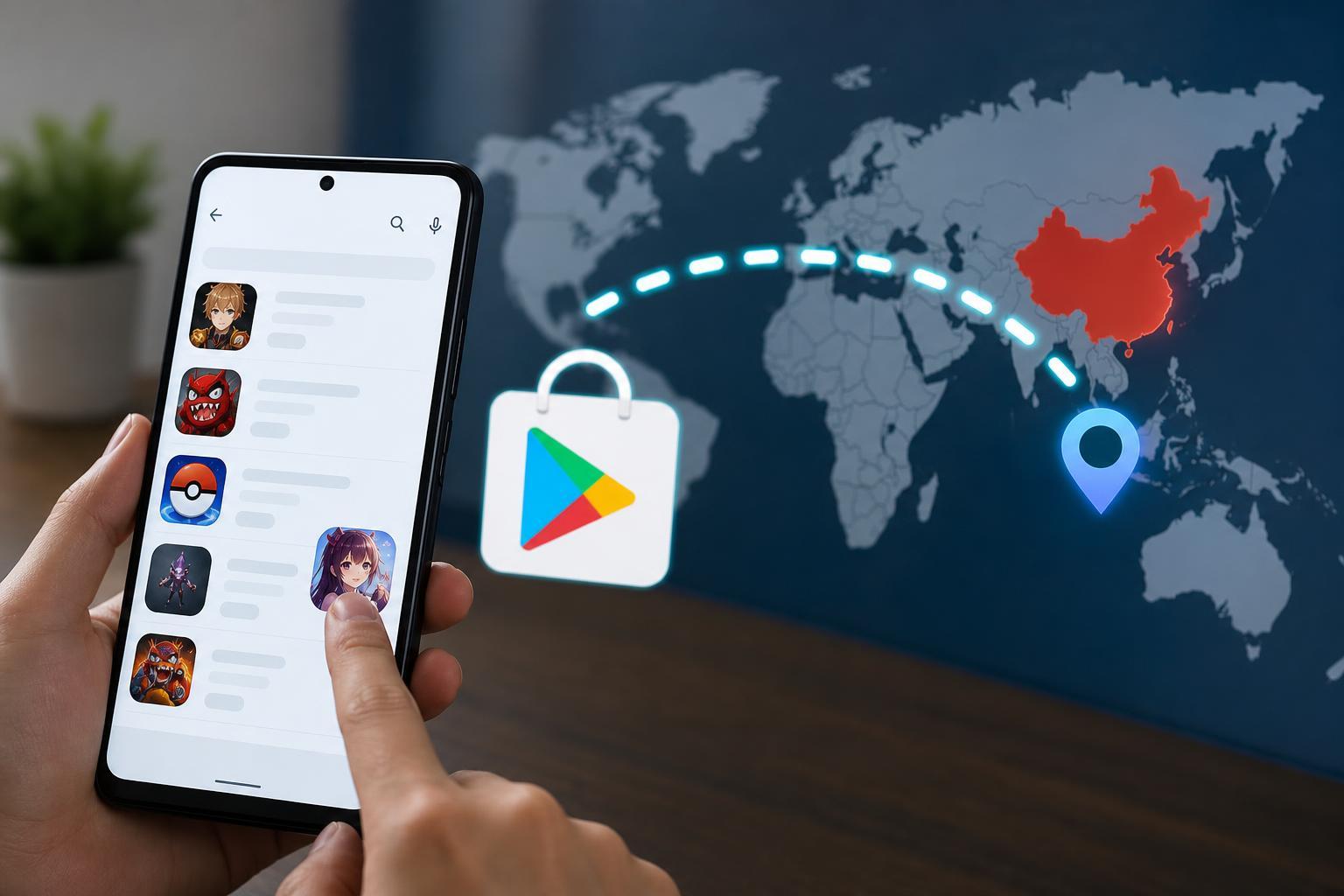
Check Why the App Is Unavailable
Before trying workarounds, it helps to understand the reason the app does not appear in your country. A region block, an older Android version, device incompatibility, or a publisher’s policy can all lead to the same result.
- Country or region restrictions set by the developer
- Your Google account country does not match the app’s availability
- The app requires a newer version of Android
- The app is not supported on your phone or tablet model
- The app has been removed from the Play Store entirely
Method 1: Use the Google Play Store If the App Is Available in Another Country
If the app is still on Google Play but limited to another country, the simplest approach is usually to use a Google account that is set to that country. In some cases, this also requires being physically located there or using a payment profile tied to that region.
- Open Google Play Store and search for the app name.
- If you cannot find it, check the app’s web listing in a browser.
- Review the country notice on the app page if one appears.
- If your Google account supports country switching, update the Play country in your account settings.
- Add a local payment method if the Play Store asks for one.
Method 2: Install the App Using an APK File
If the app is not available in your country but you trust the source, you may be able to install it from an APK file instead of the Play Store. An APK is the Android app package used to install apps manually.
- Find a reputable source that offers the APK for the exact app version you want.
- Check whether the APK is signed by the original developer.
- Download the file to your phone or tablet.
- Open the file and allow installs from that source if Android asks for permission.
- Complete the installation and open the app.
How to Allow Unknown App Installs on Android
On modern Android versions, you usually do not enable one global setting. Instead, you grant permission to the specific app you are using to open the APK, such as Chrome, Files, or your file manager.
- Open Settings.
- Go to Apps or Apps & notifications.
- Find the app you used to download the APK, such as Chrome or Files.
- Tap Install unknown apps.
- Turn on Allow from this source.
Method 3: Use a Trusted APK Mirror or App Repository
If the app’s official APK is not available directly from the developer, some users rely on established APK repositories that host original packages and version history. This can help when the Play Store blocks your region or device.
- Choose repositories that clearly show file hashes or signature verification
- Prefer original, unmodified app packages
- Avoid sites that bundle extra installers or offer suspicious 'optimized' versions
- Check the app version number and release date before installing
Method 4: Change Your Google Play Country
If the app is licensed for a different country and you genuinely live there or have moved, changing your Google Play country may make it available. This is not instant, and it usually comes with limitations.
- Open the Google Play Store app.
- Tap your profile icon.
- Go to Settings, then General, then Account and device preferences.
- Look for the country and profiles section.
- If the option appears, follow the prompts to switch country and add a local payment method.
Method 5: Try the App on Another Android Device or Through the Web
Sometimes the issue is not your country but your phone model, Android version, or tablet class. In those cases, the app may still work on a different Android device or through a web-based version of the service.
- A newer Android phone or tablet may be supported even if your current device is not
- Some apps offer a browser version with most of the same features
- Chromebooks running Android apps may behave differently from phones
- A family member’s device may show the app as available if the hardware meets the requirements
What to Check Before Installing an APK
Manual installation can work well, but it is worth checking a few details first so you do not waste time or compromise your device.
- Android version requirement: the app may need a newer OS than your phone has
- Processor and device support: some apps are designed for specific hardware
- App signature: the file should match the developer’s original signing certificate
- Permissions: review whether the app is asking for unusual access
- Update availability: if you sideload the app, you may need to update it manually later
Common Problems and How to Fix Them
If the app still will not install, the error message usually points to the cause.
- App not installed: often caused by a bad APK, incompatible Android version, or an existing conflicting package
- Parse error: the file may be incomplete or not built for your Android version
- Package conflicts: another version of the same app may already be installed with a different signature
- Can't open file: the download may not have completed correctly or your file manager cannot read the package
- Verify that the APK came from a trusted source.
- Check that your Android version meets the minimum requirement.
- Remove any older conflicting version only if you are sure you do not need it.
- Download the file again if it looks incomplete.
- If the app uses split APKs, install it with the correct installer rather than opening the file directly.
Safety and Privacy Tips
Regional restrictions can tempt people to grab the first download they find, but that is where the biggest risks usually start. A safer approach is worth the extra minute.
- Avoid websites that force extra download managers or suspicious pop-ups
- Check the app’s permissions after installation
- Be careful with apps that request accessibility access, SMS access, or device admin privileges
- Do not sign in with important accounts until you trust the app
- Keep Android Play Protect enabled unless you have a specific reason not to
Which Method Should You Try First?
The best method depends on the reason the app is blocked.
- If the app is available on Play in another country, try changing your Play country or using the correct account
- If you only need the app on one device, a trusted APK is often the fastest option
- If your phone is too old, look for a compatible device or the web version instead
- If the app is tied to your current country settings, a region change may be the proper long-term fix
For most people, the safest order is: check the Play Store listing, confirm compatibility, then decide whether a trusted APK or a country change makes sense.
A Practical Way to Avoid Trouble
Downloading Android apps that are not available in your country is possible, but the safest path is to match the method to the reason for the block. That usually means checking compatibility first, then using the Play Store when possible, and only sideloading APKs from trusted sources when necessary.





