
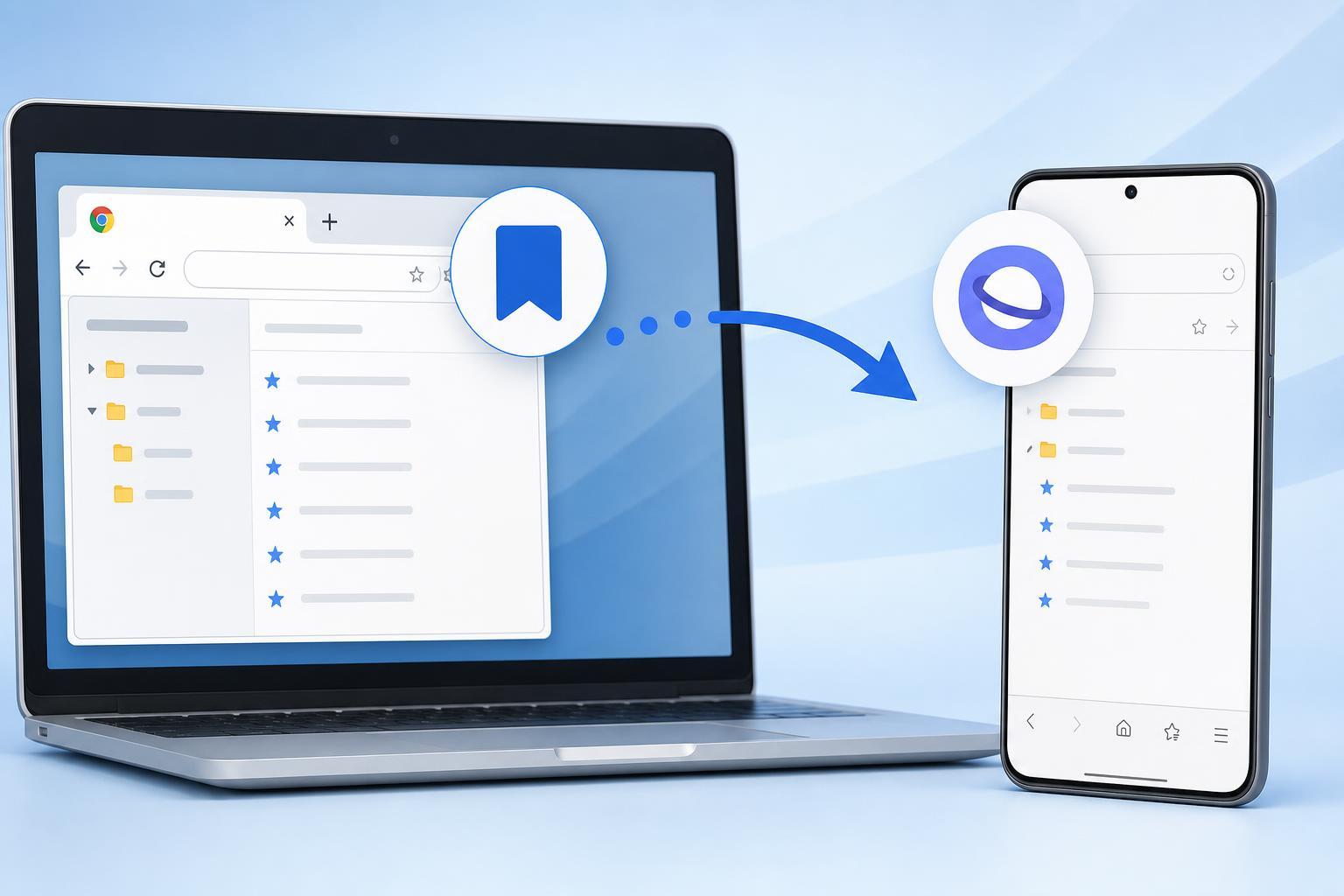
If you are switching from Google Chrome to Samsung Internet on a Galaxy phone or tablet, your bookmarks do not have to stay behind. There are a few practical ways to bring them over, depending on whether you want a quick sync-style transfer or a one-time manual import.
Samsung Internet does not always use the same import process on every device or version, so the best method depends on what you have available in Chrome and on your Samsung device.
What You Need Before You Start
- A Samsung phone or tablet with Samsung Internet installed
- Access to your Chrome bookmarks on the device or in your Google account
- Optional: a computer if you need to export bookmarks from Chrome manually
- A Samsung account if you want to use Samsung Internet sync features
Method 1: Use Samsung Internet Sync if You Already Use Both Browsers
If you already signed in to Samsung Internet and Chrome on the same mobile device, the easiest path is often to use Samsung Internet’s sync and account features rather than a traditional import tool. This works best if your bookmarks are already stored in a place Samsung Internet can access through your account setup.
- Open Samsung Internet on your Galaxy device.
- Tap the menu button and open Settings.
- Look for Samsung account or Sync options.
- Sign in if you have not already done so.
- Check whether bookmarks are available to sync or restore into the browser.
Method 2: Export Chrome Bookmarks and Import Them on a Computer
If Samsung Internet on your phone does not show a direct import option, the most reliable workaround is to move your Chrome bookmarks through a computer first. Chrome can export bookmarks as an HTML file, and Samsung Internet can then use that file or a synced browser setup depending on the version you use.
- On a computer with Chrome, open Chrome and go to the Bookmarks manager.
- Open the bookmarks menu and choose Export bookmarks.
- Save the file as an HTML bookmark export.
- Transfer the file to your Samsung device by cloud storage, email, USB cable, or file sharing.
- Open Samsung Internet and check its bookmarks menu or browser settings for an import option.
- If an import option is available, select the exported HTML file and complete the import.
Method 3: Add Bookmarks Manually in Samsung Internet
If you only have a few important bookmarks, manual entry may be faster than trying to force an import method that is not available on your device.
- Open the page you want to save in Samsung Internet.
- Tap the menu button.
- Choose Add to bookmarks or the bookmark icon.
- Edit the name if needed and save it.
- Repeat for any other pages you want to keep.
If You Cannot Find an Import Option
Some versions of Samsung Internet do not show a direct Chrome import button on every device. If that happens, the likely reasons are a version difference, a missing sync setup, or the browser not supporting the transfer method you expected on your phone.
- Update Samsung Internet from the Galaxy Store or Play Store
- Check Samsung Internet settings for sync, sign-in, or import options
- Try exporting Chrome bookmarks from a desktop version of Chrome
- Use a cloud storage app or file manager to move the HTML export to your phone
- If needed, recreate the most important bookmarks manually
How to Check Whether the Transfer Worked
After importing or syncing, open Samsung Internet’s bookmarks list and compare it with Chrome. Make sure your most important folders and saved pages are present, not just a few recent links.
- Check that bookmark titles look correct
- Open a few transferred bookmarks to confirm they load properly
- Look for bookmark folders, not only individual pages
- Verify that any missing items were not skipped during export
Common Problems and Fixes
- The export file is in the wrong format: Chrome should export bookmarks as an HTML file.
- Samsung Internet does not show an import option: update the browser and look through the bookmark or account settings.
- Only some bookmarks transferred: check whether your Chrome bookmarks were stored in multiple folders or accounts.
- Imported links are missing folder structure: the transfer method may not fully preserve Chrome’s bookmark organization.
- The file will not open on the phone: move it to local storage or a cloud folder your browser can access.
Best Way to Choose
The best method depends on how many bookmarks you have and what devices you can use. For a large Chrome collection, exporting from a computer is usually the most dependable path. For a small set of bookmarks, manual saving in Samsung Internet is simpler. If Samsung’s sync tools are available on your device, they are often the easiest option of all.
What to Do After the Import
Once your bookmarks are in Samsung Internet, take a few minutes to organize them. Rename unclear entries, remove duplicates, and move frequently used sites into folders so they are easier to find later.
- Open the bookmarks manager in Samsung Internet.
- Sort or open folders that were imported from Chrome.
- Delete duplicate or outdated links.
- Create folders for work, shopping, news, or school sites.
- Pin or keep your most-used bookmarks near the top if your version supports it.





