
Samsung Galaxy phones let you hide apps from the app drawer without uninstalling them. This is useful if you want to keep certain apps out of sight, reduce clutter, or keep personal apps less obvious to other people using your phone.
The exact steps can vary slightly depending on your One UI version and phone model, but the general process is simple. You can also unhide apps later if you want them visible again.
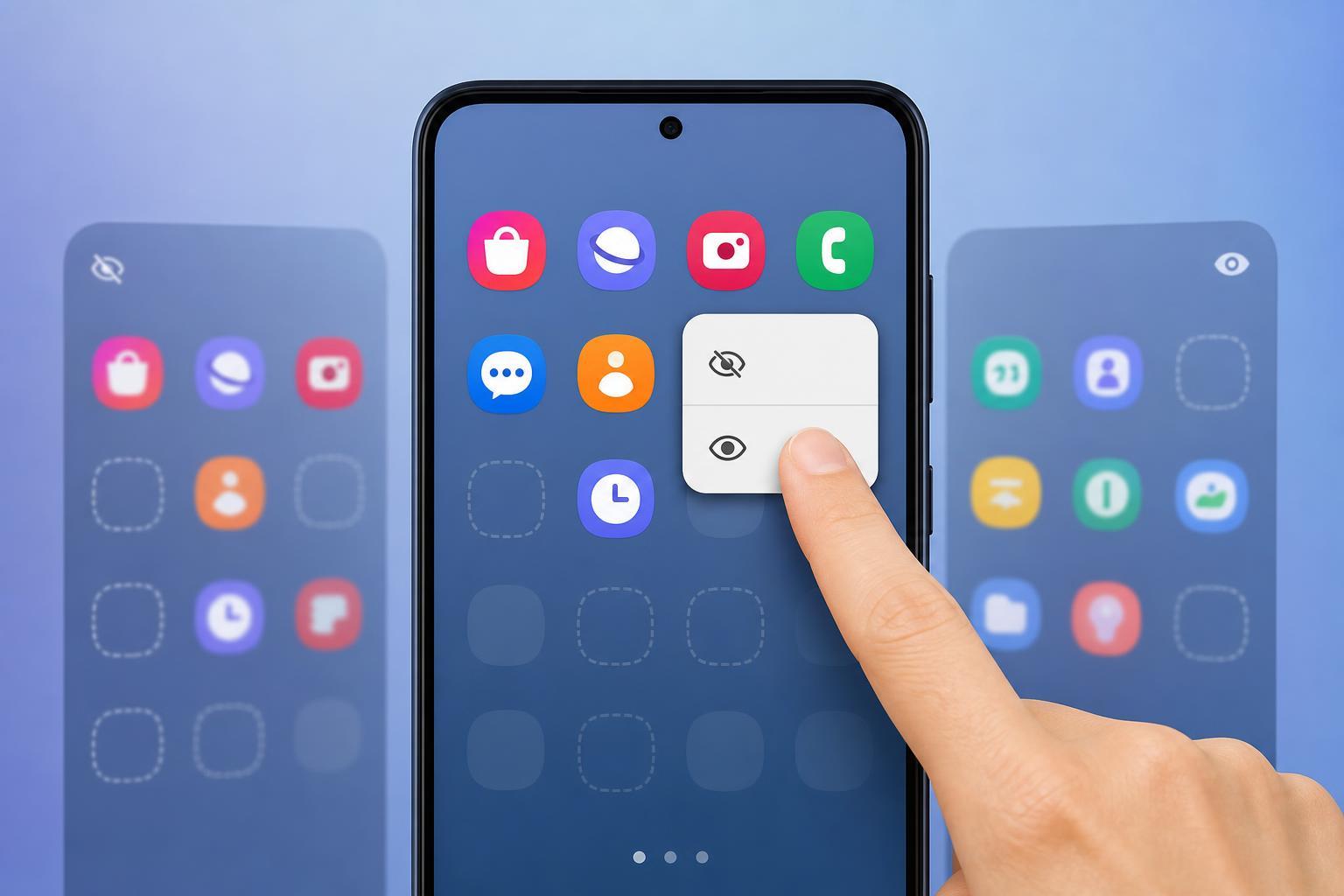
How to Hide Apps on a Samsung Galaxy Phone
- Open the app drawer by swiping up from the home screen.
- Tap the three-dot menu in the upper-right corner of the app drawer.
- Select Settings.
- Look for the option called Hide apps on Home and Apps screens or just Hide apps.
- Tap the apps you want to hide so they are selected.
- Tap Done or Apply to save your changes.
How to Unhide Apps on Samsung
- Open the app drawer and tap the three-dot menu.
- Go back into Settings.
- Choose Hide apps on Home and Apps screens.
- Deselect the apps you want to show again.
- Tap Done or Apply.
Once you remove an app from the hidden list, it returns to the app drawer and can be placed back on the Home screen if you want.
If You Do Not See a Hide Apps Option
Not every Samsung Galaxy phone shows the same menu layout. If you cannot find the Hide apps option, try checking the Home screen settings instead of the app drawer settings, since Samsung sometimes places the option there.
- Open Settings on the Home screen and look for Home screen settings.
- Check whether your phone uses a Secure Folder instead, which can be used to keep apps separate from the main app list.
- Make sure your software is up to date, since menu names and locations can change with One UI updates.
- If the phone is managed by a work or school profile, app-hiding features may be restricted.
Use Secure Folder for Extra Privacy
If you want stronger privacy than simply hiding an app icon, Samsung Secure Folder is a better choice. It can keep apps, files, and photos in a separate protected space that usually requires a lock method to open.
Quick Way to Find Hidden Apps Again
If you forgot which apps you hid, return to the same Hide apps menu. Samsung usually shows the selected apps there, making it easy to review or change your choices without uninstalling anything.





