
If MIUI screen recording works but the saved video has no sound, the problem is usually caused by the audio source setting, microphone permission, or a conflict with the app or system mode you are using. The fix is often simple once you know where to look.
This guide walks through the most common reasons MIUI screen recorder captures video without audio and shows you how to restore sound step by step.
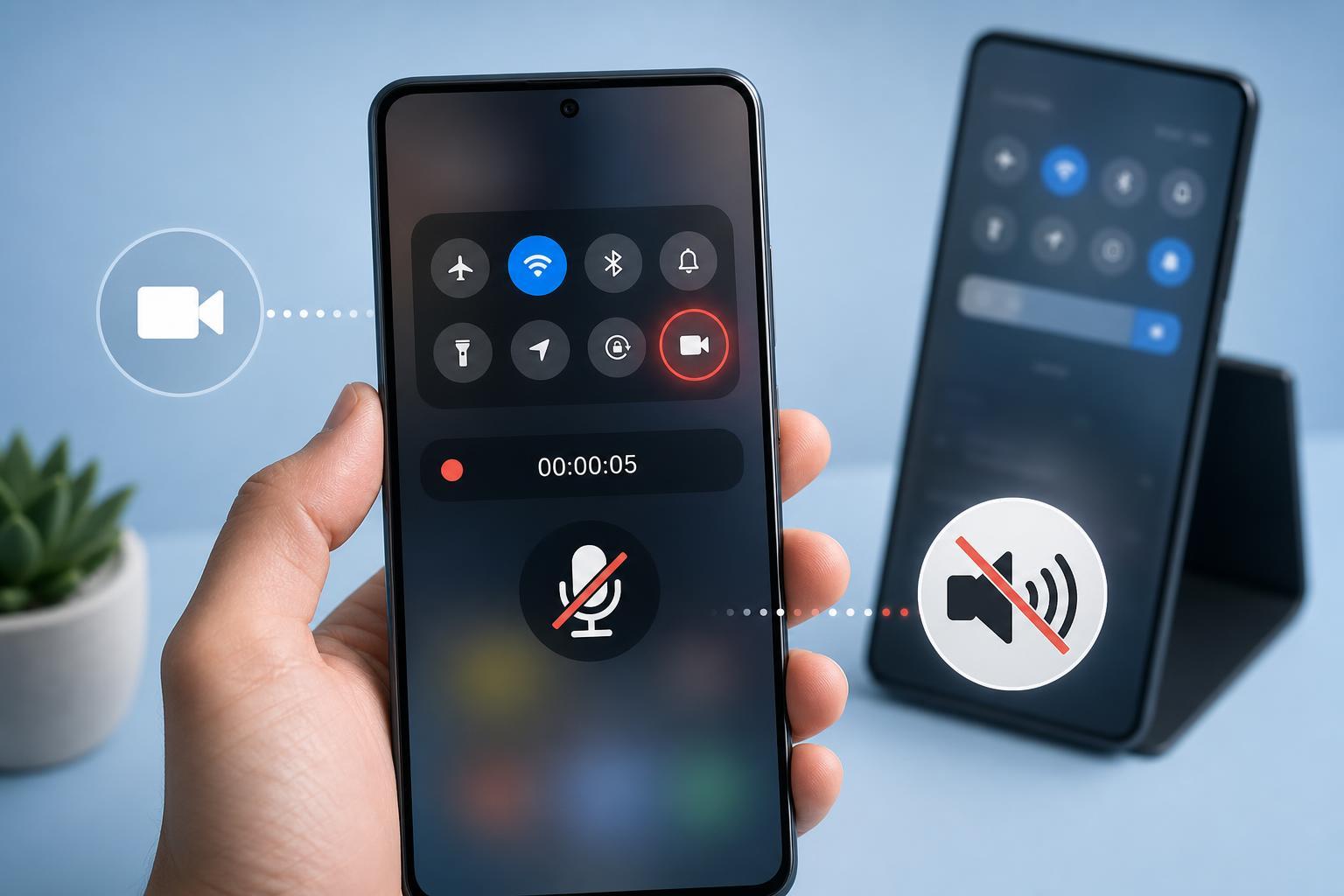
Check the Screen Recorder Audio Source
The first thing to check is the audio source selected in the screen recorder settings. On many Xiaomi phones, the recorder can be set to capture no sound, microphone sound only, or system sound depending on the MIUI version.
- Open the Screen Recorder app or pull down the quick settings panel and start a recording from there.
- Before recording, open the recorder settings or audio options.
- Look for Audio source, Sound source, or similar wording.
- Choose the option that matches what you want to record: microphone, system sounds, or both if available.
- Save the setting and record a short test video.
Make Sure Microphone Permission Is Enabled
If the recorder is set to use the microphone, it will not capture any audio unless the app has microphone permission. This is one of the most common reasons for silent recordings.
- Open Settings on your Xiaomi phone.
- Go to Apps, then Manage apps.
- Find Screen Recorder and open its app info page.
- Tap Permissions.
- Make sure Microphone is allowed.
- If permission was already enabled, toggle it off and back on, then try a new recording.
Check Whether MIUI Is Blocking Internal Audio Recording
Some apps and some MIUI builds do not allow internal audio capture. In those cases, the recorder may fall back to silence or microphone input only. This is more likely with banking apps, protected streaming apps, and certain games.
- Streaming apps often block internal audio recording for copyright reasons.
- Games may allow audio capture in some modes but not others.
- Some regional MIUI versions have different screen recorder behavior.
- Protected content may appear to record normally but without sound.
Test With a Different Audio Source
If the recorder still makes silent videos, test each available audio option one at a time. This helps narrow down whether the issue is with microphone audio, system audio, or the recording app itself.
- Record one short clip using microphone audio.
- Record another clip using system audio if the option is available.
- If your MIUI version offers both, try the combined audio mode.
- Play back each clip and compare the results.
- Use the working mode as a temporary workaround if only one option fails.
Clear Screen Recorder Data
If the audio settings look correct but recordings are still silent, the app may have a corrupted cache or saved configuration. Clearing the app data can reset those settings without affecting your phone files.
- Open Settings and go to Apps.
- Tap Manage apps and find Screen Recorder.
- Open Storage or Storage and cache.
- Tap Clear cache first, then test the recorder again.
- If the issue remains, tap Clear data and set up the recorder again.
Update MIUI and the Screen Recorder App
A bug in the current MIUI build can cause audio recording problems. Updating the system or the recorder app can fix this if the issue started after a recent change or appeared unexpectedly after an update.
- Open Settings and check for system updates.
- Install any available MIUI update.
- If the recorder appears as a separate app or component update, install that too.
- After updating, test a fresh recording with a short clip.
Check Do Not Disturb and Bluetooth Devices
Audio routing can sometimes confuse troubleshooting. If sound is being sent to Bluetooth headphones, a speaker, or another connected device, it may seem like the recorder is not capturing audio when the problem is actually the playback path.
- Disconnect Bluetooth headphones or speakers during testing.
- Turn off Do Not Disturb only if your phone’s audio behavior seems unusual after enabling it.
- Try recording with the phone’s built-in speaker output.
- Play the recording directly on the phone before assuming the file has no sound.
Try Safe Mode or a Different Recording App
If another app is interfering with audio capture, Safe Mode can help you confirm it. Third-party screen recorders, cleaner apps, accessibility tools, and audio enhancers can all affect how MIUI records sound.
- Boot the phone into Safe Mode if your Xiaomi model supports it.
- Test the built-in screen recorder in Safe Mode.
- If sound works there, a third-party app is likely interfering.
- Remove recently installed screen recorders, audio tools, or optimization apps one by one.
- If you need a workaround, try a reputable third-party recorder that supports your phone and MIUI version.
When the Problem Is Likely Hardware or App-Limited
If microphone recording fails in every app, not just the screen recorder, then the issue may be broader than MIUI. A damaged microphone, blocked microphone access, or a system-level audio fault could be the cause.
- Test the microphone in the Voice Recorder app.
- Make a normal phone call and check whether the other person can hear you.
- Open app permissions and confirm the recorder is allowed to use the microphone.
- Check whether any privacy or security feature is blocking audio access.
- If every app fails to record sound, back up important data and consider professional repair or service.
Quick Fix Order to Try First
If you want the fastest path, try the most likely fixes in this order:
- Change the screen recorder audio source and retest.
- Allow microphone permission for Screen Recorder.
- Test whether the problem happens in one app or everywhere.
- Clear Screen Recorder cache and data.
- Update MIUI.
- Disconnect Bluetooth devices and test again.
- Check microphone performance in another app.
What This Usually Means
In most cases, MIUI screen recorder has no sound because the recording mode is wrong or the app does not have permission to use the microphone. If only one app is silent, the app may be restricting audio capture rather than the phone being broken.
Once you identify whether the issue affects microphone audio, system audio, or only certain apps, the fix becomes much easier to narrow down.





