
If your microphone is not working in Facebook Messenger, the problem is usually caused by a permission issue, the wrong input device, a browser privacy setting, or an audio device problem. The good news is that most cases can be fixed without advanced troubleshooting.
This guide walks through the most common fixes first, then moves on to platform-specific checks for Windows, macOS, Android, iPhone, and Messenger in a web browser.
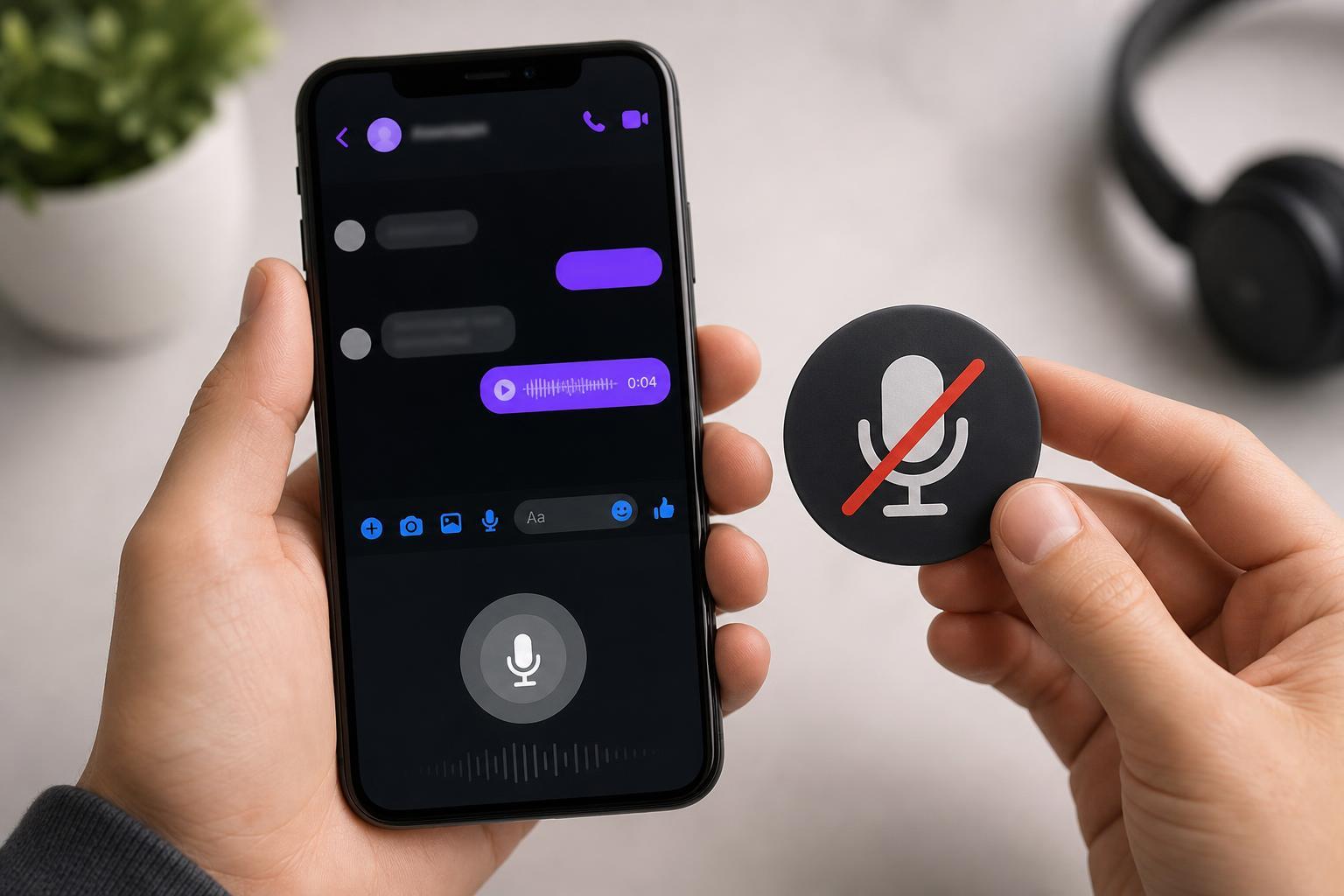
Check Whether Messenger Has Microphone Permission
The most common reason Messenger cannot use your microphone is that the app or browser does not have permission to access it. If permission is blocked, Messenger may open normally but your voice will not be sent during calls or voice messages.
- On Windows or Mac, check both app permissions and browser permissions if you use Messenger in a browser.
- On iPhone and Android, Messenger needs microphone access in the system app permissions.
- If you denied access earlier, enabling permission again often fixes the problem immediately.
Fix Microphone Access in a Web Browser
If you use Messenger in Chrome, Edge, Firefox, or another browser, the browser itself may be blocking microphone access even if your computer microphone works elsewhere.
- Open Facebook Messenger in your browser.
- Click the padlock or site information icon next to the address bar.
- Find the microphone permission setting and set it to Allow.
- Refresh the page and try again.
- If needed, check the browser’s own privacy settings and confirm that the correct microphone is selected.
Make Sure the Correct Microphone Is Selected
If your computer has more than one audio input, Messenger may be trying to use the wrong one. This is common with laptops that have built-in microphones, headsets with microphones, USB microphones, and Bluetooth headsets all connected at once.
- Open your system sound or audio settings.
- Look for the input or microphone section.
- Select the microphone you actually want to use.
- Speak into the mic and watch for input level movement if available.
- Return to Messenger and test again.
Test the Microphone Outside Messenger
Before changing more settings, confirm that the microphone works in another app. This helps you tell whether the issue is with Messenger itself or with the microphone at the system level.
- Try the built-in Voice Recorder app on Windows or a quick audio recording app on a phone.
- Use a video call app or online mic test if you already have one installed.
- If the mic fails everywhere, focus on the hardware, connection, or operating system settings first.
Restart Messenger or Your Browser Session
Sometimes Messenger loses access to the microphone after a settings change, browser glitch, or temporary app bug. Closing the app or tab and opening it again can clear that problem.
- Close Messenger completely, not just the chat window.
- If you use a browser, close the browser tab or fully restart the browser.
- Reopen Messenger and try a voice call or voice message again.
Update Messenger, Your Browser, or the App Store Version
An outdated app or browser can cause microphone permissions or calling features to behave incorrectly. Updating Messenger, your browser, and your device software can remove bugs that affect audio input.
- Install any pending Messenger updates on your phone.
- Update Chrome, Edge, Firefox, or Safari if you use Messenger on the web.
- Check for operating system updates on Windows, macOS, Android, or iPhone.
Check Windows Microphone Settings
On Windows, Messenger in a browser or desktop environment depends on the operating system’s microphone configuration. If Windows is blocking access or the wrong input is set as default, Messenger may have no usable microphone to capture.
- Open Settings and go to System, then Sound.
- Under Input, choose the correct microphone.
- Open Microphone privacy settings and make sure apps are allowed to use the mic.
- If you use a browser, confirm the browser is allowed to access the microphone as well.
- Test the mic again in Messenger.
Check Microphone Permissions on Android
On Android, Messenger needs microphone permission from the app settings. If the permission was denied, blocked by a privacy setting, or reset after an update, voice features may stop working.
- Open Settings on your phone.
- Go to Apps, then Messenger.
- Open Permissions.
- Allow Microphone access.
- Return to Messenger and test the microphone again.
Check Microphone Access on iPhone or iPad
On iPhone and iPad, Messenger may be blocked from using the microphone at the system level. If this happens, the app can still open and receive calls, but you may not be heard.
- Open Settings.
- Scroll to Messenger.
- Turn on Microphone.
- If the setting is already on, toggle it off and back on once.
- Open Messenger again and test a voice call or voice message.
Disconnect or Reconnect Bluetooth Audio Devices
Bluetooth headsets and earbuds can switch the active microphone away from the one you expect. In some cases, the headset microphone may connect poorly or the device may keep using a low-quality hands-free audio mode.
- Disconnect Bluetooth earbuds or headsets and test the built-in microphone.
- Reconnect the headset and confirm it is selected as the input device.
- If audio is distorted or silent, remove the device and pair it again.
Check for Physical Microphone Problems
If Messenger and system settings look correct, the microphone itself may be muted, unplugged, disabled, or damaged. This is especially important for external USB microphones, headset mics, and laptop microphones that can be blocked by dust or a privacy switch.
- Make sure the microphone is not physically muted on the headset or keyboard.
- Check that the cable is fully connected if it is wired.
- Try a different USB port if it is a USB microphone.
- Inspect the laptop for a hardware mic mute switch or function key.
- If possible, test the microphone on another device.
Clear Cache or Reinstall Messenger if the Problem Continues
If permissions and device settings are correct but Messenger still will not use the microphone, the app installation or browser data may be corrupted. Clearing cache or reinstalling can fix broken app behavior without changing your account.
- On mobile, clear Messenger cache if your device offers that option.
- On desktop or in a browser, clear site data for Facebook or Messenger if needed.
- If the issue persists, uninstall and reinstall the app.
- Sign in again and test the microphone after reinstalling.
When the Issue Is Likely Not Messenger
If the microphone does not work in other apps, the problem is probably system-wide rather than specific to Facebook Messenger. In that case, the fix may involve the operating system, audio driver, headset connection, or the microphone hardware itself.
- The mic fails in all apps, not just Messenger.
- The input meter never moves in system audio settings.
- A headset works only when moved or pressed, suggesting a loose connection.
- The mic worked before but stopped after a driver, OS, or privacy setting change.
Quick Fix Order to Try First
If you want the fastest path, try these in order before moving to more advanced checks.
- Allow microphone permission for Messenger or your browser.
- Select the correct input device.
- Test the microphone in another app.
- Close and reopen Messenger or the browser.
- Update Messenger, the browser, and your device.
- Disconnect Bluetooth headsets and test again.
- Reinstall Messenger or clear cache if nothing else works.
Need Help Narrowing It Down?
If you tell whether you are using Messenger on Windows, Mac, Android, iPhone, or in a browser, it becomes much easier to pinpoint the exact fix. The steps are slightly different on each platform, but the root cause is usually one of the same few issues: blocked permission, wrong input device, or a microphone problem outside Messenger.





