
When Google Photos stops backing up, new pictures and videos can remain only on your phone. The cause is often something simple, such as a paused backup, a permission problem, low cloud storage, or a battery setting that blocks the app in the background.
This guide walks through the most useful checks for both iPhone and Android, starting with the easiest fixes and moving to less obvious causes if backup still will not run.
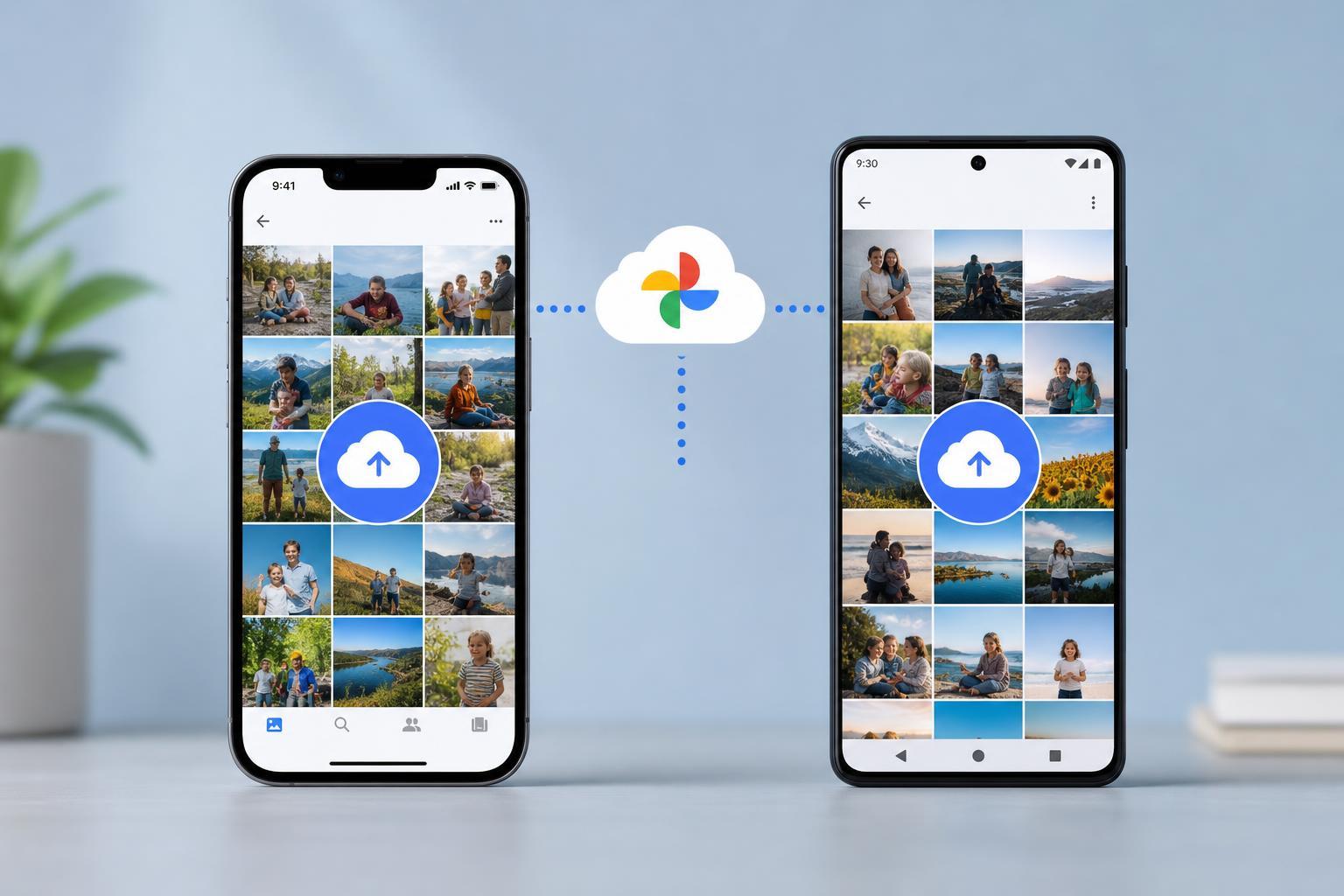
Check Whether Backup Is Paused or Turned Off
Open Google Photos and look at the backup status on the app home screen or in the profile menu. If backup is paused, disabled, or waiting for Wi-Fi, the app should tell you why it is not uploading new photos.
- Open Google Photos.
- Tap your profile picture in the top-right corner.
- Look for the backup status message.
- If backup is paused, tap Resume backup or follow the prompt shown in the app.
- If the app says it is waiting for Wi-Fi, connect to a trusted Wi-Fi network or change the backup setting if you want mobile data to be allowed.
Make Sure You Are Signed Into the Right Google Account
A common cause of missing backups is using one Google account in Google Photos while expecting photos to appear in another. This can happen after switching phones, adding a work account, or installing the app again.
- Open Google Photos and tap your profile picture.
- Check the email address at the top of the account menu.
- If needed, switch to the account you actually want to back up to.
- If the wrong account is signed in, add or select the correct one before testing backup again.
Check Photos and Background Permissions
Google Photos needs permission to access your photos and, on many phones, permission to run in the background. If those permissions are limited, the app may open normally but fail to upload new items.
- On iPhone, go to Settings > Google Photos > Photos and make sure access is allowed.
- On iPhone, check that Background App Refresh is enabled for Google Photos if you want uploads to continue when the app is not open.
- On Android, go to Settings > Apps > Photos or Google Photos > Permissions and allow access to photos and videos.
- On Android, also check battery optimization settings if the app is being restricted in the background.
Confirm That Backup and Sync Is Enabled in Google Photos
In some cases the app is installed and signed in correctly, but backup itself has been turned off in the app settings. This is especially worth checking after reinstalling the app or moving to a new phone.
- Open Google Photos.
- Tap your profile picture.
- Select Photos settings or Google Photos settings.
- Open Backup and turn it on.
- Check that the correct account is selected and that upload preferences match your needs.
Check Your Internet Connection
Google Photos needs a reliable connection to upload images and especially videos. A connection can look connected in the status bar but still be too weak or unstable for backup to complete.
- Try opening a website or streaming a short video to confirm the connection is stable.
- Switch between Wi-Fi and mobile data to see whether one works better.
- If you are on Wi-Fi, move closer to the router or test another network.
- If you are using a VPN, temporarily disable it to see whether it is interfering with uploads.
Check Backup Settings for Mobile Data, Roaming, and Media Size
If backup only fails on cellular data, the app may be set to upload only on Wi-Fi. Large videos can also be held back by data restrictions or by a poor mobile connection.
- Open Google Photos settings.
- Check whether backup is limited to Wi-Fi only.
- If you want mobile uploads, allow backup over mobile data.
- Look for any limits related to video upload quality or roaming data if you are traveling.
Free Up Google Account Storage if It Is Full
If your Google account storage is full, Google Photos may stop uploading new items. This affects backups for Google Photos, Gmail, and Google Drive because they share the same storage pool on many accounts.
- Open Google Photos or Google One and check your storage usage.
- Delete unnecessary files or large old items if you are out of space.
- Empty the trash if you want the storage to be released sooner.
- Wait for the storage status to update, then test backup again.
Check Device Storage and App Behavior on Android
On Android, low phone storage and battery management are common reasons Google Photos gets stuck. If the phone is nearly full, the system may slow background activity or stop uploads entirely.
- Free up space on the device if storage is critically low.
- Open Settings > Battery and check whether Google Photos is restricted.
- Turn off battery optimization for Google Photos if the app is being put to sleep.
- If your phone has an app sleep or deep sleep feature, make sure Google Photos is not being placed there.
Update Google Photos and Your Phone Software
Outdated app versions can break uploads after a Google Photos update or an operating system change. Updating the app and the phone software can fix bugs that prevent backup from starting.
- Open the App Store on iPhone or Google Play on Android.
- Search for Google Photos and install any available update.
- Check for iPhone or Android system updates as well.
- After updating, open Google Photos and see whether backup resumes.
Clear Temporary App Problems
If Google Photos still will not back up, the app may have a temporary cache or sign-in problem. On Android, clearing cache can help without deleting your photos. On iPhone, reinstalling the app is the closest equivalent if simple settings changes do not work.
- On Android, go to Settings > Apps > Google Photos > Storage and try Clear cache first.
- Avoid clearing app data unless you are prepared to sign in again and recheck settings.
- On iPhone, delete and reinstall Google Photos only after confirming your photos are safely stored elsewhere or already in iCloud and on the phone.
- Sign in again and re-enable backup after reinstalling.
Check for iPhone-Specific Restrictions
On iPhone, a few system settings can quietly stop Google Photos from working in the background. This is especially likely if the app is allowed access to photos but uploads still never happen.
- Settings > Google Photos > Photos: make sure access is not blocked.
- Settings > General > Background App Refresh: confirm Google Photos can refresh in the background.
- Settings > Cellular: make sure Google Photos is allowed to use mobile data if you expect uploads over cellular.
- Low Power Mode can reduce background activity, so test with it turned off if backup is stalled.
Check for Problem Files or Partial Uploads
Sometimes Google Photos is not broken overall, but one large video, corrupted file, or interrupted upload is causing the queue to stall. If backup seems stuck on one item, the rest may wait behind it.
- Look for upload errors or items that keep retrying.
- Try backing up a smaller recent photo to see whether only one file is causing trouble.
- Move or delete a suspicious video file if it repeatedly fails and you have another copy of it.
- Check whether the file format is unusual or unsupported by the app.
When to Reset or Reinstall
If you have checked permissions, storage, network, and app updates, but backup still will not start, a clean reinstall can remove a corrupted app state. This is usually a later step because it requires signing in again and checking settings afterward.
- Confirm that your photos are safe on the device, another cloud service, or already in Google Photos before removing the app.
- Uninstall Google Photos.
- Reinstall it from the App Store or Google Play.
- Sign in with the correct account and turn backup back on.
- Test with one new photo before relying on the app again.
How to Narrow Down the Cause Quickly
If you want the fastest path to a fix, focus on the most likely causes first. In many cases the problem is one of these: backup paused, wrong account, permission denied, full storage, or battery restrictions.
- If backup is paused, resume it in the app.
- If uploads never start, check permissions and background access.
- If uploads stop after a while, check battery settings and storage limits.
- If only some files fail, test for a problematic photo or video.
- If nothing works, update the app or reinstall it.
What This Means for Your Backups
Google Photos usually fails for a practical reason rather than a serious hardware problem. Once you identify whether the issue is account-related, permission-related, or storage-related, the fix is often straightforward.
After changing a setting, upload a new photo to confirm the problem is solved. That quick test is the best way to know whether Google Photos is backing up again on both iPhone and Android.





