
If you downloaded a file on a Samsung Galaxy phone and cannot find it, the file is usually saved in the My Files app, the Downloads folder, or inside the app you used to open it. The exact location can vary depending on the file type and whether it came from a browser, messaging app, email, or cloud service.
This guide shows you the quickest ways to find downloads on Samsung phones, plus a few useful checks if the file seems to be missing.
The Fastest Way: Open the My Files App
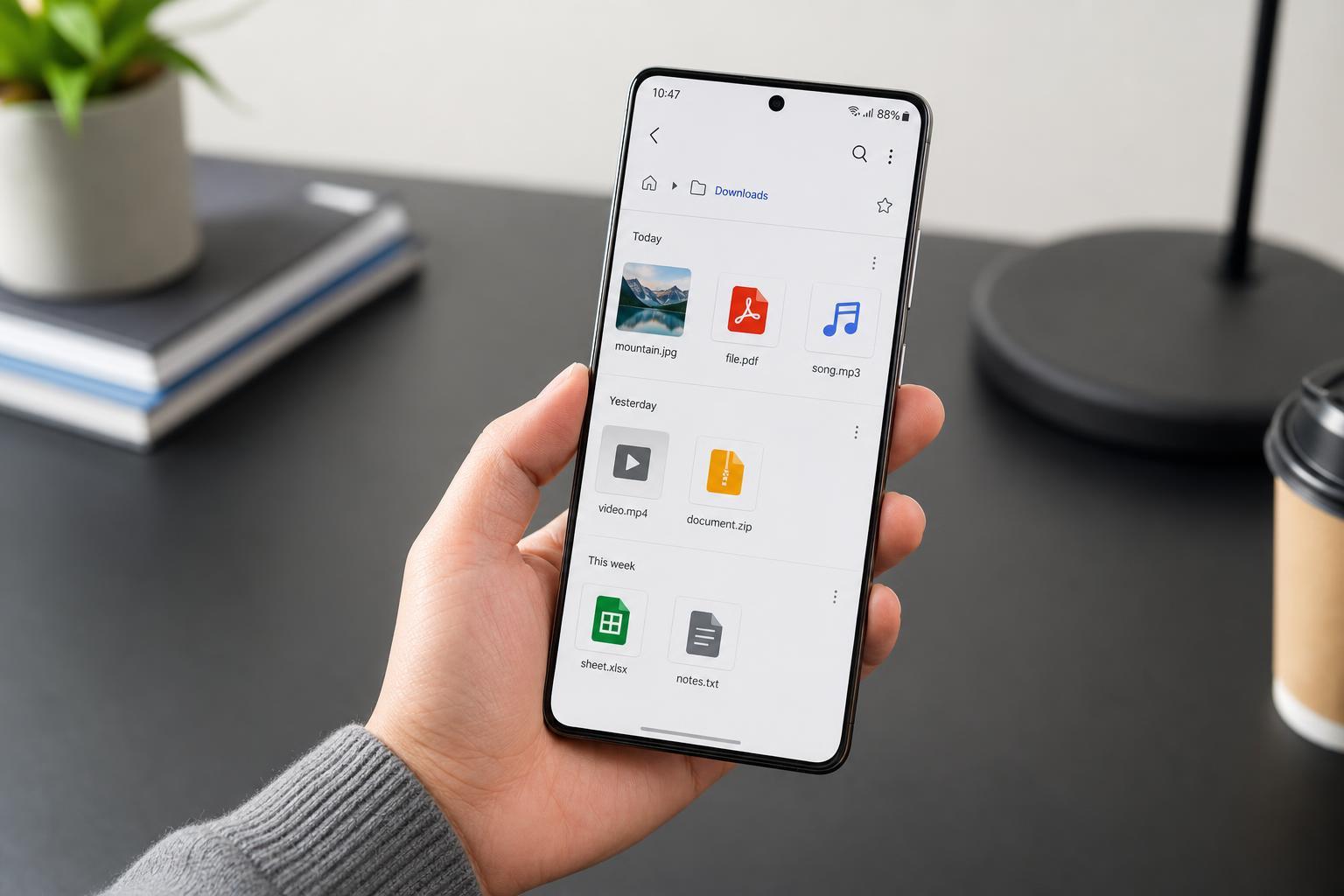
On most Samsung Galaxy phones, the easiest place to find downloaded files is the built-in My Files app. This app works like a file manager and groups files by type and location.
- Open the app drawer and tap My Files.
- Tap Downloads under Categories if it is shown on the home screen.
- If you do not see it, tap Internal storage.
- Open the Download folder.
- Tap the file you want to open.
Where Samsung Usually Saves Downloads
Most files downloaded from a web browser are stored in the Download folder on internal storage. That is the default location for many Android apps unless you manually changed it.
- Browser downloads usually go to Internal storage > Download
- Files saved from email apps may be in the app's attachment folder or in Download
- Images and documents sent through messaging apps may open inside the app instead of saving automatically
- Files from cloud apps such as Google Drive or OneDrive may stay online until you choose to save a copy locally
How to Find a Download from Chrome or Another Browser
If you downloaded something in Chrome, Samsung Internet, or another browser, the browser often keeps a shortcut to recent downloads.
- Open the browser you used.
- Tap the menu button, usually three dots.
- Choose Downloads or Download history.
- Tap the file to open it or use the folder icon to view it in My Files.
Check Recent Files if You Are Not Sure What Was Saved
If you do not remember the exact filename, use the recent files view in My Files. This can be faster than manually browsing folders.
- Open My Files.
- Look for Recent files or Recent on the home screen.
- Scroll through the list to find the file by name, date, or file type.
- Tap the file to open it.
What If the File Is in a Different App?
Not every downloaded item is meant to live in the Downloads folder. Some apps save files inside their own storage area or open them only within the app.
- Messaging apps may cache media instead of saving it permanently
- PDF readers may keep a local copy in the app's documents list
- Photo apps may save images directly to the Gallery or Pictures folder
- Music or video apps may store offline content in protected app storage
How to Search for a Download on Your Samsung Phone
If you still cannot find the file, use search inside My Files. This is helpful when you know part of the filename or the file type.
- Open My Files.
- Tap the search icon.
- Type part of the filename, extension, or keyword.
- Review the results and open the correct file or folder.
You can also sort by date in My Files if you downloaded the file recently and know roughly when it was saved.
Common Reasons a Download Seems to Be Missing
A missing download is often caused by one of a few simple issues rather than a failed transfer.
- The file was saved in a different folder than expected
- The download was never completed
- The file was opened in an app instead of saved locally
- A browser or app stored it in its own private folder
- The file was deleted after opening or cleanup tools removed it
Where to Look for Photos, Videos, and Documents
Different file types may end up in different places on a Samsung phone depending on the app that created or downloaded them.
- Photos: Gallery, DCIM, Pictures, or Download
- Videos: Gallery, Movies, Pictures, or Download
- Documents: Download or Documents folder
- ZIP files: Download folder unless moved elsewhere
- Audio files: Music, Download, or the app's own folder
If You Changed the Default Download Location
Some browsers let you choose a custom save location. If you changed that setting, the file may no longer go to the default Download folder.
- Open the browser or app used for the download.
- Go to its settings.
- Look for Downloads, Save files to, or Download location.
- Check the selected folder name and browse there in My Files.
A Simple Way to Keep Track of Downloads
If you often lose track of files on your Samsung phone, create a habit of checking the Download folder right after saving something important. You can also move key files into a folder with a clear name, such as Work, School, or Receipts.
What to Do If You Still Cannot Find It
If the file is not in My Files, not in the browser's download list, and not inside the app you used, try downloading it again and note the save location before closing anything. If it is an important document, also check whether the sender attached it to an email or message and whether the app only previewed it instead of saving it.





