
Google Dialer’s call recording announcements can be confusing if you are trying to record calls without the app announcing it out loud. In many cases, the announcement is not a simple setting you can switch off, because it may be required by the phone app, your device maker, or local recording laws.
This guide explains what is actually possible, where the setting may be hidden, and what to check if you want to stop Google Dialer from announcing call recording.
What Call Recording Announcements Are
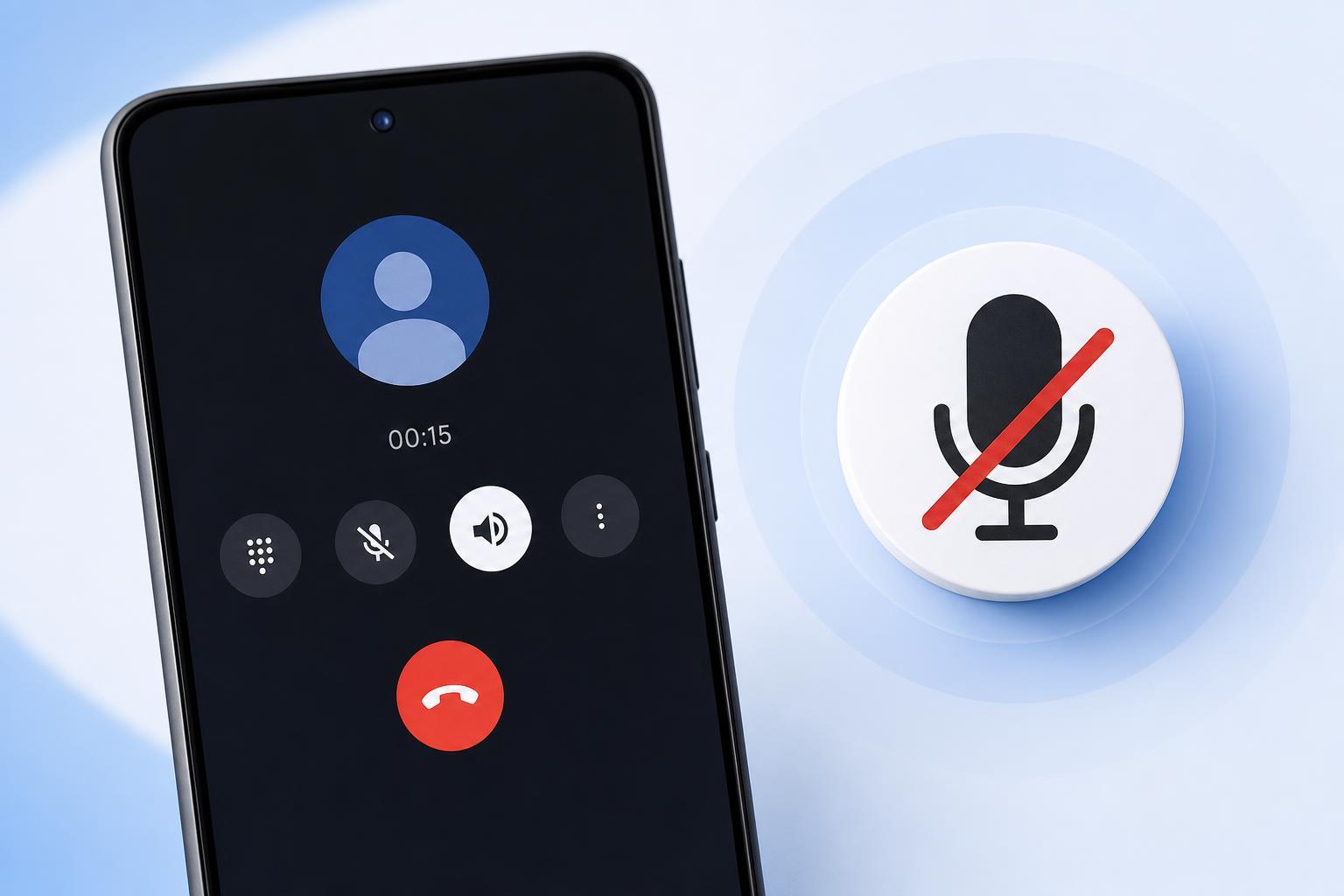
In Google Dialer, a call recording announcement is the spoken message that tells both people on the call that recording has started. On some devices, the app may also show an on-screen notice or play a beep instead of, or in addition to, a voice announcement.
Can You Actually Disable It?
Sometimes yes, but not always. On many phones, Google Dialer does not offer a direct switch to disable recording announcements. If your device has the option, it is usually hidden inside the call recording settings. If you do not see it, your version of the app or your region may not allow it.
Check the Google Dialer Call Recording Settings
- Open Google Dialer.
- Tap the three-dot menu or the settings icon.
- Go to Settings, then look for Call Recording or Recorded Calls.
- Check whether there is an option related to recording announcements, audio prompts, or call recording notifications.
- If the option exists, turn it off and test a call recording afterward.
If You Do Not See the Option
If there is no setting for announcements, you probably cannot disable them through Google Dialer on that phone. In that case, the most likely reasons are that the feature is controlled by your phone maker’s version of the Dialer app, your region, or compliance rules tied to call recording.
- Your device manufacturer has locked the feature.
- Your country or carrier requires a recording announcement.
- The Dialer app version on your phone does not support the toggle.
- Your phone uses a custom calling app that only looks like Google Dialer.
Try These Practical Checks
- Confirm that you are using the Google Phone app, not a third-party dialer with similar branding.
- Update the Phone app from the Play Store, because some settings only appear in newer versions.
- Check for system updates from your phone manufacturer.
- Open the app’s permissions and make sure it has the permissions needed for call recording if the option exists.
- Look for device-specific guidance from your phone manufacturer, especially on Pixel, Xiaomi, OnePlus, Samsung, or Motorola phones.
What Not to Do
Also avoid downloading random modified dialer apps or APK files just to remove the announcement. Those apps can be unsafe, may break calling features, and can put your data at risk.
If Your Goal Is Privacy Instead of Silence
If you mainly want fewer interruptions, it may help to understand the difference between an announcement and a recording notification. The spoken announcement tells the other person the call is being recorded. The notification is the on-screen reminder for you. In some cases you may only be able to hide the notification, not the spoken message.
When the Announcement Cannot Be Disabled
If the option is unavailable, the most reliable answer is that your current phone setup does not allow it. That is common, especially on newer Google Dialer builds. In that case, your choices are limited to using the feature as designed or checking whether your manufacturer offers a different phone app with separate recording controls.
How to Narrow Down the Cause
- If every call announces recording, the behavior is likely app-level or region-level.
- If only one SIM or one calling account does it, the setting may be tied to that account.
- If the announcement changed after an update, the app update is the most likely cause.
- If the option appears on one phone but not another, the device model or software version is the difference.
What This Means for Most Users
For many people, disabling call recording announcements in Google Dialer is not a normal setting change but a limitation of the phone’s software. Start by checking the call recording menu inside the Phone app. If the toggle is not there, the app or device likely does not support turning it off.
If you want, I can also turn this into a shorter step-by-step troubleshooting guide for a specific phone brand, such as Pixel, Samsung, Xiaomi, or OnePlus.





