
If you no longer need a YouTube playlist, you can delete it from either desktop or mobile. The process is quick, but the exact steps depend on whether you are using the YouTube website, the YouTube app, or the mobile browser.
This guide shows how to remove playlists you created, what happens when you delete one, and what to check if you cannot find the delete option.
Before You Delete a Playlist
You can only delete playlists that you created. If a playlist was made by someone else, you may be able to remove it from your library, but you cannot delete the original playlist.
How to Delete a YouTube Playlist on Desktop
- Go to YouTube in your web browser and sign in to the account that owns the playlist.
- Click Library or open YouTube Studio if the playlist is part of your channel content.
- Find the playlist you want to delete and open it.
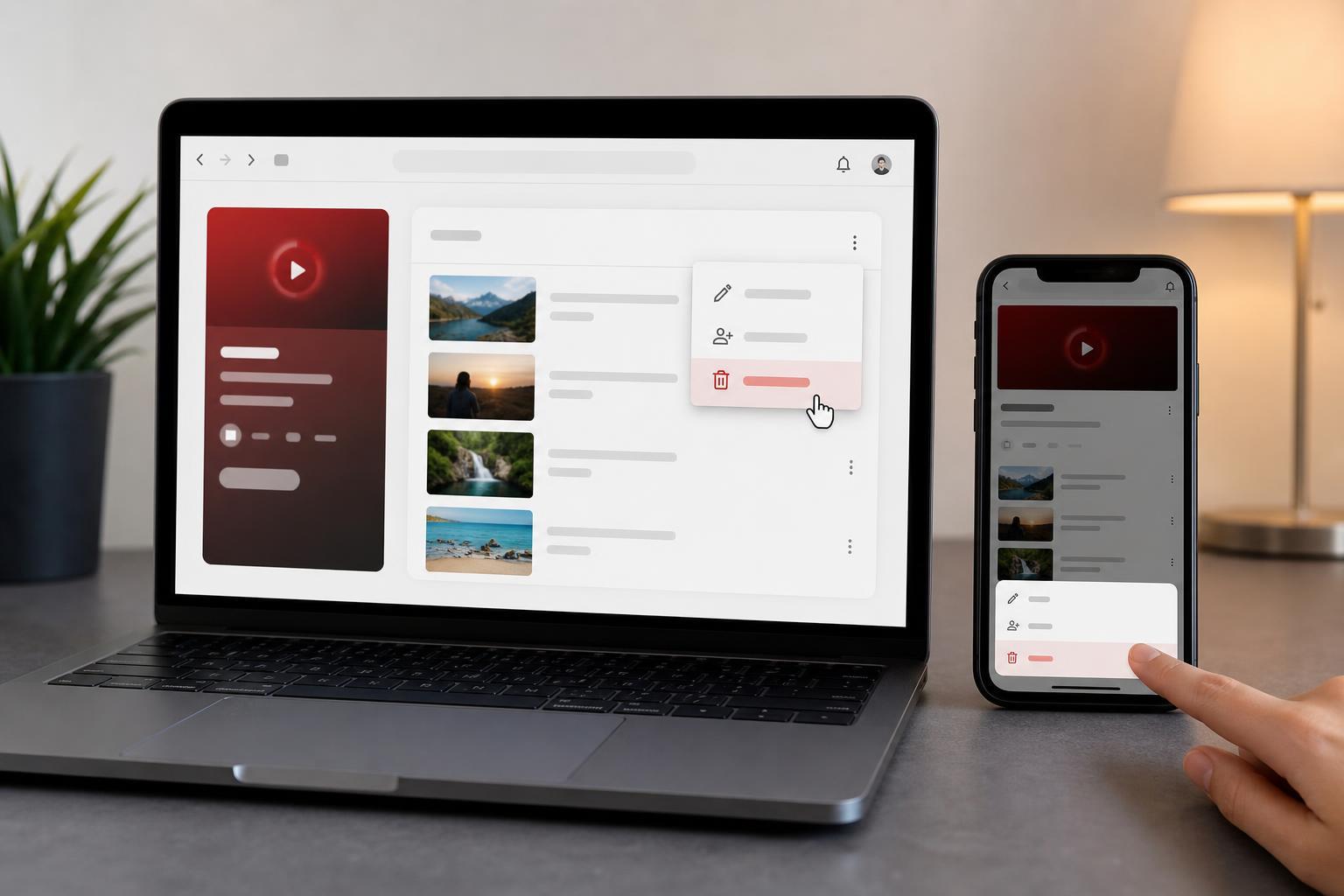
- Select the three-dot menu next to the playlist name or on the playlist page.
- Choose Delete playlist.
- Confirm the deletion when prompted.
How to Delete a YouTube Playlist on the YouTube Mobile App
- Open the YouTube app and make sure you are signed in to the correct account.
- Tap Library at the bottom of the screen.
- Open the playlist you want to remove.
- Tap the three-dot menu on the playlist page.
- Select Delete playlist.
- Confirm that you want to remove it.
How to Delete a Playlist on a Mobile Browser
If you are using a phone browser instead of the app, the steps are similar to desktop, but the layout is smaller and some buttons may be tucked into menus.
- Open YouTube in your mobile browser and sign in.
- Switch to the desktop site if the mobile layout hides the playlist controls.
- Open your playlist.
- Tap or click the three-dot menu.
- Choose Delete playlist and confirm.
If You Only Want to Remove a Playlist from Your Library
Sometimes you do not want to delete a playlist permanently. You may only want to remove a playlist that someone else created from your Library.
- Open the playlist in YouTube.
- Tap or click the Saved or Library-related option if available.
- Remove the playlist from your library instead of deleting it.
- Check whether the playlist disappears from your saved lists.
Common Reasons the Delete Option Is Missing
- You are not signed in to the account that created the playlist.
- The playlist belongs to another creator, so you cannot delete it.
- You are viewing the playlist from a shortcut or search result instead of the playlist page itself.
- The app version is outdated and not showing the full menu correctly.
- A browser extension or mobile browser layout is hiding part of the interface.
What to Check If the Playlist Won't Delete
- Make sure you are on the playlist page, not just on a video inside the playlist.
- Confirm that the playlist was created by your account.
- Try the web browser version if the app does not work.
- Sign out and back into the correct Google account if you manage more than one.
- Refresh the page and try the three-dot menu again.
After You Delete It
Once a playlist is deleted, it should disappear from your YouTube Library and from your channel page if it was publicly visible there. If other people had the playlist saved, their copies may still remain in their own accounts until they remove them.





