
WhatsApp keeps a call log inside the app so you can quickly see recent voice and video calls. If you want to clear that history for privacy, organization, or to remove old entries, you can delete it directly from WhatsApp on both Android and iPhone.
This guide shows the exact steps for deleting individual calls or the full WhatsApp call history, plus a few important limitations to know before you clear anything.
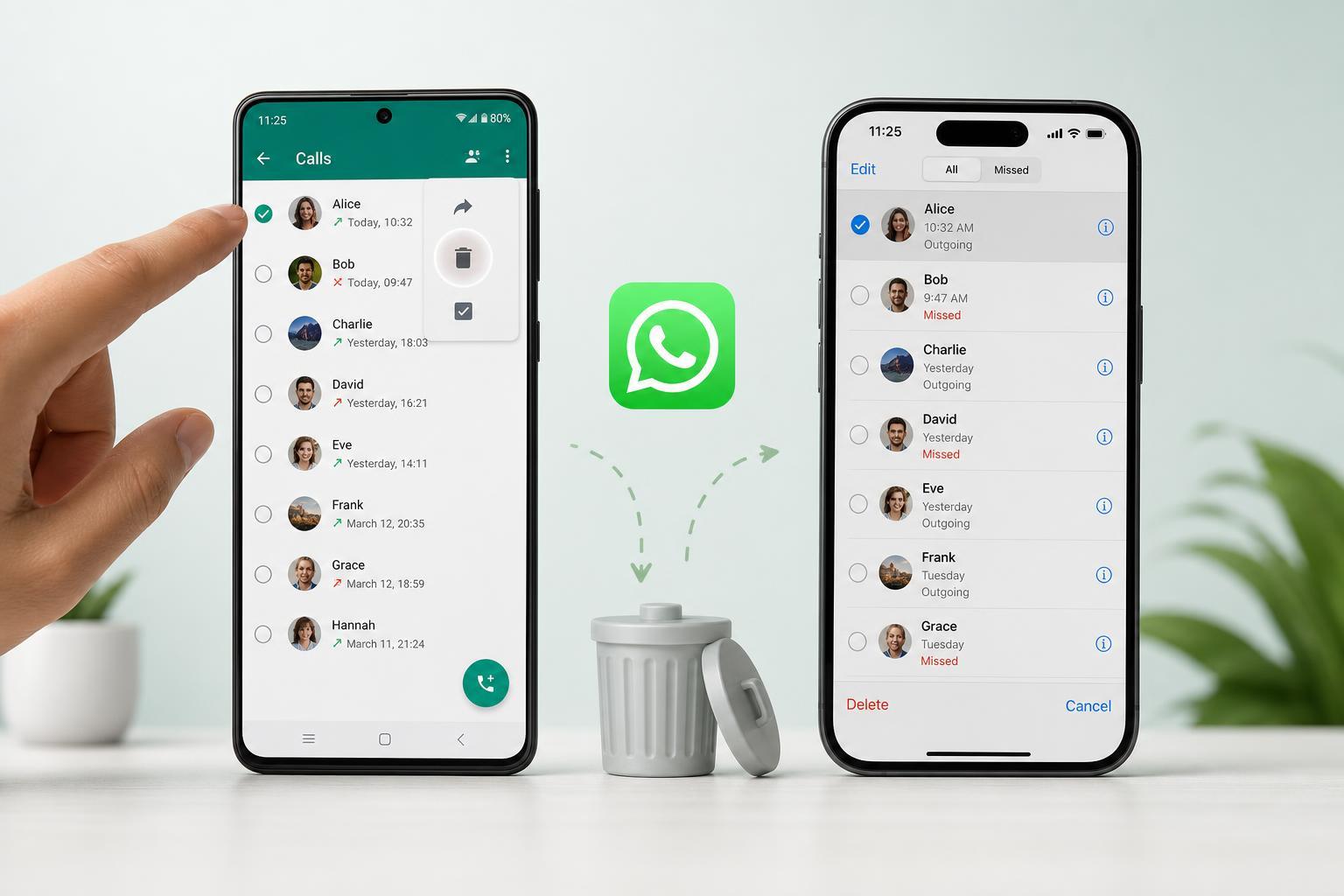
What Deleting WhatsApp Call History Actually Removes
Deleting call history in WhatsApp removes the call entries shown in the Calls tab. It does not delete messages, chats, media, or the call records stored by your mobile carrier.
How to Delete WhatsApp Call History on Android
- Open WhatsApp on your Android phone.
- Tap the Calls tab at the top of the screen.
- To remove one call, press and hold the call entry until it is selected.
- Tap the trash can icon and confirm the deletion.
- To clear all call history, tap the three-dot menu in the top-right corner.
- Choose Clear call log or Delete call log, depending on your version of WhatsApp.
- Confirm the action when prompted.
How to Delete WhatsApp Call History on iPhone
- Open WhatsApp on your iPhone.
- Tap the Calls tab at the bottom of the screen.
- To delete a single entry, swipe left on the call and tap Delete.
- To remove multiple calls, tap Edit in the top-left corner.
- Select the calls you want to remove, then tap Delete.
- To clear the entire history, look for the Clear option in the Calls screen if it is available on your version of WhatsApp.
- Confirm the deletion if prompted.
If You Only Want to Remove One Call
Deleting a single call is useful when you only want to hide one missed call, a personal conversation, or an accidental dial. This is the safest option if you still want to keep the rest of your call history for reference.
- Use this when you only need to remove a few sensitive entries.
- It is faster than clearing the full log.
- It avoids deleting useful call records you may still want later.
If Call History Keeps Coming Back
If deleted WhatsApp call entries reappear, the most likely cause is that you are seeing the log on another linked device, an older app session, or a backed-up state that was restored after reinstalling the app.
- Check whether WhatsApp is installed and active on another phone or linked device.
- Make sure you are deleting the calls inside WhatsApp, not just from the phone’s native call app.
- If you recently reinstalled WhatsApp, a backup may have restored older in-app data.
- Update WhatsApp if the app behavior seems inconsistent.
Can You Delete WhatsApp Calls for Both Sides?
No. Deleting your WhatsApp call history only removes the record from your device. It does not erase the other person’s call log, and it does not cancel the call record on their phone.
A Few Useful Privacy Tips
- Lock WhatsApp with Face ID, Touch ID, fingerprint, or a passcode if you want to keep call history private.
- Turn off call previews or notifications on the lock screen if other people can see your phone.
- Delete unwanted call entries regularly instead of waiting until the log becomes cluttered.
- Review your linked devices if you use WhatsApp on more than one device.
When Deleting Call History Is the Right Fix
If your goal is simply to clean up the Calls tab, WhatsApp’s built-in delete options are usually enough. If the issue is that calls are appearing on multiple devices or you want stronger privacy, check your linked devices and phone security settings as well.





