
Samsung’s Secure Folder is useful for keeping apps, photos, and files separate from the rest of your phone. But if you no longer need it, you can delete Secure Folder from your Samsung device.
Before you remove it, though, it is important to understand what happens to the data inside Secure Folder, how deletion works, and how to avoid losing anything you still need.
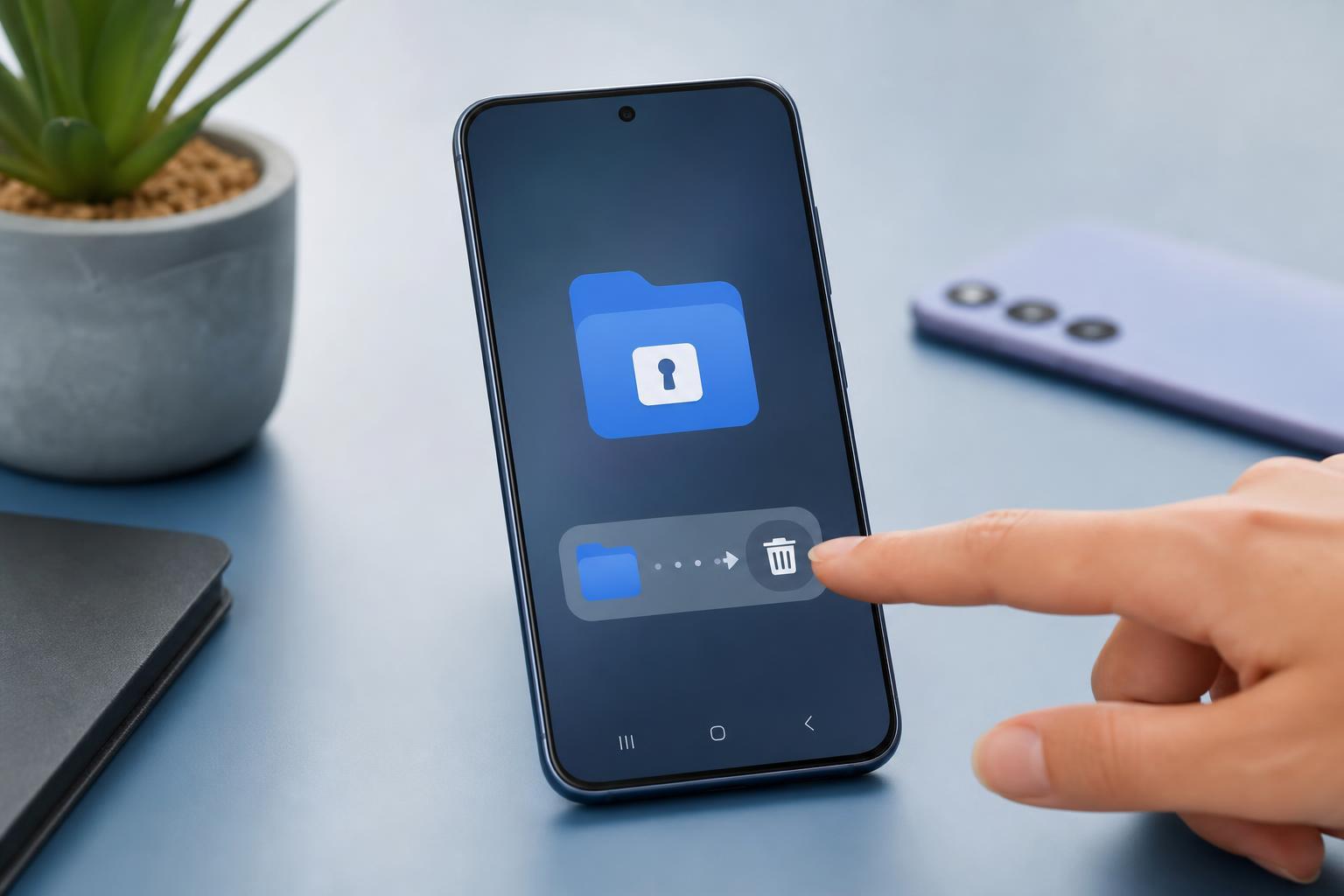
What Secure Folder Does
Secure Folder is a protected space on Samsung phones that uses Samsung Knox security. It lets you store private apps, documents, photos, videos, and other files in an isolated area that is separate from the normal phone storage you use every day.
Because it is a separate protected container, deleting Secure Folder is not the same as simply hiding a folder or uninstalling one app. You are removing the entire secure space and everything stored inside it.
What Happens When You Delete Secure Folder
- All apps installed only inside Secure Folder are removed from that secure space.
- Photos, videos, documents, and other files stored only in Secure Folder are deleted unless you back them up or move them first.
- App data inside Secure Folder is erased, including logins and saved settings for those secure apps.
- The Secure Folder icon and access prompt disappear from your phone.
- Your normal phone apps and files outside Secure Folder are not affected.
Back Up or Move Anything Important First
Before deleting Secure Folder, open it and check what is stored there. If you have files you still want, move them out of Secure Folder or back them up first. Samsung usually gives you options during the deletion process, but it is safest to verify everything yourself before you proceed.
- Open Secure Folder on your Samsung phone.
- Review the apps, files, photos, and documents stored inside it.
- Move any important items to normal phone storage or another backup location.
- If needed, export or sync data from apps before removing Secure Folder.
- Only delete Secure Folder once you are sure nothing important is left inside.
How to Delete Secure Folder on a Samsung Phone
The exact menu names can vary a little depending on your Samsung model and One UI version, but the process is usually straightforward.
- Open Secure Folder on your Samsung phone.
- Tap the three-dot menu or the settings icon inside Secure Folder.
- Choose Settings.
- Look for the option to remove, uninstall, or delete Secure Folder.
- Confirm the warning prompt that explains your data will be removed.
- If prompted, choose whether to back up or move data before deletion.
- Enter your Samsung account password, PIN, pattern, or biometrics if required.
If You Only Want to Hide Secure Folder Instead
Sometimes people do not actually want to delete Secure Folder. They only want it out of sight. In that case, you can often hide the Secure Folder icon from the app screen rather than removing it completely.
- Keeps your private container available for later use
- Does not erase the files or apps inside it
- Is safer if you may need Secure Folder again in the future
- Avoids the risk of accidental data loss
Can You Reinstall Secure Folder Later?
Yes. If you delete Secure Folder and later decide you want it again, you can usually install or enable it again from Samsung’s system features or the Galaxy Store, depending on the device and software version. However, any data that was deleted with the old Secure Folder will not automatically come back.
That is why it is better to treat deletion as permanent for anything stored only inside the secure space.
When Deleting Secure Folder Makes Sense
- You no longer use the feature
- You want to reduce duplicate app copies on your phone
- You are preparing to sell or give away the device
- You want to simplify your phone and no longer need a separate private container
- You have already moved all important data out of Secure Folder
A Good Final Check Before You Remove It
Before you confirm deletion, make sure you have answered these questions: Do you still need any files inside Secure Folder? Are there app logins or messages you want to keep? Have you copied everything important to a safe place? If the answer to any of those is no, stop and back up first.





