
The Share menu on Samsung Galaxy phones can be helpful, but it often becomes crowded with apps and contacts you do not use. If you share photos, files, links, or screenshots often, customizing that menu can save time and make sharing much easier.
Samsung’s sharing screen does not offer deep manual control over every item, but you can still improve it by pinning favorites, clearing clutter from suggested apps, and adjusting the apps that appear when you share content.
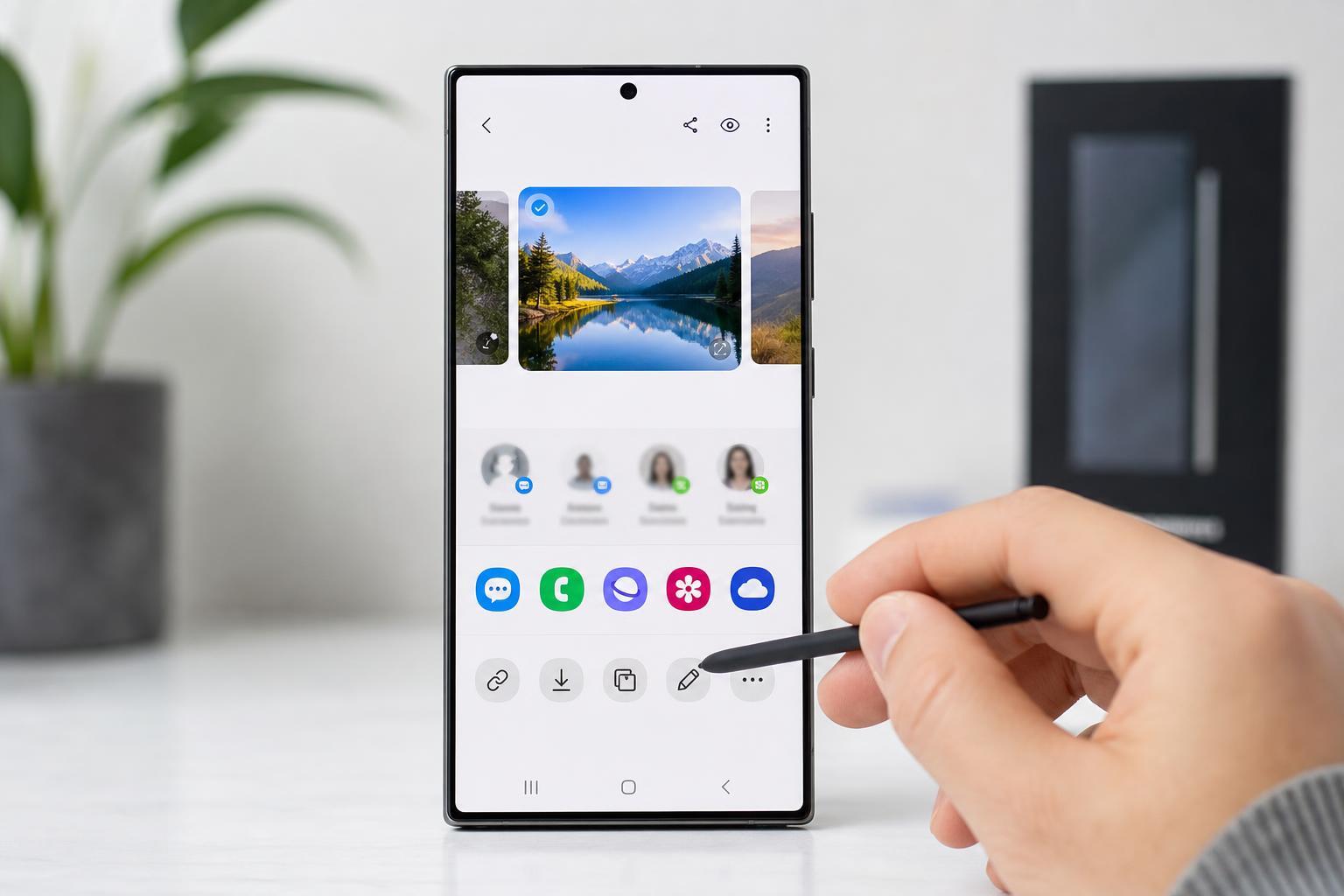
What You Can Customize in the Samsung Share Menu
On Galaxy phones running One UI, the Share sheet can include suggested contacts, nearby devices, and app shortcuts. The exact layout may vary slightly depending on your software version, but the main ways to improve it are usually the same.
- Pin your most-used apps or contacts to the front of the Share menu
- Remove or reduce clutter from suggested options
- Change which apps are available for sharing
- Use app-specific sharing options when they appear
Pin Your Favorite Apps or Contacts
- Open something you want to share, such as a photo in Gallery or a file in My Files.
- Tap the Share icon.
- When the Share menu appears, look for an app or contact you use often.
- Press and hold the item, then choose the pin option if it appears.
- Repeat for other frequently used apps or contacts.
Pinned items usually stay near the front of the Share menu, making them easier to reach the next time you share something.
Remove Clutter from Suggested Apps
Samsung and Android often learn from your sharing habits and place suggested apps at the top of the list. If the Share menu keeps showing apps you do not want, you may be able to reduce the clutter by clearing the app’s cache, resetting preferences, or using the share menu settings available on your phone.
- Look for a settings or edit option in the Share sheet if your version of One UI includes one
- Check whether an app is repeatedly appearing because it was used recently
- Review app permissions or default app settings if a specific app keeps taking over the Share menu
- Clear cache for the Samsung-related sharing components only if needed, not as a first step
Change Which Apps Appear for Sharing
If an app supports sharing to Samsung’s Share menu, it may show up automatically. To influence what appears, focus on the apps installed on your phone and which ones are allowed to handle shared content.
- Open Settings.
- Go to Apps.
- Find the app you want to adjust.
- Tap Set as default or Open by default if available.
- Review whether the app is allowed to open supported links or receive content from other apps.
This does not always remove an app from the Share menu completely, but it can affect how prominently it appears and whether it is useful when sharing.
Use Nearby Share and Quick Share Separately if Needed
On many Galaxy phones, Samsung’s sharing tools may include Quick Share for nearby devices and Android sharing options for apps. If the Share menu feels crowded, it helps to know the difference between local device sharing and app-based sharing.
- Quick Share is useful for sending files to nearby Samsung or compatible devices
- App sharing is better for sending content to messaging, email, or social apps
- If nearby transfer is not something you use often, you may not need to interact with that section regularly
If the Share Menu Still Looks Messy
If the menu remains cluttered even after pinning and adjusting your apps, the issue is usually caused by how Android and Samsung prioritize recent and suggested sharing targets. In that case, the best approach is to simplify your app selection and use the same few sharing apps consistently.
- Remove apps you never use from the phone if possible.
- Keep your most-used share apps updated.
- Use the same contact or app regularly so Samsung learns your preference.
- Check for One UI updates, since sharing behavior can improve with system updates.
Troubleshooting Share Menu Problems
If the Share button is missing, slow, or not showing expected options, the cause may be an app issue rather than Samsung’s Share menu itself.
- Restart the app you are sharing from, not necessarily the whole phone
- Update Samsung apps, Google Play services, and the app you are sharing from
- Try sharing from Gallery, My Files, and another app to see whether the issue is app-specific
- Check whether the problem happens only with one file type, such as photos or PDFs
What to Do After Customizing the Share Menu
Once you pin the apps and contacts you actually use, the Share menu should become faster and easier to read. The main goal is not to remove every suggestion, but to make the first screen useful for your routine.
If Samsung changes the Share menu layout after a software update, you may need to pin your favorite items again or recheck the available sharing options. That is normal on Android-based phones.





