
WhatsApp polls are a simple way to ask a question and gather quick answers from a group chat or individual conversation. They are useful for choosing a meeting time, deciding where to eat, or getting a vote on a plan without turning the chat into a long back-and-forth.
This guide shows how to create a poll in WhatsApp, how people vote, and what to know if you want to edit, remove, or review the results later.
What WhatsApp Polls Do
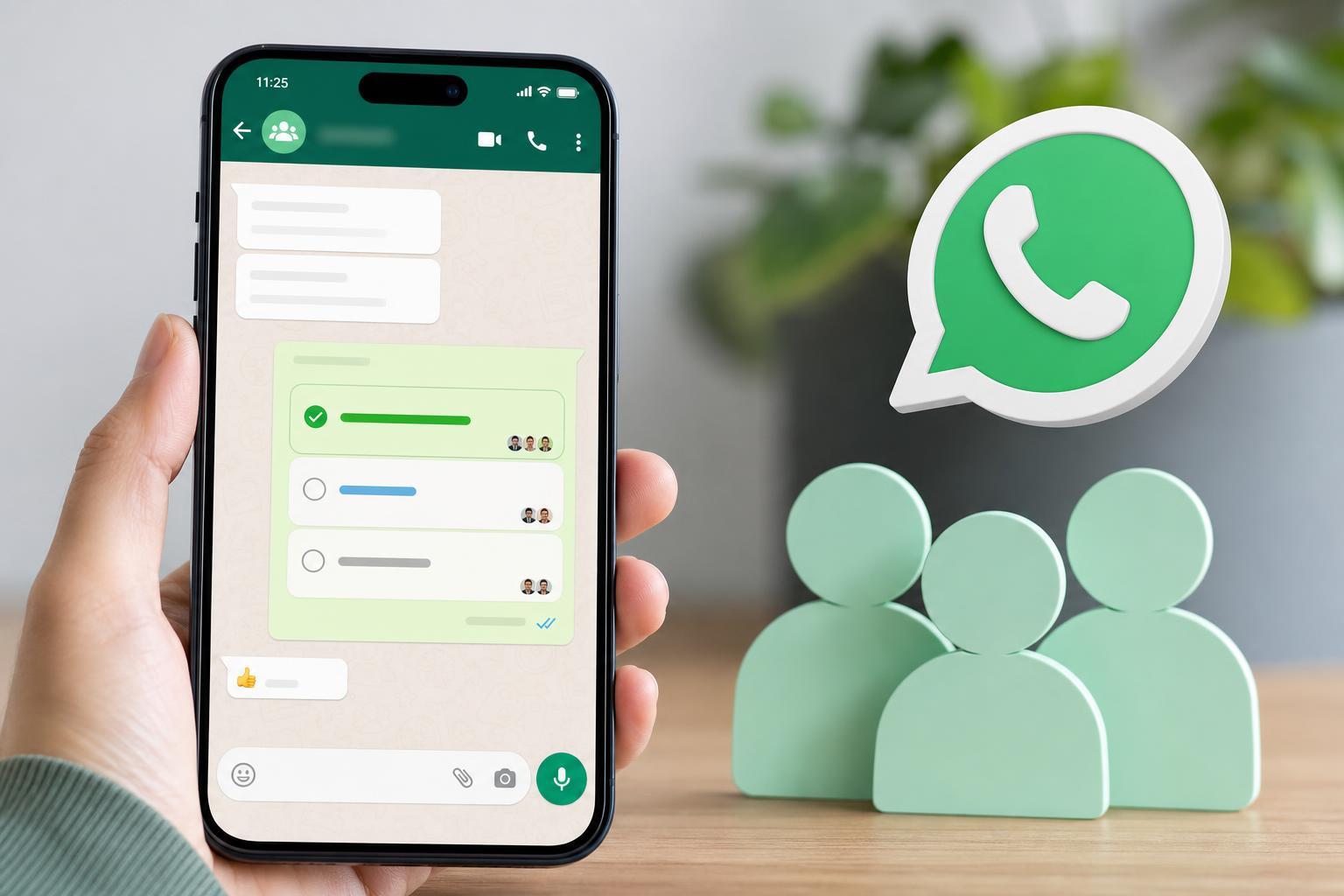
A WhatsApp poll lets you ask a question and offer multiple answer choices. People in the chat can tap one or more options to vote. The poll updates in real time so everyone can see how the votes are going.
How to Create a Poll in WhatsApp
- Open the WhatsApp chat or group where you want to post the poll.
- Tap the attachment button next to the message box. On iPhone, this is usually the plus icon. On Android, it is often the paperclip icon.
- Choose Poll from the menu.
- Type your question in the question field.
- Enter your answer options, one at a time. Add as many choices as needed within WhatsApp’s current poll limits.
- Adjust the poll settings if available, such as allowing multiple answers.
- Tap Send to post the poll to the chat.
How People Vote in a WhatsApp Poll
Once the poll is posted, anyone in the chat can tap one of the choices to vote. If the poll allows multiple selections, they can choose more than one answer. Their vote is added instantly, and the poll updates for everyone in the conversation.
- Tap an option to cast your vote.
- Tap a different option if you want to change your choice.
- If multiple answers are allowed, select more than one option before sending your vote.
- View the vote totals directly inside the poll message.
Useful Ways to Use Polls
- Choosing a date or time for a meeting
- Picking a restaurant or takeaway choice
- Deciding on a game mode or server
- Voting on a project idea in a team chat
- Getting quick feedback on an announcement or event
Polls work best when the choices are easy to compare. If the answers need detailed explanations, a poll may not be the right tool because it only captures votes, not full comments.
Managing a Poll After You Send It
After posting a poll, you can usually view who voted and how many votes each option received. In many cases, tapping or opening the poll shows the current breakdown of responses.
- Check live results to see which option is leading.
- Use the vote totals to make a quick decision.
- Share a follow-up message once the group reaches a clear result.
- Keep the poll open until everyone has had time to respond.
Can You Edit or Delete a WhatsApp Poll?
WhatsApp does not usually let you edit a poll after it has been sent in the same way you edit a text message. If you made a mistake in the question or the answer choices, the practical fix is often to delete the poll and create a new one.
- Open the chat with the poll.
- Press and hold the poll message.
- Choose Delete or Delete for everyone if that option is available.
- Create a new poll with the corrected question and answer choices.
When a Poll Is the Better Choice
Use a poll when you need a fast group decision and the answer options are already known. If you want open-ended opinions, links, or detailed feedback, a normal message or form may work better.
Common Problems With WhatsApp Polls
- You cannot find the Poll option: update WhatsApp and check whether the feature is available in your app version.
- Votes are confusing: simplify the answer choices and make each option distinct.
- People are not responding: send a short follow-up message and keep the poll visible longer.
- The wrong poll was posted: delete it and resend a corrected version as soon as possible.
A Quick Way to Get Better Poll Results
What to Know Before You Start
WhatsApp polls are designed for quick group decisions, not formal surveys. If you need anonymous responses, deeper analysis, or many question types, a dedicated survey tool may be a better fit. For everyday chats, though, WhatsApp polls are one of the fastest ways to get a group answer.





