
Copying and pasting pictures on Android is possible in some apps, but the exact method depends on where the image is coming from and where you want to put it. In many cases, Android uses share, save, or drag-and-drop options instead of a classic copy-and-paste command.
This guide explains the common ways to move images between apps, messages, documents, and browsers on Android, plus what to do when the copy option is missing.
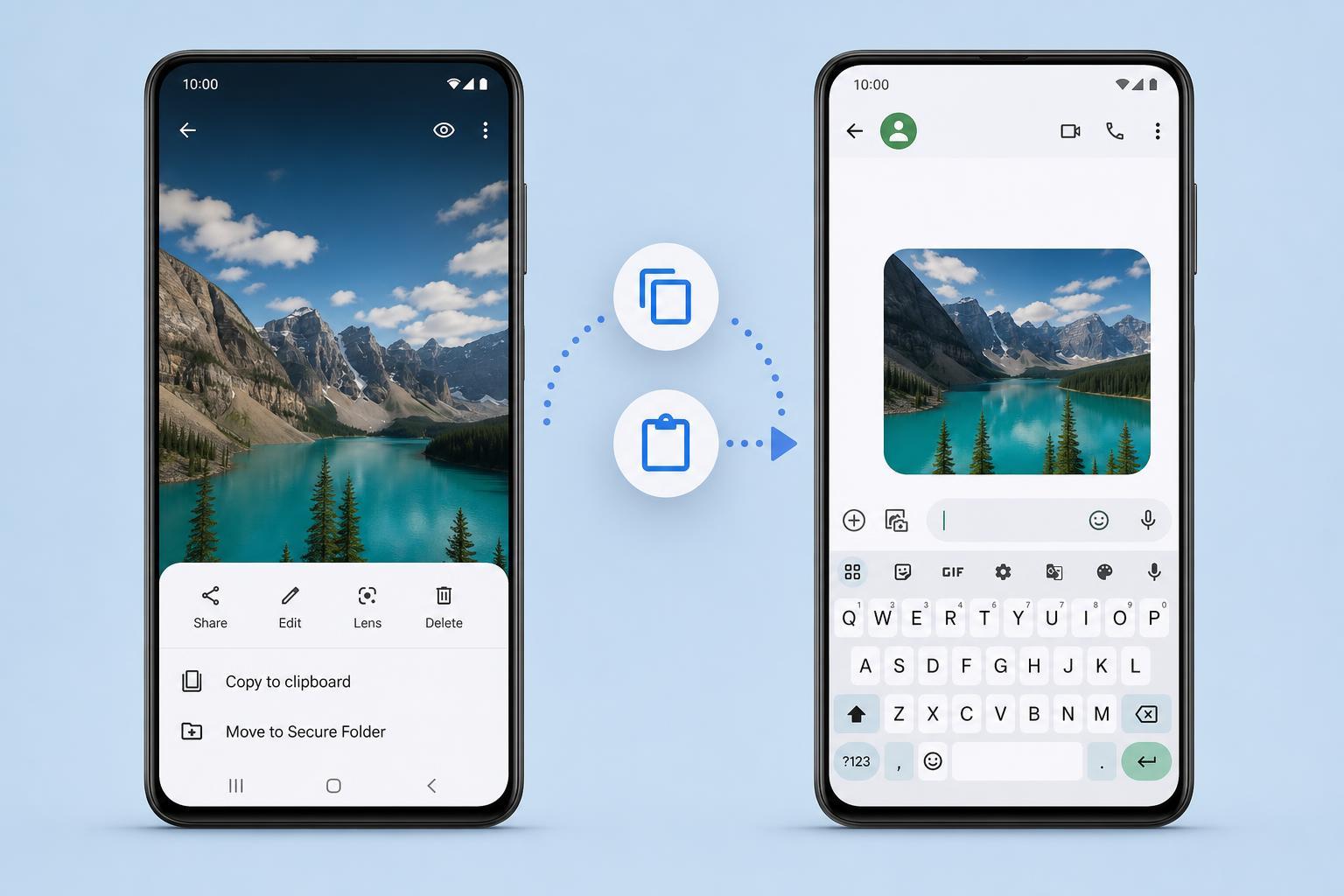
When You Can Copy and Paste Pictures on Android
Android does not treat every image the same way. Some apps let you copy a picture to the clipboard, while others only let you save it, share it, or drag it into another app. Whether copy and paste works usually depends on the app you are using and the type of content involved.
How to Copy and Paste a Picture from an App
- Open the app that contains the picture, such as Chrome, Samsung Internet, Photos, or a messaging app.
- Press and hold the picture until a menu appears.
- Look for an option such as Copy image, Copy, or Copy to clipboard.
- Open the app where you want to place the picture.
- Press and hold in the target field if the app supports pasting images, then tap Paste if it appears.
This works best in apps that accept pasted images directly, such as some messaging apps, note apps, email drafts, and document editors. If you only see text paste options, the app may not support image pasting in that location.
How to Paste a Picture into Messages or Notes
- Open the conversation, note, or document where you want the image.
- Tap in the message box or editing area.
- If the app supports it, press and hold in the field until the Paste option appears.
- Tap Paste to insert the copied picture.
- Send or save the message or note after checking that the image displayed correctly.
In some apps, pasted images may appear as an attachment instead of being inserted into the text. That is normal and often depends on the app's design.
If Copy and Paste Does Not Work
- The app may not support image clipboard pasting.
- You may be trying to paste into a text-only field.
- The image may be protected by the source app or website.
- Your phone may require you to use Share instead of Copy.
- The app may need permission to access photos or files.
If copying fails, try saving the image first and then inserting it from your gallery, file picker, or attachment menu. That is often the easiest workaround on Android.
Use Share, Save, or Insert from Gallery Instead
- Press and hold the image or open its menu.
- Choose Share if you want to send it to another app or person.
- Choose Save image or Download image if you want it stored on your phone.
- Open the destination app and use its attachment, image, or insert button.
- Select the picture from your gallery or files and confirm.
This method is especially useful for apps that do not support direct clipboard image pasting. It is also more reliable when moving pictures into email, cloud storage, school apps, or messaging apps with attachment tools.
How to Move Pictures Between Android Apps
If your goal is simply to reuse a picture in another app, you usually have three practical options: copy and paste, share, or attach from storage. The best method depends on the app and on whether you want the image embedded in the content or just sent as a file.
- Copy and paste: best when both apps support clipboard images.
- Share: best for sending the image to another app quickly.
- Attach or insert: best for email, documents, and apps with a file picker.
Using Drag and Drop on Tablets and Some Large Screens
Some Android tablets and large-screen devices support drag and drop between apps in split-screen or multi-window mode. If your device supports this, you can often move a picture from one app to another without using the clipboard at all.
- Open both apps in split-screen or multi-window mode.
- Press and hold the image in the source app.
- Drag the picture into the destination app.
- Release it where the app accepts dropped content.
Why Some Apps Only Let You Share Pictures
Many Android apps limit clipboard image handling for design or security reasons. For example, a social app may let you share an image outward but not copy it for pasting elsewhere. Other apps may treat images as files that must be attached rather than pasted.
- Security or privacy restrictions
- App design limitations
- Unsupported text field or editor
- Clipboard support that works only for text
A Simple Way to Test Whether Image Paste Works
- Copy a picture from a browser, gallery, or compatible app.
- Open a note app or chat app that allows attachments or rich text.
- Tap in the message or note area and look for Paste.
- If the picture appears, the app supports image clipboard pasting.
- If not, use the insert, attach, or share option instead.
What to Do if You Need the Picture as a File
If the other app expects a file rather than pasted content, save the image to your device first. Then use the app's attachment or insert feature to browse to Downloads, Pictures, or Gallery and select the image.
- Save the image from the source app or browser.
- Open the destination app.
- Tap the paperclip, plus sign, insert, or image button.
- Choose the saved picture from your gallery or file manager.
- Confirm the selection and finish sending or inserting it.
Useful Apps and Situations Where This Matters
Knowing the difference between copying, sharing, and attaching makes Android image handling much easier. Once you understand which option the app supports, you can move pictures around quickly without guessing.
Troubleshooting Quick Checklist
- Try long-pressing directly on the image.
- Look for Copy image, Share, or Save image options.
- Check whether the destination app supports pasted images.
- Use the attachment or insert button if Paste is missing.
- Save the image first if clipboard copy is unavailable.
If you still cannot move the picture, the destination app may not accept clipboard images at all. In that case, attaching from storage is usually the most dependable workaround.





