
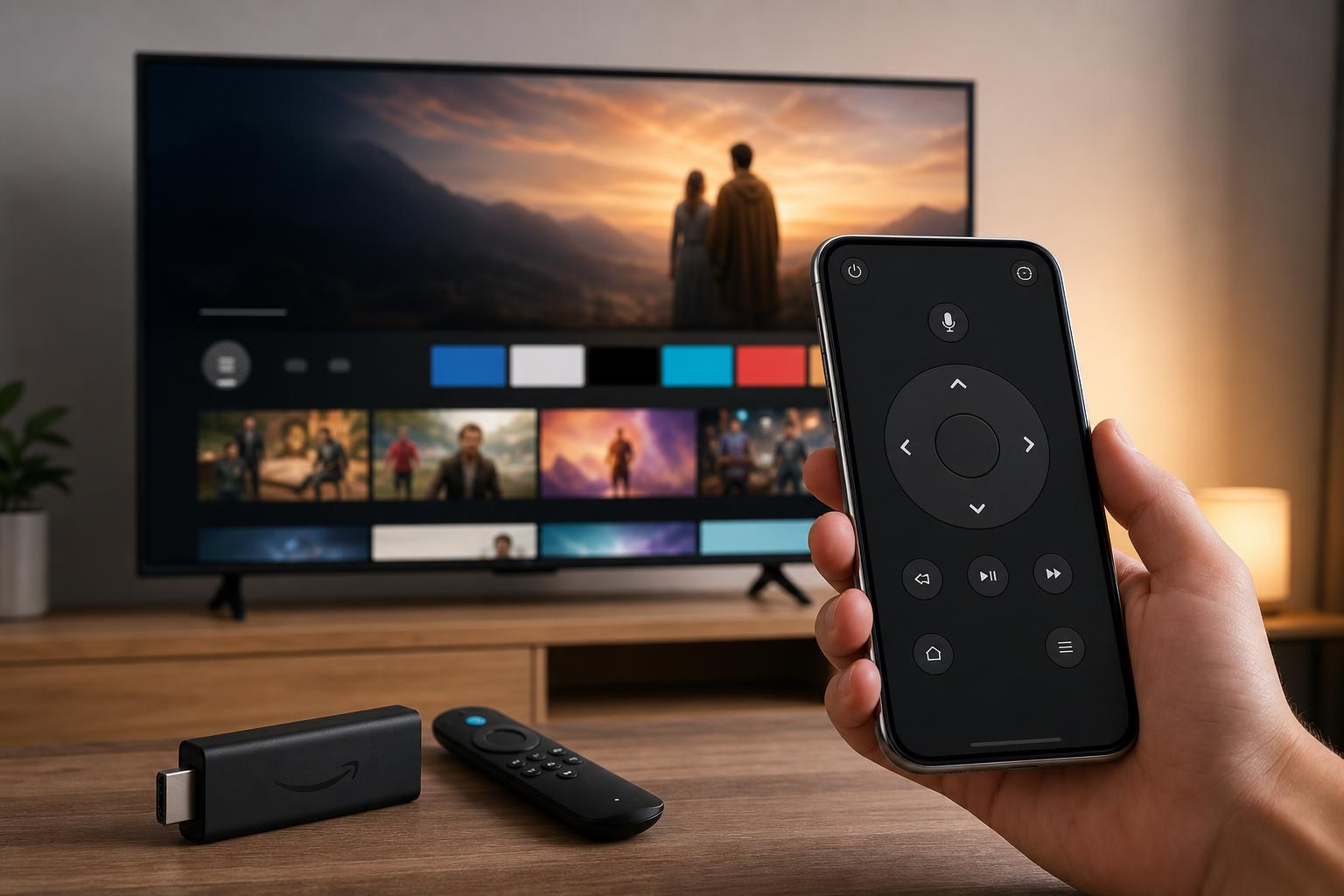
If your Fire TV Stick remote is missing, out of batteries, or just inconvenient to use, your phone can often take its place. Amazon’s Fire TV app lets you navigate menus, type with your keyboard, launch apps, and use basic playback controls from your phone.
This guide shows you how to set it up, what features work best, and how to troubleshoot common connection problems when your phone will not control the Fire TV Stick.
What You Need First
- A Fire TV Stick connected to a TV and powered on
- A phone with the Fire TV app installed
- The phone and Fire TV Stick connected to the same Wi-Fi network
- An Amazon account signed in on the app if prompted
Connect Your Phone to the Fire TV Stick
- Install the Fire TV app from the App Store or Google Play Store.
- Open the app on your phone.
- Make sure your phone and Fire TV Stick are on the same Wi-Fi network.
- The app should search for nearby Fire TV devices automatically.
- Select your Fire TV Stick when it appears.
- Enter the code shown on your TV screen if the app asks you to pair the device.
Once pairing is complete, your phone becomes a remote control for that Fire TV Stick. If you have more than one Fire TV device in your home, choose the correct one before continuing.
What You Can Do With the Fire TV App
- Use the on-screen remote pad to move through menus
- Tap buttons for Back, Home, Menu, Play/Pause, Rewind, and Fast Forward
- Use your phone keyboard to enter search terms faster
- Open apps and switch between them
- Use voice search on supported phones and app versions
- Access the built-in touchpad-style navigation on some versions of the app
How to Use Your Phone as the Remote
- Open the Fire TV app and connect to your device.
- Use the navigation pad or touchpad area to move around the Fire TV interface.
- Tap the keyboard icon whenever a text field appears on the TV.
- Use playback buttons while watching video to pause, resume, or skip.
- Open the voice search option if you want to search hands-free.
Common Problems and Fixes
- The Fire TV Stick and phone are not on the same Wi-Fi network
- The app does not have permission to find devices on your local network
- The Fire TV Stick is offline or asleep
- A VPN or guest network is blocking device discovery
- The app needs an update
- There are multiple Fire TV devices nearby and the app selected the wrong one
- Check that both devices are using the same Wi-Fi network name.
- Open the app’s permissions on your phone and allow local network access if required.
- Make sure the Fire TV Stick is powered on and connected to the internet.
- Turn off VPNs or network isolation features temporarily if discovery fails.
- Update the Fire TV app from your app store.
- Close the app and reopen it if the device list is not refreshing.
If You Lost the Remote Entirely
A phone can be a great temporary replacement, but you may still want to pair a new Fire TV remote if you plan to use the Stick regularly. The phone app depends on Wi-Fi and app compatibility, so a physical remote is still useful as a backup.
When a Phone Remote Is the Best Option
- Your Fire TV remote is lost or out of batteries
- You need to enter long passwords or search terms
- You want a backup remote for guests or shared spaces
- You are setting up a Fire TV Stick and need easier text input
If the app still refuses to connect after checking Wi-Fi, permissions, and app updates, the problem is usually network-related rather than a bad Fire TV Stick. In that case, focus on confirming that both devices can see each other on the same local network.





