
Samsung Galaxy phones usually reconnect to saved Wi‑Fi networks on their own, but a few settings can prevent that from happening. If your phone keeps using mobile data or asks you to connect manually, the issue is often tied to the network being saved, the auto-connect option, or a power-saving setting.
This guide shows how to enable automatic Wi‑Fi connection on Samsung Galaxy phones and how to fix the most common reasons it does not work.
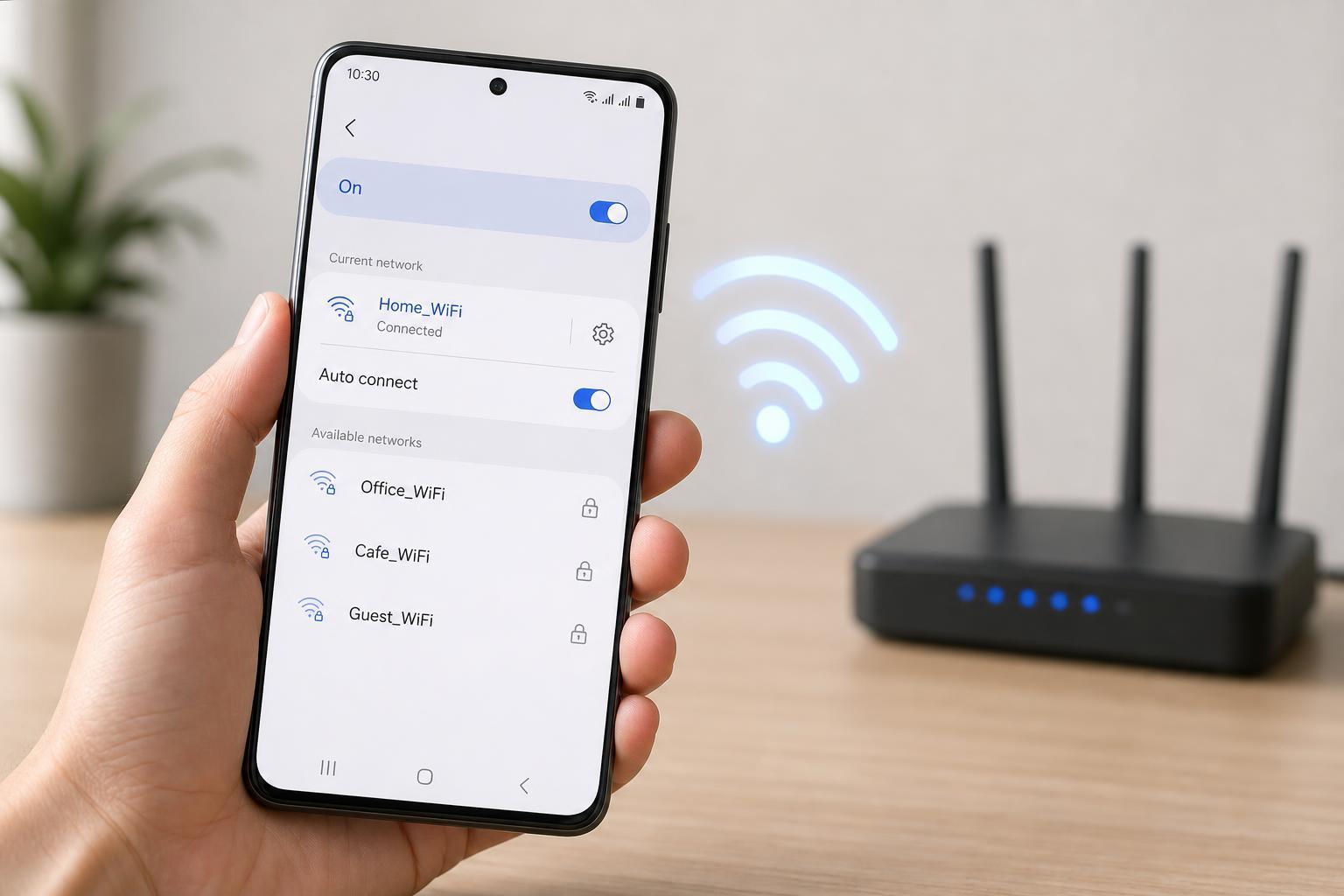
Check That the Wi‑Fi Network Is Saved
A Samsung Galaxy phone can only reconnect automatically to a network it already knows. If you have never connected to the network before, or if the saved entry was removed, the phone will not join by itself.
- Open Settings.
- Tap Connections, then tap Wi‑Fi.
- Select the network you want the phone to connect to automatically.
- If prompted, enter the password and connect.
- Make sure the network remains saved in the list of known networks.
Turn On Auto Reconnect or Reconnect Automatically
Many Samsung phones include a setting that tells the device to reconnect to known networks when Wi‑Fi is enabled. The wording can vary a little depending on your One UI version.
- Open Settings and tap Connections.
- Tap Wi‑Fi.
- Tap the three-dot menu or More options if you see it.
- Look for Auto reconnect, Reconnect automatically, or a similar option.
- Turn the option on if it is available.
Make Sure Wi‑Fi Is Actually Turned On
If Wi‑Fi is turned off, your phone cannot reconnect automatically even if the network is saved. This sounds obvious, but it is easy to miss if the phone was switched to mobile data, airplane mode, or a battery-saving mode that changes wireless behavior.
- Check the Quick Settings panel for the Wi‑Fi icon.
- Open Settings > Connections > Wi‑Fi to confirm Wi‑Fi is on.
- If Airplane mode is enabled, turn Wi‑Fi back on after airplane mode is disabled or allowed by your device settings.
Review Battery and Power Saving Features
Some power-saving features can interfere with background network activity or delay reconnecting to Wi‑Fi. If your phone only connects after you unlock it, a power mode may be part of the problem.
- Check whether Power saving mode is on.
- Open Settings > Battery and device care > Battery and see whether any limiting mode is enabled.
- Disable overly aggressive battery restrictions for network-related apps if you use a Wi‑Fi management app.
Forget and Reconnect to the Network
If a saved network is not reconnecting correctly, the saved profile may be corrupted or the password may no longer match. Forgetting the network and adding it again often fixes stubborn connection problems.
- Open Settings > Connections > Wi‑Fi.
- Tap the network name.
- Choose Forget.
- Reconnect to the network from the Wi‑Fi list.
- Enter the password again and save it.
Check the Router Side Too
Sometimes the phone is working correctly, but the router is refusing to reconnect the device automatically. This can happen if the router has MAC filtering, connection limits, or a weak signal in the area where you usually use the phone.
- Make sure the router is broadcasting the network normally.
- Check whether the Wi‑Fi password was changed recently.
- Move closer to the router to test signal strength.
- Look for router settings that block unknown or previously connected devices.
- If the router supports separate 2.4 GHz and 5 GHz bands, try both if one is unstable.
If the Phone Connects Only When You Unlock It
Some Samsung Galaxy phones delay Wi‑Fi reconnects to save power, especially after the screen has been off for a while. If this happens every time, look at battery optimization, power saving, and any network-related automation apps you may have installed.
- Turn off Power saving mode and test again.
- Check whether a routine or automation app is controlling Wi‑Fi.
- Make sure the phone is allowed to use Wi‑Fi while idle.
- See whether the problem happens on all networks or only one specific network.
When to Reset Network Settings
If multiple saved networks fail to reconnect, resetting network settings can clear damaged Wi‑Fi, mobile data, and Bluetooth configuration. This is a stronger fix, so use it only when simpler steps have not helped.
- Open Settings.
- Tap General management.
- Tap Reset.
- Choose Reset network settings.
- Confirm the reset and reconnect to your Wi‑Fi networks afterward.
How to Narrow Down the Problem
A few quick tests can help you tell whether the issue is with the phone, the saved network, or the router.
- Test a different Wi‑Fi network, such as a home network or hotspot.
- See whether one network reconnects automatically while another does not.
- Check whether other devices reconnect to the same router without trouble.
- Watch whether the Samsung phone drops the connection only after sleep or after moving out of range.
What Usually Fixes Auto-Connect Problems Fastest
In most cases, the fastest fix is to forget the network and reconnect to it, then verify that Wi‑Fi and auto-reconnect are enabled. If that does not work, check battery saving features and router settings before moving on to a full network reset.





