
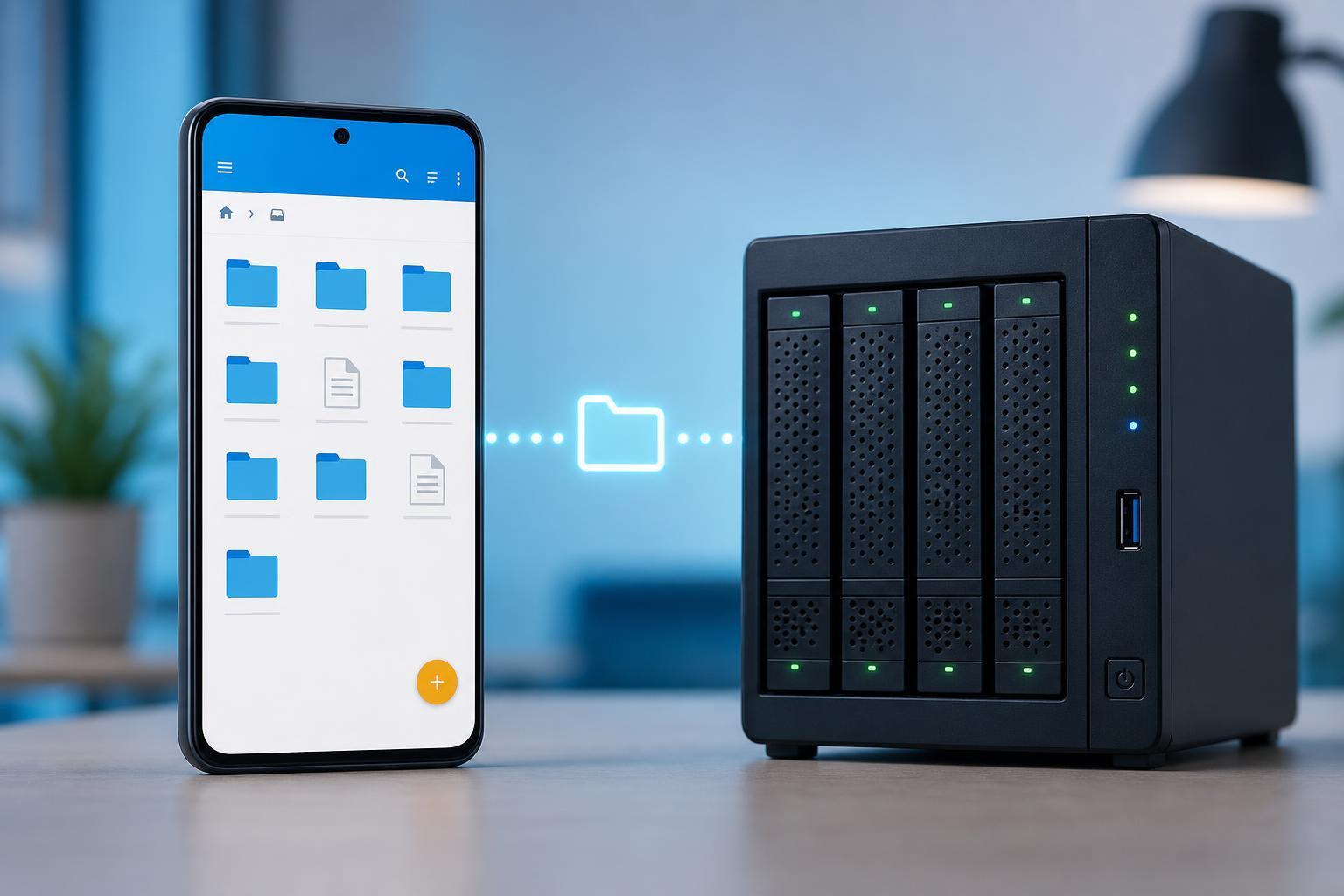
Solid Explorer can connect to Windows file shares and other SMB servers, letting you browse network folders from your Android device. This is useful when you want to transfer files, stream media, or open documents stored on a PC, NAS, or another shared device.
The exact menu names may vary a little depending on your version of Solid Explorer, but the process is usually the same: add a new network storage, enter the SMB server details, then sign in with the correct username and password.
What You Need Before You Start
- A device running Solid Explorer
- An SMB server on your local network, such as a Windows PC, NAS, or file server
- The server's network name or IP address
- A valid username and password if the share is not guest-accessible
- Both devices connected to the same network, unless your server is exposed securely over the internet or through a VPN
Add the SMB Server in Solid Explorer
- Open Solid Explorer on your Android device.
- Tap the menu icon or open the side panel.
- Look for Storage, Network, or Add Storage, depending on the app layout.
- Choose SMB or LAN/SMB as the connection type.
- Enter the server address. You can usually use either the computer name or the IP address.
- If prompted, enter the share name, username, and password.
- Save the connection and wait for Solid Explorer to connect.
If the connection works, the SMB share will appear as a storage location inside Solid Explorer. You can open it like a folder, browse subfolders, copy files to and from it, or use it as a source for media playback.
How to Enter the Correct SMB Details
The most common reason SMB login fails is that one of the required details is wrong. The server address may look different depending on how your network is set up.
- Computer name: Often works on home networks, such as \"DESKTOP-1234\" or a NAS name.
- IP address: Often the most reliable option, such as 192.168.1.25.
- Share name: The specific shared folder, such as \"Public\" or \"Media\".
- Username: The account allowed to access the share.
- Password: The password for that account.
If the SMB Share Does Not Show Up
If Solid Explorer cannot find the server automatically, manual entry usually fixes it. Discovery on the network can fail even when the share itself is working correctly.
- Try entering the server's IP address instead of its name.
- Confirm the share is enabled on the server side.
- Make sure file sharing is turned on for the folder you want to access.
- Check that your Android device is on the same Wi-Fi network as the server.
- Verify that the username and password are correct.
- If available, try connecting through the direct share path rather than browsing the network list.
Fix Common SMB Connection Problems
- Wrong password or username: Remove the saved connection and add it again with the correct credentials.
- Server name not found: Use the IP address instead of the hostname.
- Access denied: The account may not have permission to the shared folder.
- Connection timed out: Check Wi-Fi, the server's network status, and any firewall rules.
- Old SMB version unsupported: Some older servers need SMB 1, while modern systems usually use newer SMB versions.
- Guest access blocked: Many devices no longer allow unsecured guest sign-in by default.
Where to Find the Share on Windows
If your SMB server is a Windows PC, make sure the folder is actually shared first. Solid Explorer can only connect to shares that Windows is exposing on the network.
- Right-click the folder you want to share.
- Choose Properties.
- Open the Sharing tab.
- Click Advanced Sharing or Share, depending on the version of Windows.
- Enable sharing and assign permissions.
- Note the network path or share name, then use that in Solid Explorer.
Using the SMB Share After You Connect
Once the share is added, Solid Explorer treats it like any other storage location. You can browse folders, rename files, copy items between local storage and the network share, and even queue transfers for later.
When to Use IP Address vs Hostname
Using the hostname is convenient, but the IP address is often more dependable when you are troubleshooting. If the share works with an IP address but not with the name, the problem is usually name resolution on the network rather than the SMB share itself.
- Use the hostname if the network is stable and name discovery works reliably.
- Use the IP address if the device is hard to find or the connection keeps failing.
- Use a static IP or reserved address if the server's IP changes often.
Checking Permissions on the Server
If you can see the server but cannot open the folder, the issue is often permissions. The account you used in Solid Explorer must have access on the server side, not just on the network.
- The folder share permission may be missing.
- The user account may not have read or write access.
- The server may require a different login format.
- Your device may be trying guest access when the share requires authentication.
If You Need Remote Access
SMB is usually intended for local networks. If you want to access files while away from home, the safer approach is to connect to your home network through a VPN first, then open the SMB share in Solid Explorer as if you were on the local Wi-Fi.
A Simple Way to Test the Connection
- Create or choose one shared folder on the server.
- Make sure the folder contains a small test file.
- Add the SMB share in Solid Explorer using the server IP address.
- Sign in with the correct credentials.
- Open the share and try copying the test file to your device.
If that test works, the connection is set up correctly and any remaining issues are likely related to a specific folder, file permission, or path rather than SMB itself.





