
Instagram can use far more mobile data than many people expect, especially if you spend time on Reels, Stories, and video-heavy posts. The exact amount depends on how you use the app, but there are a few simple ways to keep it under control.
In this guide, you’ll learn what drives Instagram data usage and three practical ways to reduce it on your phone without making the app unusable.
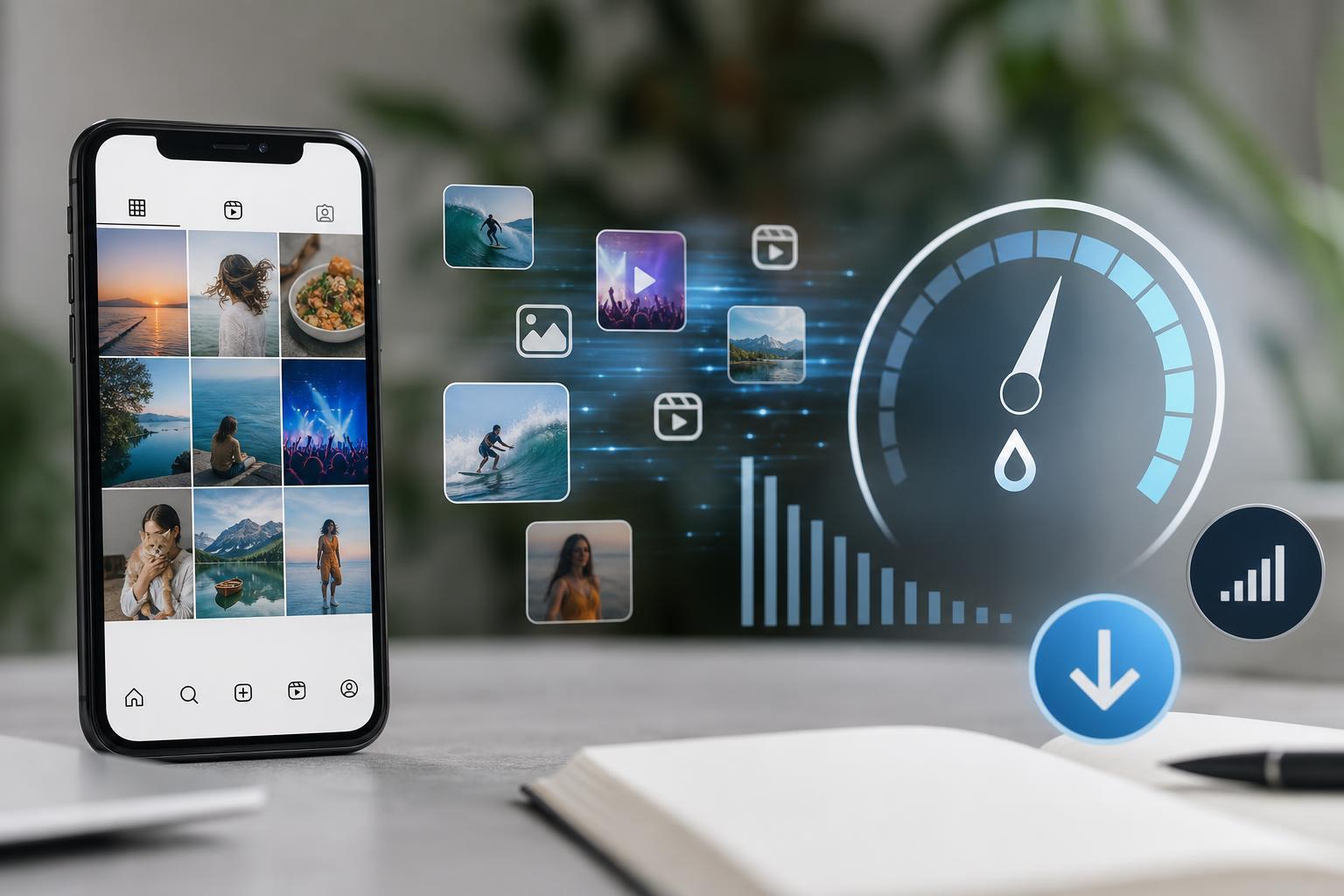
How Much Data Does Instagram Use?
There is no single fixed number, because Instagram data usage changes based on video quality, how long you stay in the app, and whether you’re watching a lot of Reels or loading high-resolution images. Scrolling a text-heavy or photo-light feed uses much less data than watching short-form videos for the same amount of time.
As a rough rule, Instagram is not a problem for occasional checking, but it can become a major data user if you spend long sessions watching videos. If your mobile plan has a low data cap, the app can eat through it faster than you expect.
What Uses the Most Data in Instagram?
- Reels and other short videos
- Auto-playing video posts in your feed
- Stories with video, stickers, or effects
- Uploading high-resolution photos and videos
- Video calls and live streams
- Repeatedly loading the same content on a slow connection
Image browsing is usually cheaper than video, but even photos can add up if Instagram keeps loading new content as you scroll. If the app is allowed to use background data, it may also refresh content when you are not actively using it.
3 Ways to Reduce Instagram Data Use
- Turn on Instagram's data saver or lower-data playback settings inside the app if your version includes them. This can reduce video quality or delay loading until you tap play.
- Use your phone's mobile data settings to limit background data for Instagram. This stops the app from refreshing when you're not actively using it.
- Reduce video-heavy use when you're on mobile data. Watching fewer Reels, avoiding unnecessary autoplay, and saving larger sessions for Wi-Fi can make the biggest difference.
1. Use Instagram’s Built-In Data-Saving Settings
Instagram has had data-saving options in different forms over time, and the exact wording can vary by app version. Look in the app’s settings for a section related to data use, media quality, or cellular data. If available, choose the lower-data option.
This can help by lowering the quality of videos or delaying their loading until you choose to play them. It will not remove data usage entirely, but it can slow down how quickly your mobile plan is used up.
2. Restrict Background Data on Your Phone
Even when you are not actively scrolling, Instagram may still refresh content in the background. Restricting background data can help stop that extra usage.
- On Android, open your app settings for Instagram and look for mobile data or background data options.
- On iPhone, go to Settings, find Instagram, and check whether cellular data use is limited by your device settings.
- If your phone has a Low Data Mode or Data Saver mode, enable it for mobile data when you want to conserve usage.
This is especially useful if you only want Instagram to work normally when you open it yourself, rather than keeping it active all day in the background.
3. Watch Less Video When You’re on Mobile Data
This is the simplest and often the most effective fix. Reels, Stories, and autoplaying clips are the biggest data consumers, so limiting how much video you watch makes a noticeable difference.
- Save Reels for Wi-Fi whenever possible
- Stop videos from autoplaying when the app offers that option
- Avoid repeatedly rewatching clips on mobile data
- Upload larger photos and videos only when connected to Wi-Fi
How to Check Instagram Data Usage on Your Phone
If you want to see whether Instagram is actually using a lot of data on your device, check your phone’s built-in data usage screen. Both iPhone and Android can show how much mobile data each app has used over a chosen period.
- Open your phone’s Settings.
- Find the cellular or mobile data section.
- Look for Instagram in the app list.
- Compare its usage with other apps to see whether it is unusually high.
This can help you confirm whether Instagram is the app causing your data problem or whether another app is responsible.
When Instagram Data Use Is a Sign of a Bigger Problem
If Instagram is consuming a lot of data even when you are barely using it, check for background data access, an unstable connection causing repeated reloads, or someone else using your account. A compromised account that is actively streaming content or posting may generate extra usage.
Choosing the Right Approach
For most people, the best results come from combining all three methods: use Instagram’s lower-data settings, limit background data, and save video-heavy browsing for Wi-Fi. That combination reduces usage without making the app frustrating to use.





