
Instagram chat themes can make DMs feel more personal, but sometimes the theme option does not appear, the change does not save, or the conversation stays stuck on the default look. That usually happens because of an app issue, a missing update, account settings, or a conversation type that does not support themes the way you expect.
This guide walks through the most likely reasons Instagram chat themes are not working and the practical fixes to try in order.
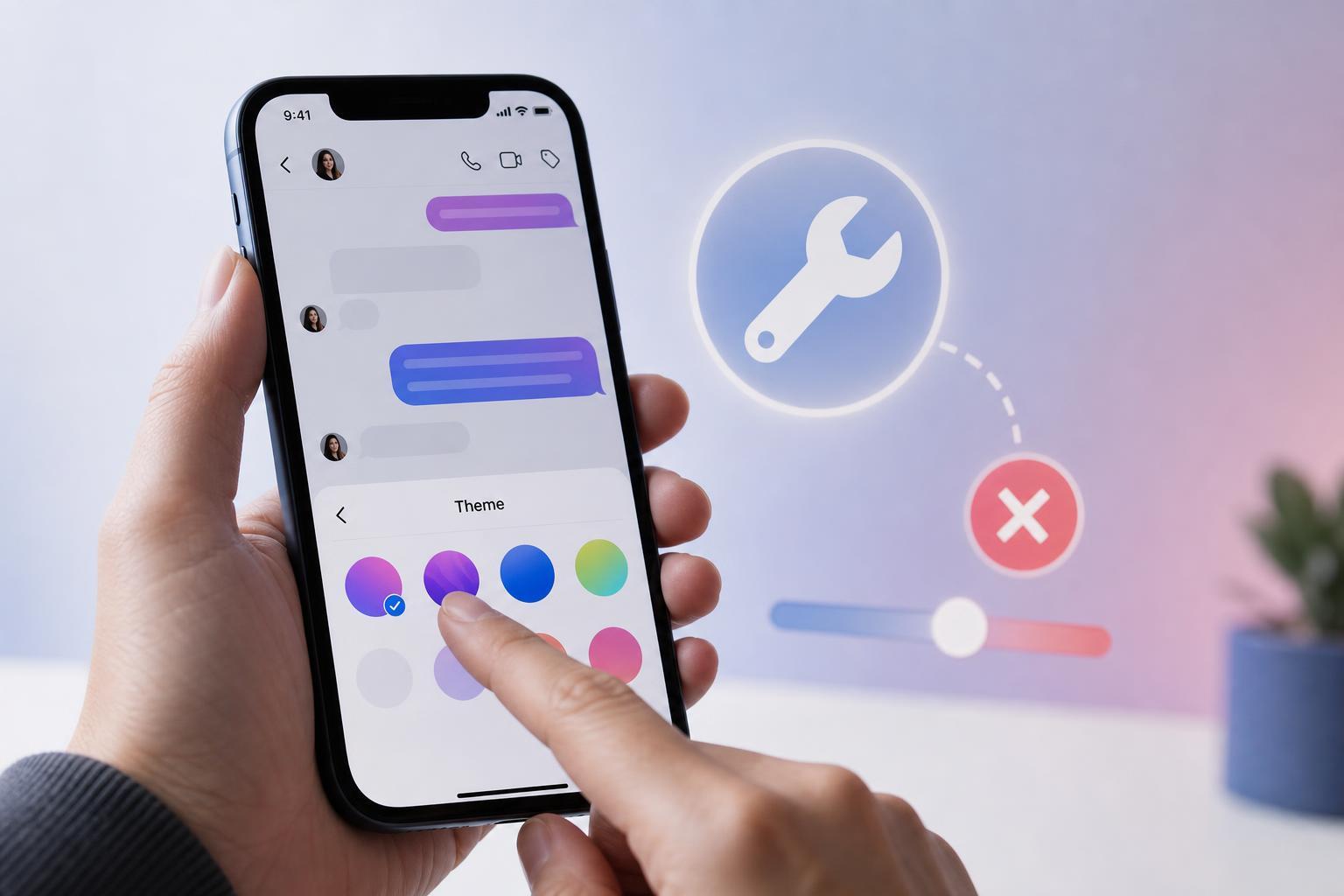
What Instagram Chat Themes Actually Depend On
Instagram chat themes are controlled inside the message thread, but they also depend on the app version, the type of chat, and whether both sides of the conversation are using compatible settings. If the theme switch is missing or not applying, the problem is often with the app or the conversation itself rather than your phone.
Check Whether the Conversation Supports Themes
Start by opening the specific chat where the theme is not working. Not every message thread behaves the same way, especially if it is an older conversation, a chat with restricted features, or a thread that has not fully updated to Instagram’s current message experience.
- Open the DM thread and tap the person’s name at the top to look for theme options.
- If you do not see theme controls, the thread may not support that feature in the current app state.
- Try another chat to see whether the problem affects one conversation or all of them.
- If themes work in one chat but not another, the issue is likely with that specific thread rather than your app overall.
Update Instagram First
An outdated Instagram app is one of the most common reasons theme settings fail to show or do not apply correctly. Theme features are tied to app updates, and older versions may not support the current message interface.
- Open the App Store on iPhone or Google Play Store on Android.
- Search for Instagram.
- Install any available update.
- Close Instagram completely and reopen it.
- Return to the chat and try changing the theme again.
Make Sure You’re Changing the Theme in the Right Place
Instagram theme controls are inside the conversation settings, not the main app settings. If you are looking in your profile or general settings, you will not find them there.
- Open Instagram and go to your DMs.
- Open the conversation you want to change.
- Tap the name of the person or group at the top of the chat.
- Look for Theme, Chat theme, or a similar option.
- Choose a theme and return to the conversation to confirm the change applied.
Check for App Glitches or Temporary Sync Problems
Sometimes the theme selection opens normally, but nothing changes after you pick one. That can happen if Instagram is having a temporary sync problem or the app has become stuck in a bad state.
- Force close Instagram and reopen it.
- Switch between Wi-Fi and mobile data to see whether the app is loading changes correctly.
- Try changing the theme in a different chat to see whether the issue is isolated.
- Log out of Instagram and sign back in if the app continues to ignore changes.
Check Whether Vanish Mode or a Restricted Chat Is Involved
Some chat modes and privacy states can interfere with normal message customization. If the conversation is in vanish mode, restricted, or otherwise limited, Instagram may not show all appearance options the way it does in a standard chat.
- Turn off vanish mode if it is enabled.
- Check whether the chat is restricted or filtered.
- Try a normal one-to-one conversation to compare behavior.
- If the theme works in a standard chat, the issue is likely tied to the special chat mode.
Update Your Phone’s Operating System
This is less common than updating Instagram itself, but an older phone OS can sometimes cause app display problems or prevent newer app features from behaving correctly.
- On iPhone, check for iOS updates in Settings.
- On Android, check for system updates in the device settings.
- Install any pending updates and restart the app after the update completes.
Clear Cache on Android or Reinstall the App if Needed
If Instagram themes still refuse to change, the app itself may have corrupted temporary data. Android users can often clear cache, while iPhone users usually need to reinstall the app to refresh the app files.
- On Android, open app settings and clear Instagram’s cache.
- If that does not help, uninstall and reinstall Instagram.
- On iPhone, delete Instagram and reinstall it from the App Store.
- Sign back in and test the chat theme again.
Try a Different Device or Web Access for Comparison
If the theme works on another device, the problem is probably local to your phone rather than your account. If it fails everywhere, the issue is more likely tied to the account, the chat, or Instagram itself.
- Test the same chat on a second phone or tablet.
- Check whether the DM behavior is different on Instagram’s web version.
- Compare results to see whether the issue follows the account or stays with one device.
If Nothing Works, Check for Account or Server-Side Issues
If chat themes are broken across multiple conversations and devices, Instagram may be having a server-side problem or your account may be temporarily limited in how DM features behave. In that case, there may be nothing to fix on your device right away.
- Wait a little while and test the feature again later.
- Check whether other Instagram users are reporting similar DM issues.
- Use Instagram’s built-in help or report feature if the problem persists for a long time.
Which Fix Should You Try First?
If you want the quickest path, use this order: update Instagram, test another chat, check the theme option inside the conversation, then reinstall the app if the issue still continues. Most theme problems are caused by an outdated app or a chat that is not behaving normally, so those checks solve the issue faster than deeper troubleshooting.
If the theme feature works in some chats but not others, focus on the specific thread. If it does not work anywhere, the app version or a temporary Instagram issue is the most likely explanation.





