
If Google Maps keeps talking over your music, podcasts, or calls, you can turn off voice navigation without losing the rest of the app’s directions. The exact option is a little different on Android and iPhone, but the process is quick once you know where to look.
This guide shows the main ways to mute or silence Google Maps voice guidance, along with a few settings that can help if you only want the voice turned off in certain situations.
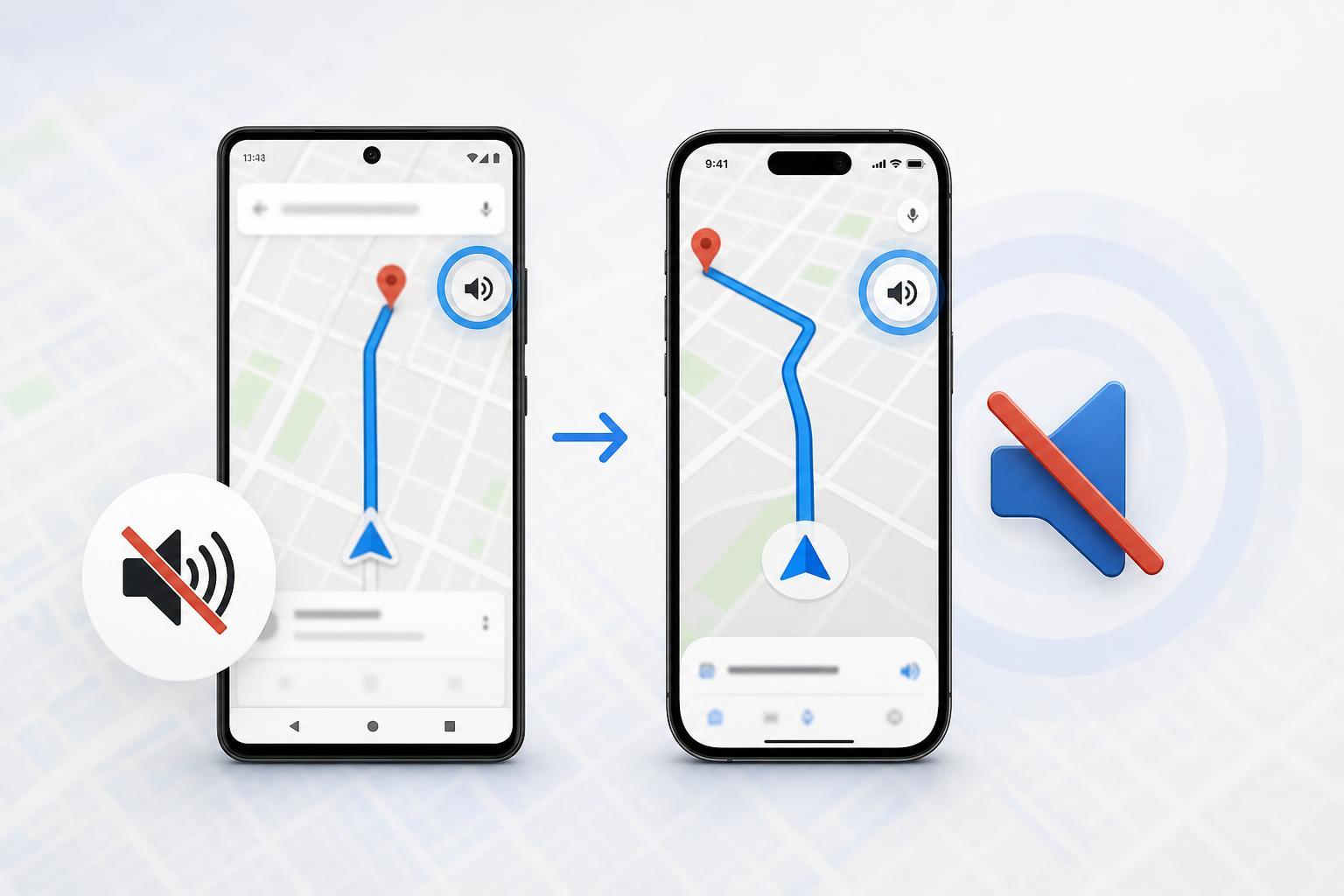
Turn Off Voice Navigation in Google Maps on Android
- Open Google Maps and start navigation to a destination.
- Tap the speaker icon on the map screen. It may appear near the right side of the route details.
- Choose the muted or alerts-only option to reduce or disable spoken directions.
- If you want to restore the voice later, tap the speaker icon again and select the normal voice setting.
Turn Off Voice Navigation in Google Maps on iPhone
- Open Google Maps and begin turn-by-turn navigation.
- Tap the speaker icon during navigation.
- Select Mute to stop spoken directions, or choose Alerts only if you still want important warnings.
- Tap the speaker icon again later if you want voice guidance back.
If You Want to Stop Voice Guidance More Completely
Muting navigation in the app is usually enough for most people. But if voice prompts still play through another audio route, check these additional settings.
- Make sure your phone is not connected to a Bluetooth device that is playing navigation audio aloud, such as a car stereo or headset.
- Check whether Google Maps is set to play voice through Bluetooth, speaker, or both in your device audio settings.
- If you use Android Auto or CarPlay, navigation voice may also be controlled by the vehicle system.
- If the phone volume is very low but not muted, you may still hear prompts when Maps speaks over media.
How to Keep Maps Silent but Still Use Directions
If you still want to follow the route visually, the best option is usually Mute rather than exiting navigation entirely. That keeps the map active, but stops the spoken instructions so you can glance at the screen when needed.
- Use Mute if you want no spoken directions.
- Use Alerts only if you want to hear only major warnings or important prompts.
- Use the normal voice option when driving in unfamiliar areas or when you want hands-free guidance.
Common Reasons the Voice Still Plays
- You muted guidance in Google Maps, but the route was already using Bluetooth audio.
- Your car or headset is overriding the phone’s sound setting.
- The app volume is controlled separately from media volume on your device.
- You changed the setting in one route, but a different navigation session is using the default voice setting again.
What to Check If You Cannot Find the Speaker Icon
- Make sure you have started navigation to a destination.
- Look closely at the map screen for a speaker or sound icon near the route card.
- Expand the route details if the icon is hidden behind a smaller panel.
- Update Google Maps if the interface looks different from the steps above.
Quick Summary
To turn off voice navigation in Google Maps, start a route and tap the speaker icon. On Android and iPhone, choose Mute or Alerts only depending on how silent you want directions to be. If voice still plays, check Bluetooth, car audio, and your device’s media volume.





