
Google Chrome’s Incognito mode uses a built-in dark interface, and many people wonder if a theme can change that default color. The short answer is that Chrome themes can change much of Chrome’s regular browser appearance, but Incognito mode is more limited because it is designed to stay visually distinct from normal browsing.
If you want a different look for Chrome while still using private browsing, it helps to understand what themes can change, what they cannot change, and which customization options are actually available.
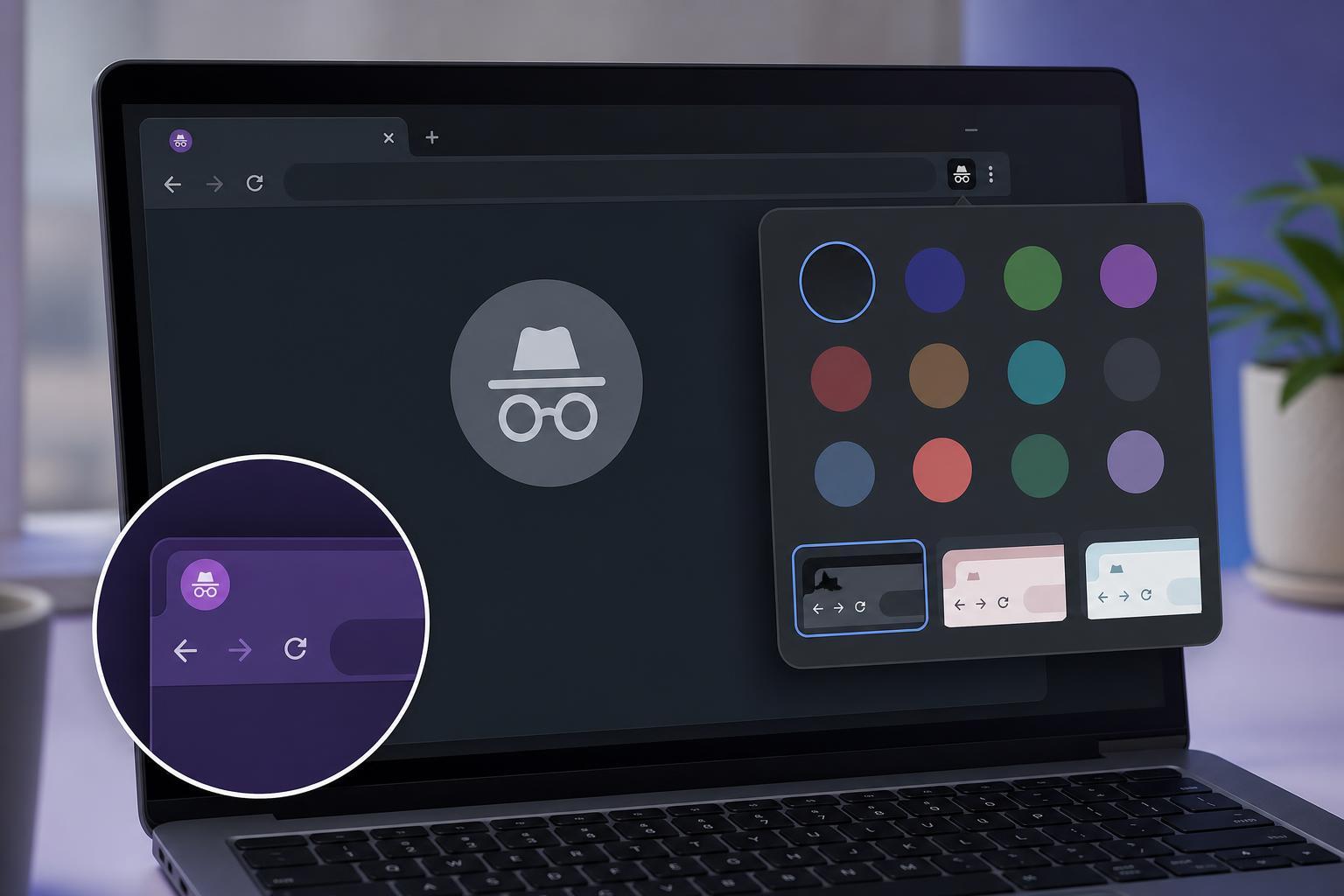
What Chrome Themes Can and Cannot Change
Chrome themes mainly affect the browser frame, tabs, toolbar, and new tab page. They are useful for changing the look of your normal Chrome window, but Incognito mode does not fully follow every theme choice the same way the regular browser does.
That means you may be able to change some Chrome UI colors, but the default Incognito dark palette usually stays in place. In practice, most Chrome themes do not fully replace the Incognito color scheme.
How to Apply a Chrome Theme
- Open Chrome and click the three-dot menu in the top-right corner.
- Select Settings.
- Go to Appearance.
- Click Theme to open the Chrome Web Store theme options.
- Choose a theme and add it to Chrome.
After installing a theme, check how it looks in regular browsing and then open an Incognito window to see what changed. In many cases, you will notice that the regular browser updates more noticeably than Incognito.
Why Incognito May Still Look the Same
Incognito mode is not just a visual variation. It is a separate browsing mode with its own privacy-related design cues, and Google keeps those cues consistent so users can easily tell when private browsing is active.
- The Incognito color scheme is partly controlled by Chrome.
- Some theme elements do not carry over into private windows.
- Chrome may override theme colors to keep Incognito easy to recognize.
- Browser updates can change theme behavior slightly over time.
If You Want a Different Look in Incognito
There is no built-in setting that fully lets you choose any custom Incognito color you want. If your goal is simply a less dark browser, the best practical options are to customize Chrome’s regular theme and use a light theme or adjust your operating system’s appearance settings.
- Use a light Chrome theme to change the regular browser look.
- Adjust your operating system to a light mode if Chrome follows system colors in some areas.
- Try Chrome’s accessibility and appearance-related settings for a more comfortable interface.
- Use a different browser if you need more flexible private-browsing appearance options.
If Your Chrome Theme Is Not Showing Up Correctly
If the theme seems to install but the colors do not appear as expected, the issue is usually a theme conflict, an older Chrome version, or a partial UI refresh rather than a problem with Incognito itself.
- Make sure Chrome is up to date.
- Remove the current theme and apply it again.
- Check whether an extension is affecting the browser appearance.
- Test the theme in a normal Chrome window before checking Incognito.
- Reset Chrome’s appearance settings if the theme behaves strangely.
The Bottom Line
You can use Chrome themes to customize the browser’s general appearance, but changing the default Incognito color is limited. Chrome keeps Incognito visually distinct on purpose, so themes usually do not fully replace its built-in dark look. If you want a completely different private-browsing appearance, Chrome does not currently offer a simple native option for that.





