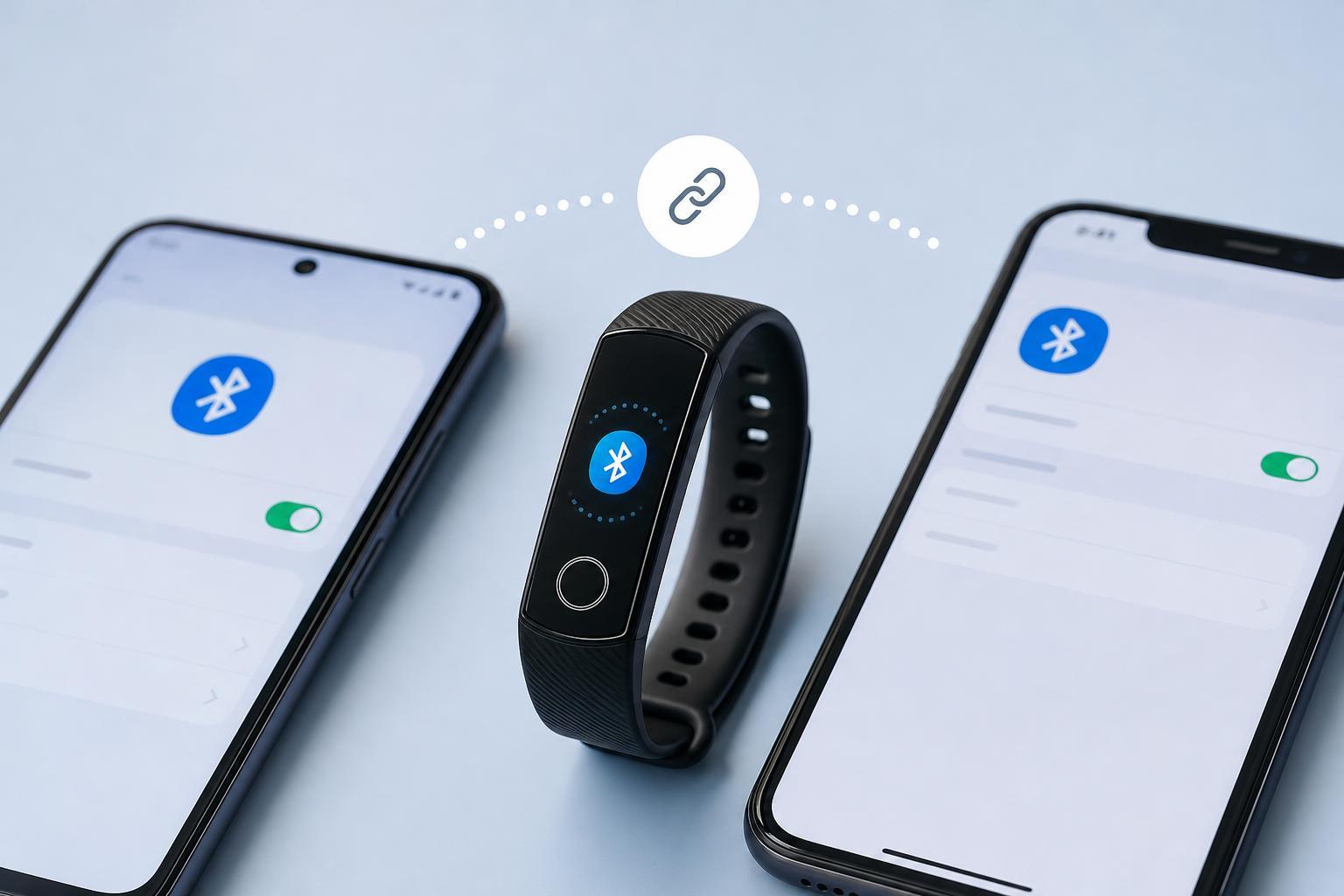
If your Honor Band 5 will not pair with your phone, the cause is usually one of a few things: Bluetooth conflicts, app permission problems, an outdated companion app, or the band still being linked to another device. The good news is that most pairing failures can be fixed without replacing the band.
This guide walks through the most useful fixes for both Android and iPhone, starting with the simplest checks and moving to deeper troubleshooting if the band still will not connect.
1. Make Sure the Band Is Not Still Paired to Another Phone
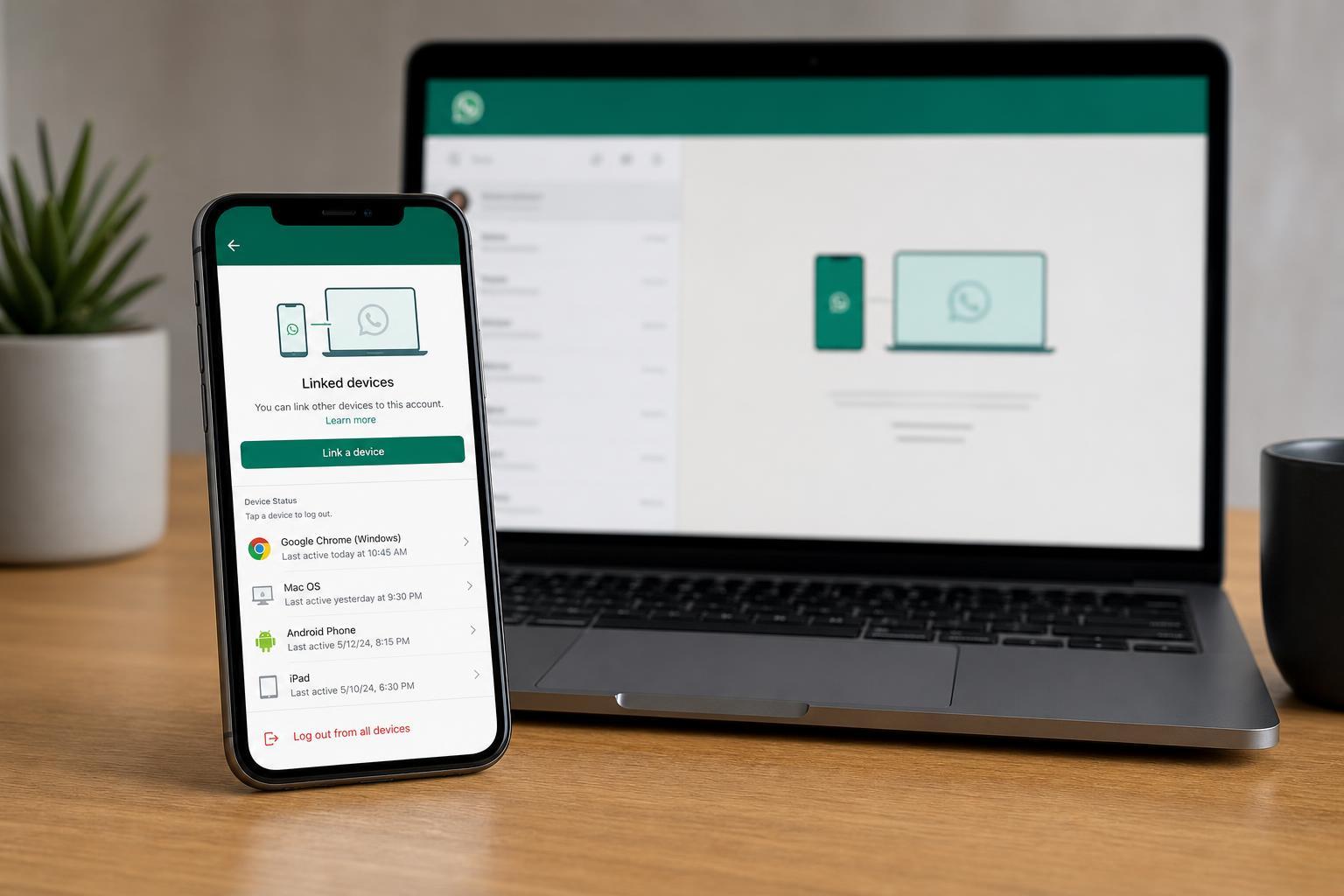
The Honor Band 5 can often remember its previous connection. If it is still bound to an old phone or another Huawei/Honor account, a new phone may not be able to pair with it properly.
- Check whether the band is still connected to the old phone, if you still have it.
- Open the companion app that was used before and remove or unbind the band.
- If needed, disconnect Bluetooth on the old phone so it cannot reconnect automatically.
- Try pairing again on the new phone only after the old link has been removed.
2. Use the Correct App and Update It
The Honor Band 5 usually needs the proper health or wearable app to complete setup. If the app is missing, outdated, or signed into the wrong account, pairing can fail even when Bluetooth looks fine.
- Install the official companion app recommended for your band in your region.
- Update the app from the Google Play Store or App Store.
- Open the app and sign in with the correct account before pairing.
- If the app already exists, force close it and reopen it before trying again.
3. Turn Bluetooth Off and On Again, Then Retry Pairing
A temporary Bluetooth glitch can stop the phone from discovering or finishing the connection process. Toggling Bluetooth refreshes the wireless service and clears small connection errors.
- Turn Bluetooth off on your phone.
- Wait about 10 seconds.
- Turn Bluetooth back on.
- Keep the Honor Band 5 close to the phone and try pairing again from the app, not from the main Bluetooth screen if the app has its own pairing process.
4. Restart Both the Phone and the Band
A restart clears temporary software issues on both devices. This is especially helpful if the band was previously detected but now refuses to finish pairing, or if the phone keeps showing an error during setup.
- Restart your Android phone or iPhone.
- If the band supports a restart option, reboot it from the band’s settings.
- If there is no restart option, let the band battery drain briefly, then charge it and try again.
- After both devices are back on, open the companion app and attempt pairing again.
5. Grant the Required Permissions
On both Android and iPhone, pairing apps need certain permissions to detect and manage the band correctly. If location, Bluetooth, or nearby-device permissions are blocked, the app may not find the Honor Band 5 at all.
- Open your phone’s settings and find the band’s companion app.
- Allow Bluetooth permission if prompted.
- On Android, also allow Location or Nearby devices permission if the app requires it.
- On iPhone, check that Bluetooth permission is enabled for the app.
- Return to the app and scan for the band again.
6. Clear Bluetooth and App Conflicts
If your phone has many saved Bluetooth accessories, one of them may be causing a conflict. Old headset entries, duplicate band entries, or a stuck Bluetooth cache can interfere with pairing.
- Remove any old Honor Band 5 entries from your phone’s Bluetooth list.
- Disconnect other nearby Bluetooth accessories temporarily.
- If the app has a cache-clear option on Android, use it.
- If needed on Android, clear the app cache from the app info screen, then try pairing again.
7. Reset the Honor Band 5 and Pair It Again
If the band still will not pair, a reset can clear corrupted setup data on the device itself. This is often the best next step when the band powers on normally but refuses to connect to any phone.
- Open the band’s settings menu if you can still access it.
- Choose the option to reset, restore, or unpair the device if available.
- After the reset, put the band back into pairing mode and start setup from the companion app.
- If the reset option is not available, check whether the band can be unbound from the app or previous account first.
8. Check for Phone-Side Compatibility Issues
If the Honor Band 5 still will not pair, the phone itself may be the problem. Older Android versions, strict battery optimization settings, or iPhone Bluetooth restrictions can interrupt setup.
- Make sure your phone’s operating system is up to date.
- Disable battery optimization for the companion app on Android if it keeps closing in the background.
- On iPhone, make sure Bluetooth is enabled in Settings, not just in Control Center.
- Try pairing with a different phone if possible to determine whether the issue is with the band or the original phone.
When the Honor Band 5 Still Won’t Pair
If none of these fixes work, the most likely remaining causes are a hardware fault, a damaged Bluetooth radio in the band, or a pairing problem tied to an account or firmware issue that cannot be solved from the phone alone. In that case, try pairing from another compatible phone one more time, then contact the retailer or Honor support if the band is still under warranty.