
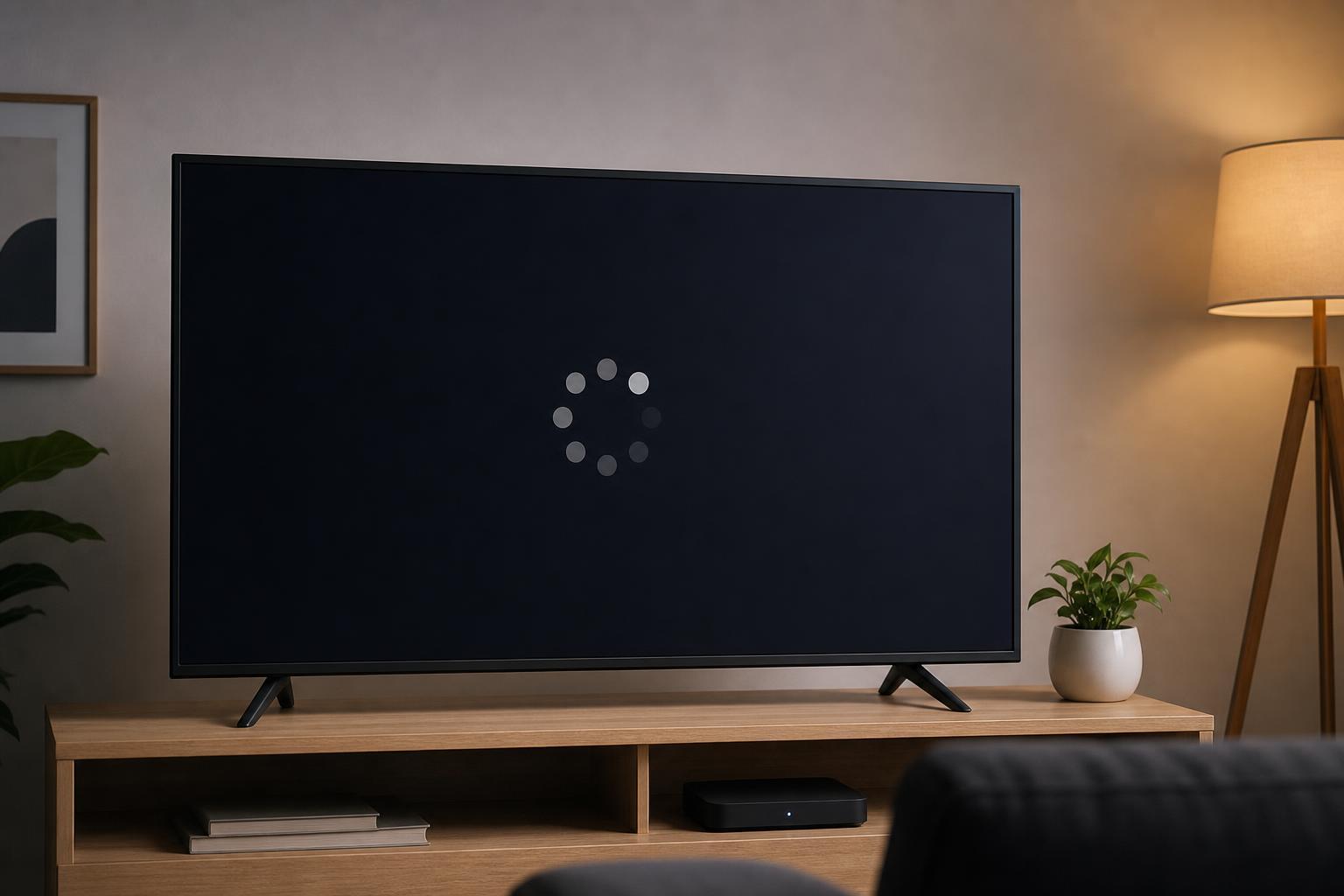
If your Android TV keeps freezing on the loading screen, the problem is usually caused by a temporary boot issue, a bad connection, a software crash, or corrupted data. The good news is that many cases can be fixed without replacing the TV.
This guide walks through seven practical fixes, starting with the easiest checks and moving to more advanced recovery steps if the TV still will not finish booting.
1. Check the Power Source and Give It a Full Power Cycle
A weak power connection or a stuck boot state can make an Android TV appear frozen before the home screen loads. Start with the basics and make sure the TV is actually getting stable power.
- Unplug the TV from the wall outlet.
- Wait at least 60 seconds so any remaining power drains from the set.
- If the TV has a physical power button, press and hold it for 10 to 15 seconds while it is unplugged.
- Plug the TV directly back into the wall outlet and turn it on again.
2. Disconnect External Devices
USB drives, game consoles, soundbars, tuners, and other attached devices can sometimes interfere with startup. If the TV is trying to read a bad USB device or handshake with an accessory, it may never get past the loading screen.
- Remove all USB drives and external storage devices
- Disconnect HDMI devices such as consoles, streaming boxes, and laptops
- Unplug Ethernet if the TV normally uses a wired network connection
- Leave only the power cable connected, then try turning the TV on again
3. Check the Remote and Try a Different Power-On Method
Sometimes the TV is not fully stuck in booting—it is waiting for a proper wake command or responding poorly to the remote. This is less common, but it is easy to rule out.
- Try the TV’s physical power button if it has one
- Use the original remote instead of a universal remote
- Replace the remote batteries
- If your TV supports it, try powering on from the Android TV app or a mobile remote app
4. Try Safe Mode, If Your TV Supports It
Some Android TVs can boot in a limited safe mode. This disables third-party apps and may let the TV start if a recently installed app or update is causing the hang.
- Turn the TV off and unplug it.
- Plug it back in and watch for the logo or startup animation.
- If your model supports it, hold the correct button combination on the remote or TV when the logo appears to enter safe mode.
- If the TV starts in safe mode, uninstall any recently added or updated apps that might be causing the issue.
5. Check for a Failed Software Update
If the loading screen problem started after an update, the update may have been interrupted or may not have installed correctly. In that case, the TV may need a recovery or repair process rather than a normal reboot.
- Think about whether the issue began right after a system update
- Leave the TV powered on for a while in case it is finishing a slow first boot
- If the TV has a recovery menu, look for options such as system update, repair, or cache clearing
- Use only official firmware or recovery steps from the TV manufacturer
6. Perform a Factory Reset from Recovery Mode
If the TV still will not boot, a factory reset may be the most effective fix. This erases apps, settings, and account data, so it should usually be saved for when simpler methods fail.
- Power off and unplug the TV.
- Find the recovery or reset button combination for your TV model. Some TVs use a physical reset button, while others use a remote button combination during startup.
- Enter the recovery menu.
- Choose the factory reset or wipe data option.
- Confirm the reset and wait for the TV to restart.
7. Inspect for Hardware Problems or Contact Support
If the TV still hangs on the loading screen after a reset, the issue may be hardware related. Problems such as failing internal storage, damaged power circuitry, or a motherboard fault can prevent Android TV from starting properly.
- The screen shows the logo but never moves past it
- The TV reboots in a loop
- The loading screen appears after a power surge or outage
- The TV makes sound but never fully displays the interface
At this point, the best next step is to contact the manufacturer’s support team or a qualified repair service. If the TV is under warranty, avoid opening it yourself.
How to Narrow Down the Cause
The way the TV behaves can point you toward the likely cause before you try every fix.
- Stuck after a new device was connected: likely an accessory or HDMI issue
- Problem started after an update: likely a software failure
- Works after unplugging everything: likely an external device conflict
- Still stuck after a factory reset: likely a hardware problem
When to Stop Troubleshooting
If the TV shows signs of internal hardware failure, repeatedly reboots, or never responds to recovery steps, further DIY attempts may not help. Continuing to force startup repeatedly is unlikely to fix a damaged board or failing storage chip.





