
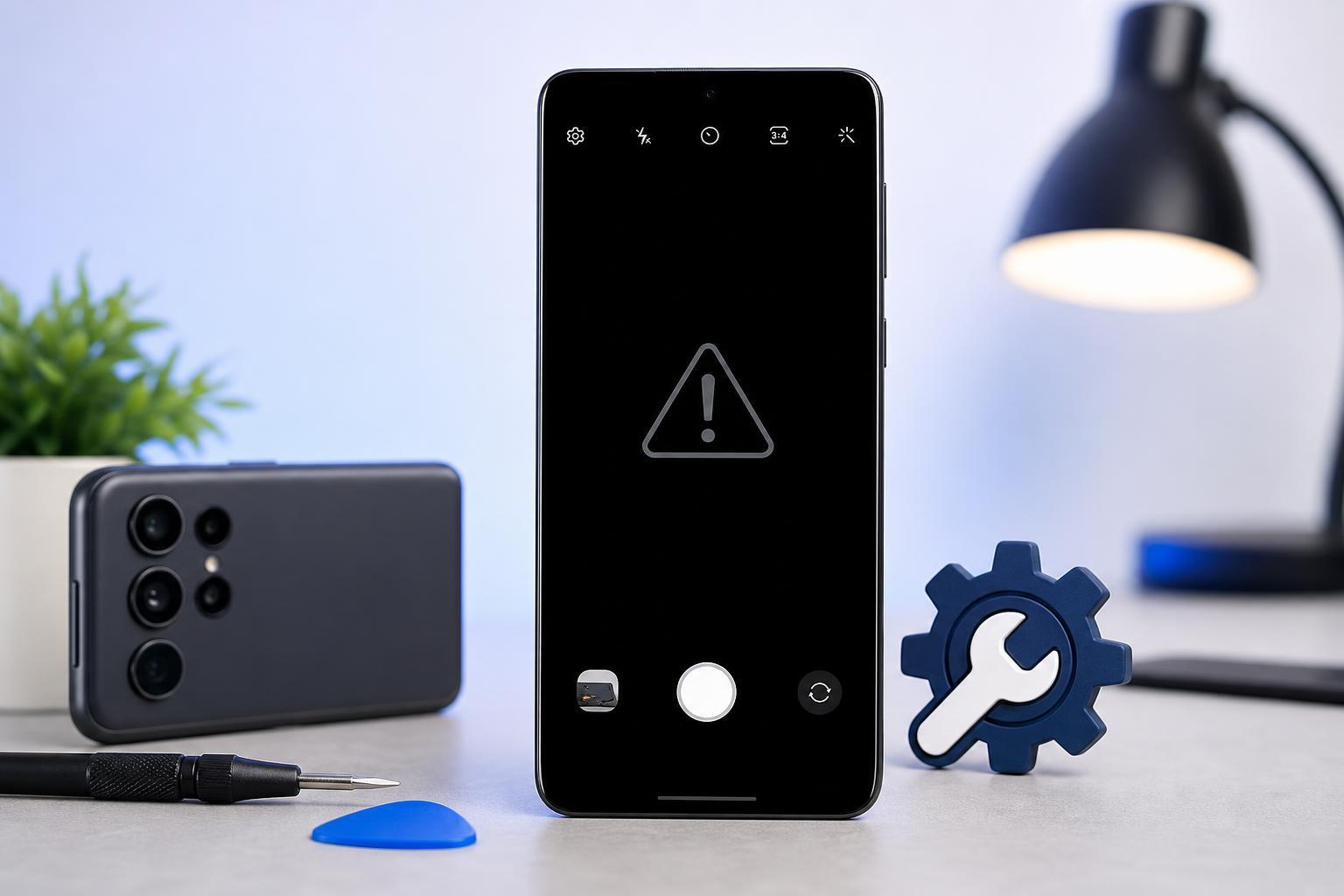
A “Camera Failed” message on a Samsung Galaxy phone usually means the camera app cannot start properly, access the camera hardware, or load something it depends on. The problem can be caused by a temporary app glitch, a permission issue, low storage, a conflicting app, or a deeper software problem.
The good news is that many cases can be fixed without a factory reset. Start with the simplest checks first, then move to the more involved steps if the error keeps coming back.
1. Close the Camera App and Open It Again
If the camera error appeared only once, the app may have simply crashed. Close Camera completely, then open it again and test both the rear and front cameras.
- Open the recent apps screen.
- Swipe the Camera app away to close it fully.
- Open Camera again from the app drawer or home screen.
- Try taking a photo or switching lenses.
2. Restart Your Samsung Phone
A restart clears temporary memory and can remove minor software conflicts that stop the camera from loading correctly. This is especially useful if the problem started after leaving the phone on for a long time or after switching between several apps.
3. Clear the Camera App Cache and Data
Corrupted cache files can prevent the Camera app from opening or cause it to fail when switching modes. Clearing cache is safe; clearing app data resets Camera settings, so you may need to set preferences again afterward.
- Open Settings.
- Tap Apps.
- Find and select Camera.
- Tap Storage.
- Tap Clear cache first.
- If the error remains, tap Clear data and confirm.
4. Check Camera Permissions and Conflicting Apps
The Camera app needs permission to work correctly, and third-party apps can also block access if they are already using the camera in the background. Social media apps, QR scanners, video call apps, and flashlight apps are common offenders.
- Go to Settings > Apps > Camera > Permissions and make sure the camera permission is allowed.
- Close any app that may be using the camera, such as video chat or scanning apps.
- If the error happens only inside one app, check that app’s camera permission too.
- Uninstall or disable recently installed camera-related apps if the problem started after adding them.
5. Free Up Storage Space
When storage is almost full, the camera may fail to save photos or start properly. Samsung phones need some free space to process images, write temporary files, and handle video recording.
- Open Settings and check Storage.
- Delete unused large files, downloads, and duplicate videos.
- Move photos and videos to cloud storage, a computer, or a memory card if your model supports one.
- Empty the trash in Gallery and File Manager if you recently deleted files.
6. Update the Camera App and System Software
Samsung Camera issues are sometimes caused by bugs in the app or the phone’s software. Updates can fix known problems, improve compatibility, and restore normal camera behavior.
- Open Galaxy Store and check for updates to Samsung apps, including Camera if available.
- Go to Settings > Software update > Download and install.
- After updating, test the camera again in both normal photo mode and video mode.
7. Reset Camera Settings or Try Safe Mode
If the camera still fails, the problem may be caused by a setting change or a third-party app conflict. Resetting camera settings gives you a clean baseline, and Safe Mode helps you check whether another app is interfering.
- Open the Camera app and look for its settings menu.
- Find an option to reset camera settings, if available on your model.
- If that does not help, boot the phone into Safe Mode.
- Test the Camera app in Safe Mode.
- If the camera works in Safe Mode, a downloaded app is likely causing the problem.
If None of These Fixes Work
If the Camera app still shows “Camera Failed” after all seven steps, the issue may be related to deeper system corruption or a hardware problem with the camera module or its connection inside the phone.
- Back up important data before trying a factory reset.
- Try Samsung Members diagnostics if your model includes it.
- Test whether third-party camera apps show the same failure message.
- If both front and rear cameras fail consistently, hardware is more likely than an app issue.
When to Get the Phone Checked
If the error happens in Safe Mode, after updates, and after clearing Camera data, the problem may be hardware-related. A repair shop or Samsung service center can check for a faulty camera module, damaged connector, or board-level issue.
The faster you can identify whether the issue affects only one app or the entire camera system, the easier it is to choose the right fix without wasting time on unrelated steps.





