
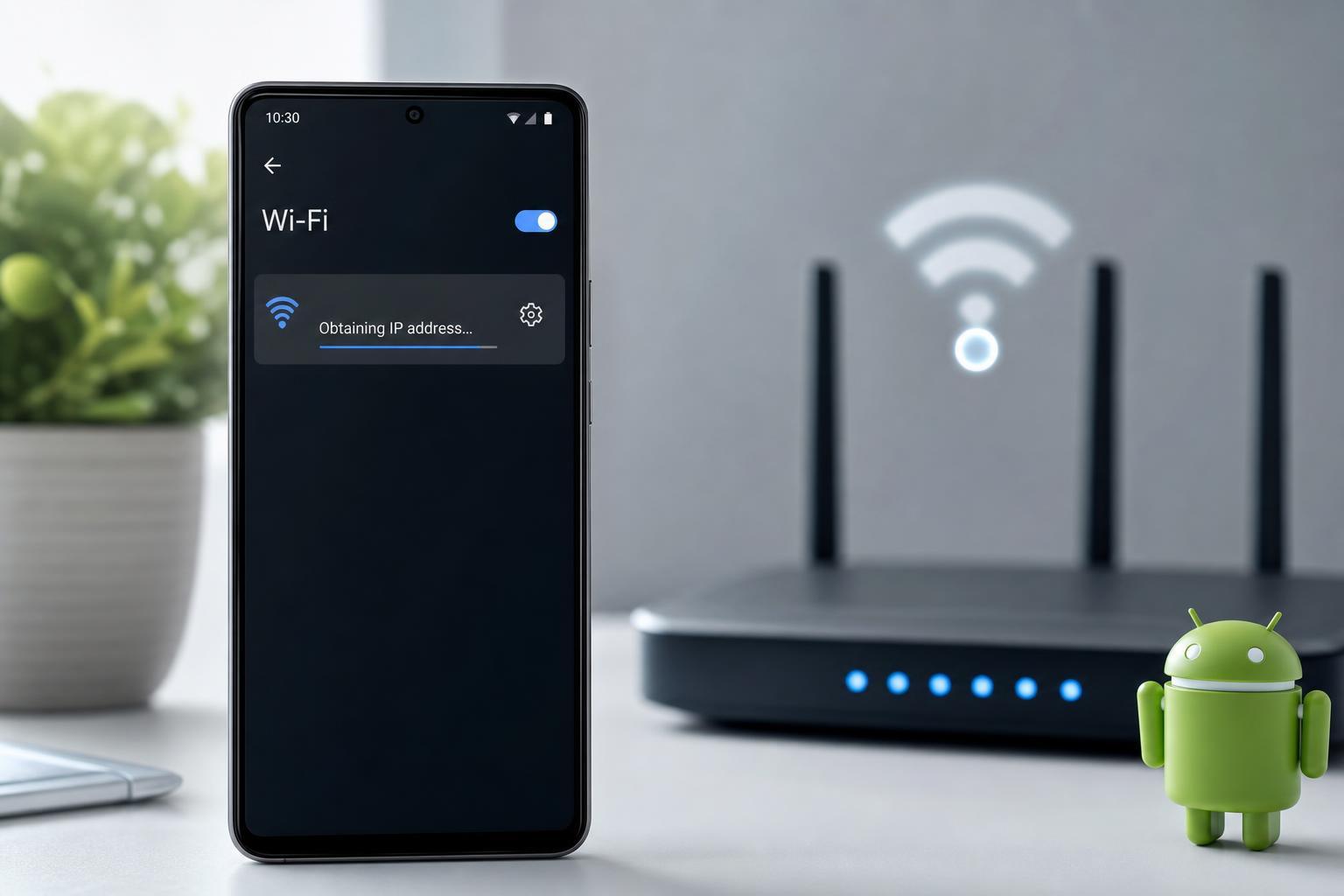
If your Android phone connects to Wi‑Fi but never finishes on “Obtaining IP address,” the problem is usually with the phone’s saved network details, the router, or the way the network is handing out addresses. The good news is that this issue is often fixable without advanced tools.
The steps below start with the simplest fixes and move toward more involved ones, so you can narrow down whether the problem is on the phone, the router, or the network itself.
1. Forget the Wi‑Fi Network and Reconnect
The fastest fix is often to remove the saved network profile and connect again. Android may be holding on to a bad password, an old IP lease, or a corrupted Wi‑Fi profile.
- Open Settings on your Android phone.
- Go to Network & internet, Connections, or Wi‑Fi, depending on your device.
- Tap the problem Wi‑Fi network.
- Choose Forget, Remove, or Forget network.
- Reconnect to the network and enter the password again.
2. Toggle Wi‑Fi, Airplane Mode, and Location Services
A temporary wireless glitch can stop Android from completing the IP assignment process. Toggling the wireless radios resets the active connection state without changing your saved network.
- Turn Wi‑Fi off, wait a few seconds, and turn it back on.
- If that does not help, turn on Airplane mode for 10 to 15 seconds, then turn it off.
- On some Android versions, also briefly turn Location on if it is disabled, then retry the connection.
3. Check the Router and Restart It if Needed
If only one device is stuck on obtaining an IP address, the router may still be the source of the problem. A router can run out of available IP addresses, hang on a bad lease, or have a DHCP setting issue.
- Check whether other devices can connect to the same Wi‑Fi network.
- If multiple devices are affected, restart the router and modem.
- Wait until the router finishes booting, then try the Android device again.
- If you can access the router settings, confirm that DHCP is enabled and that the IP pool is not exhausted.
4. Change the Network to a Static IP or Renew the Connection
If the router keeps failing to hand out an address, setting a manual IP on the phone can be a useful workaround. This is especially helpful on a home network where you know the router’s address range.
- Open the Wi‑Fi details for the problem network.
- Look for Advanced options or IP settings.
- Change IP settings from DHCP to Static.
- Enter an unused IP address in the same subnet as the router, along with the correct gateway, subnet mask, and DNS settings.
- Save the settings and reconnect.
If you are not comfortable setting a static IP manually, another option is to leave the phone on DHCP and fix the router side instead, since that is usually the cleaner long-term solution.
5. Reset Network Settings on the Android Phone
If the issue affects several Wi‑Fi networks, the phone’s network configuration may be corrupted. Resetting network settings clears saved Wi‑Fi networks, Bluetooth pairings, and mobile network settings so Android can rebuild them from scratch.
- Open Settings.
- Go to System, General management, or a similar section.
- Choose Reset options or Reset.
- Select Reset Wi‑Fi, mobile & Bluetooth or Reset network settings.
- Confirm the reset, then reconnect to Wi‑Fi.
Other Causes to Check If the Problem Continues
If none of the five fixes work, the problem may be tied to the router’s security settings, signal quality, or a device-specific software issue.
- Weak Wi‑Fi signal or interference from walls, appliances, or crowded channels
- MAC address filtering or parental controls on the router
- A router firmware bug or outdated router software
- A phone software update that introduced a Wi‑Fi bug
- Incorrect date and time on the phone, which can sometimes interfere with secure network connections
How to Narrow Down the Problem
Use the pattern of the failure to decide where to focus next. If only one phone fails on one network, the saved profile or phone settings are usually the first places to look. If every device fails on the same network, the router or internet gateway is more likely at fault.
- One phone only: forget the network, reset network settings, or try a static IP
- Several devices on one network: check the router, DHCP, and security settings
- Phone fails on every Wi‑Fi network: look for an Android software issue or a deeper wireless problem





