
When text messages won’t send on Android, the cause is usually something simple: weak signal, a messaging app issue, a carrier problem, or a SIM/network setting that needs attention. The best fix depends on whether the problem affects one message, one contact, or every text you try to send.
This guide walks through five practical ways to troubleshoot sending failures on Android, starting with the easiest checks and moving to more advanced fixes.
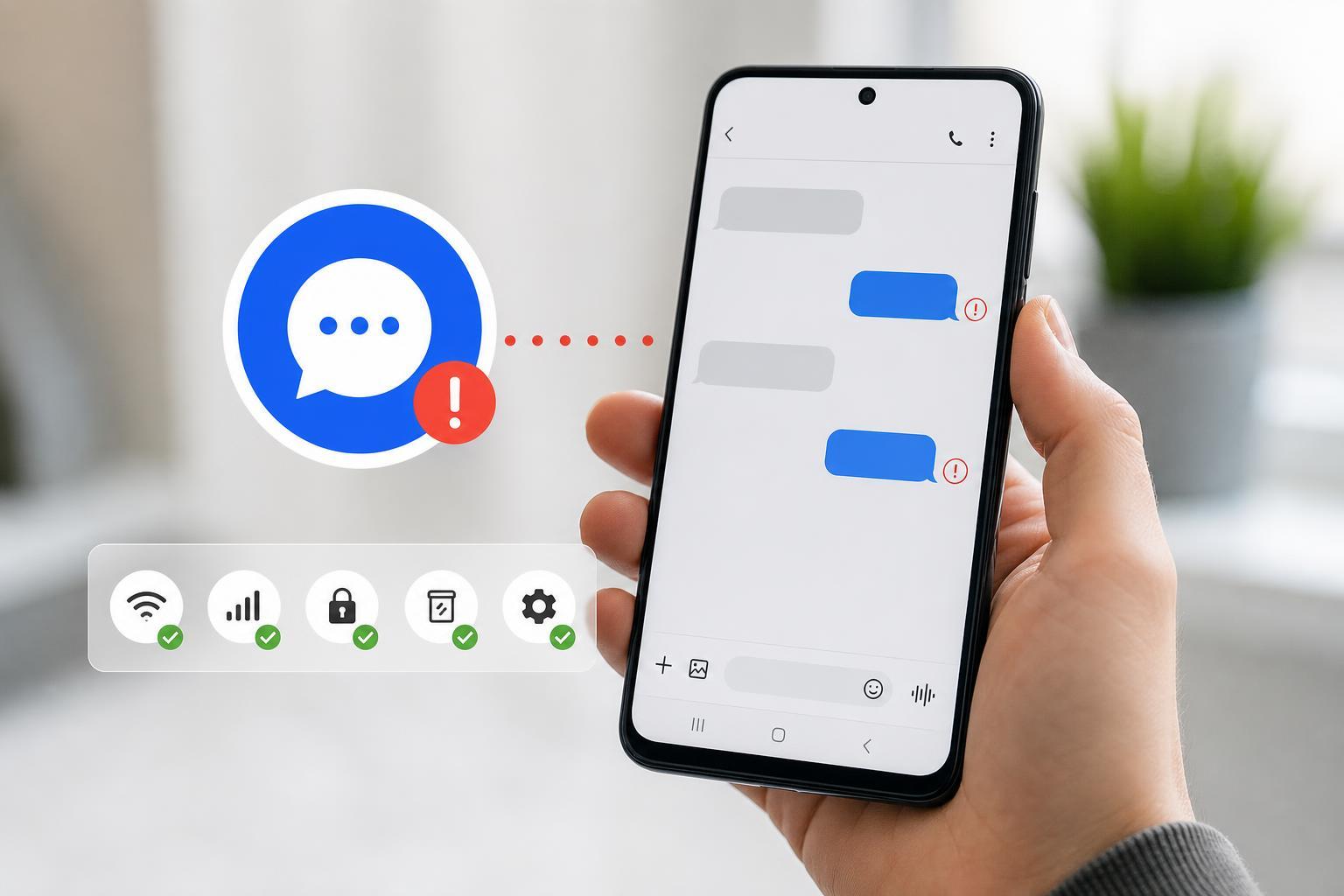
1. Check Your Signal and Mobile Service
If your phone cannot connect properly to your carrier, messages may sit stuck on sending or fail immediately. This is the first thing to check because SMS and many messaging services still depend on a working mobile network connection.
- Look at the signal bars in the status bar.
- Make sure Mobile data or Cellular network is available, even if you are sending a standard SMS.
- Move to a different location if you are indoors, underground, or far from a cell tower.
- Try sending the message again after you have a stronger signal.
2. Make Sure the Message App Is Working Properly
Your default texting app can get stuck, cache bad data, or fail to register the send request correctly. If messages are not sending from one app but the phone otherwise seems connected, the app itself is a likely culprit.
- Open the app you use for texting and try sending a new short message.
- If the message still will not send, close the app completely and open it again.
- Check whether the app has an available update in the Google Play Store.
- If needed, clear the app's cache from Settings > Apps > [your messaging app] > Storage > Clear cache.
3. Confirm You Can Send SMS, MMS, or RCS Messages
Not all text messages use the same system. Standard SMS is different from MMS and RCS chats, and one of these may fail while the others still work. This is especially common if you are trying to send photos, group texts, or rich chat messages.
- SMS: plain text messages to a phone number
- MMS: messages that include photos, videos, or group messaging
- RCS/chat features: enhanced messaging supported by some phones and carriers
If plain text works but photo messages do not, the issue may be MMS settings, mobile data, or carrier support. If chat features are failing, try turning them off temporarily in the Messages app settings and sending a standard SMS instead.
4. Check the SIM Card and Network Settings
A loose, damaged, or poorly registered SIM card can stop texts from sending. Network settings can also become misconfigured after a carrier change, software update, or SIM swap.
- Remove the SIM tray and inspect the SIM card if your phone uses a physical SIM.
- Reinsert the SIM carefully and make sure it sits properly in the tray.
- If your phone supports it, test the SIM in another compatible phone to see whether the problem follows the SIM or stays with the device.
- Open your phone's network settings and confirm that the correct carrier is selected and mobile network service is active.
- If available, try resetting network settings to restore default cellular, Wi-Fi, and Bluetooth configuration.
5. Remove Carrier Blocks, Message Limits, or Account Issues
Sometimes the phone is working correctly, but the problem is on the carrier side. Outbound texts can fail if the account has a billing problem, the number is blocked, or the carrier has restricted messaging for some reason.
- Check whether you can send texts to more than one contact.
- Try sending a message to a different phone number.
- Make sure you are not blocked by the recipient or accidentally blocking them yourself.
- If texts fail for every contact, contact your mobile carrier to check for account or network restrictions.
If you recently switched providers or ported your number, the carrier may still be finishing setup in the background. In that case, outbound text problems can be temporary, but they should not continue for long.
How to Narrow Down the Cause Quickly
A few clues can help you decide which fix to try first:
- One contact only: the number may be blocked or entered incorrectly.
- Photos and group messages fail, but plain text works: check MMS or mobile data settings.
- Every message fails: look at signal, SIM, network settings, or carrier account issues.
- Problems started after an update: the texting app, RCS features, or network settings may need attention.
When You May Need More Help
If none of these fixes work, the issue may be deeper than the phone itself. A carrier can confirm whether your line is provisioned correctly, and the phone manufacturer can help if the modem, SIM slot, or system software is causing repeated send failures.





