
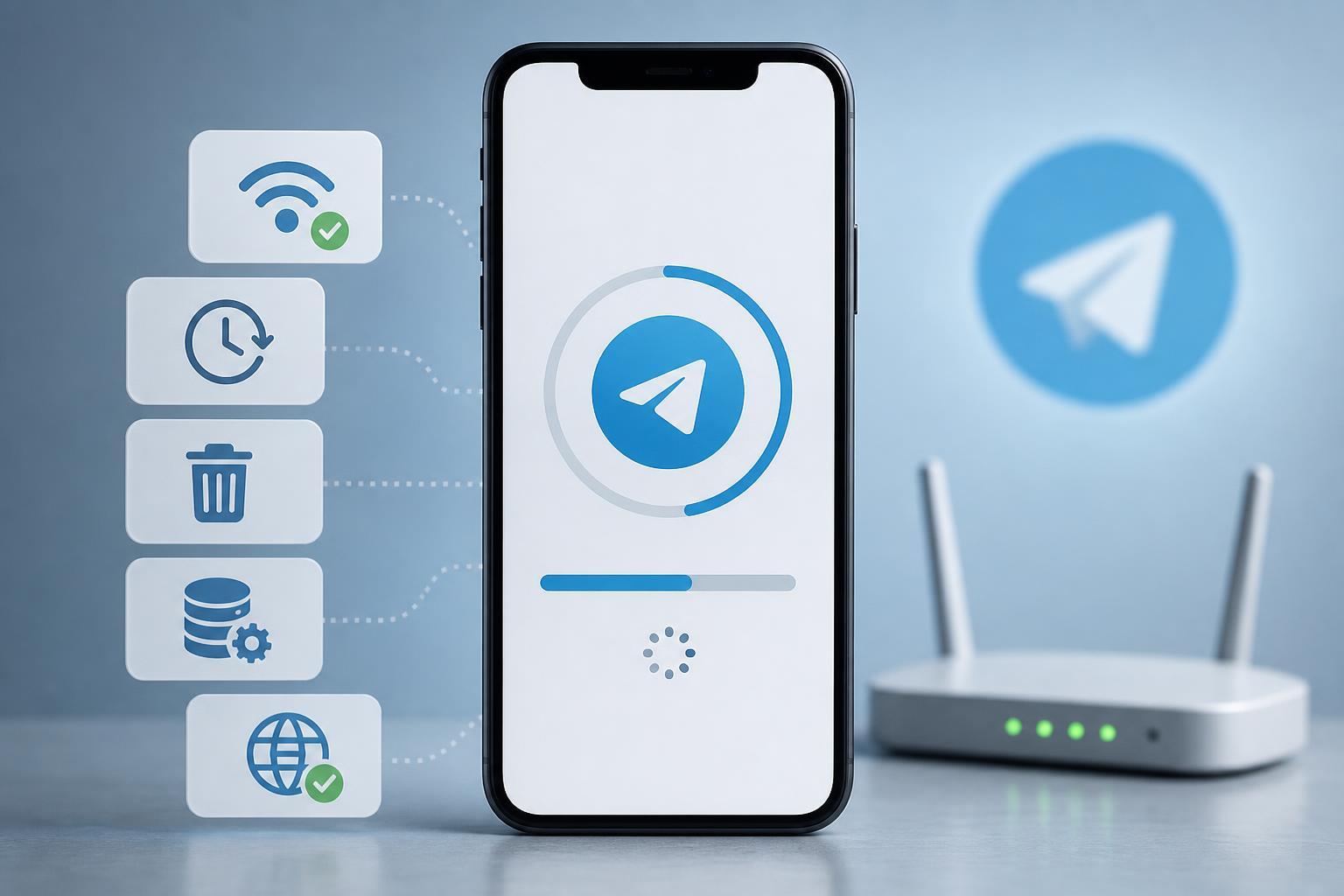
If Telegram is stuck on “Updating” or “Connecting,” the app is usually having trouble reaching Telegram’s servers, loading your account data, or finishing a bad sync. The problem can be caused by your network, app settings, a proxy or VPN, outdated app files, or a temporary Telegram-side issue.
The good news is that this is often easy to fix once you narrow down whether the issue is with your internet connection, the app itself, or Telegram’s service status.
1. Check Whether Telegram Is Blocked by Your Network
Start with the simplest possibility: Telegram may be unable to connect on your current Wi‑Fi, mobile network, or workplace/school connection. If Telegram works on mobile data but not Wi‑Fi, the problem is usually the network rather than the app.
- Switch between Wi‑Fi and mobile data to see whether Telegram works on one connection but not the other.
- Open a website or another app that needs the internet to confirm the connection is actually working.
- If you are on a shared network, check whether Telegram or other messaging apps are restricted.
- Disable any VPN or proxy temporarily if you use one, since it may interfere with Telegram’s connection.
2. Force Close Telegram and Open It Again
Telegram can sometimes get stuck while loading chats, syncing messages, or reconnecting after a network change. Closing the app completely gives it a fresh start and can clear a temporary lockup.
- On Android or iPhone, swipe away Telegram from the recent apps screen.
- On Windows, use Task Manager to end Telegram if it is still running in the background.
- Reopen Telegram and wait a moment to see whether it finishes loading.
- If it still hangs, try opening Telegram Web in a browser to see whether your account is accessible there.
3. Clear Telegram’s Cache or App Data
Corrupted cache files are a common reason Telegram keeps spinning on updating or connecting. Clearing the cache removes temporary files that may be blocking the app from loading correctly.
- Open Telegram’s settings.
- Go to Data and Storage or a similar storage section.
- Choose Storage Usage or Cache settings.
- Clear cached files or temporary data.
- If you are on Android and the problem continues, you can also clear the app’s data from the system app settings, but be aware that this may sign you out or remove local settings.
4. Check Proxy, VPN, and Date/Time Settings
Telegram uses encrypted connections and needs the device clock to be roughly correct. If your time is wrong, or if a proxy/VPN is misconfigured, the app may fail to connect properly.
- Turn off any VPN and test Telegram again.
- Check Telegram’s own proxy settings if you use a SOCKS5 or MTProto proxy.
- Make sure your device date, time, and time zone are set automatically.
- On desktop, check whether security software or a firewall is interfering with Telegram.
5. Update Telegram or Reinstall It
An outdated or damaged app installation can cause endless loading, especially after Telegram changes how it handles login, syncing, or server communication. Updating often fixes it without any other changes.
- Check the App Store, Google Play Store, or your desktop app source for updates.
- Install the latest version of Telegram.
- If the app is already current and still stuck, uninstall Telegram and install it again.
- Sign back in and test whether the connection issue is resolved.
When the Problem Is on Telegram’s Side
Sometimes the issue is not on your device at all. Telegram can have temporary service problems, regional connectivity issues, or account-specific delays that make the app appear stuck even when everything on your phone or PC is fine.
- Telegram works on one device but not another using the same account
- Multiple people report connection problems at the same time
- The app keeps failing on different networks and after reinstalling
- Telegram Web also has trouble loading
How to Narrow Down the Cause Quickly
If you want the fastest path to a fix, use this order: test another network, close the app completely, clear cache, check VPN/proxy and time settings, then update or reinstall Telegram. This sequence covers the most common causes without making unnecessary changes.
If none of these fixes work, try logging in on Telegram Web or another device to confirm whether your account is accessible. That result usually tells you whether the issue is local, network-related, or tied to Telegram itself.





