
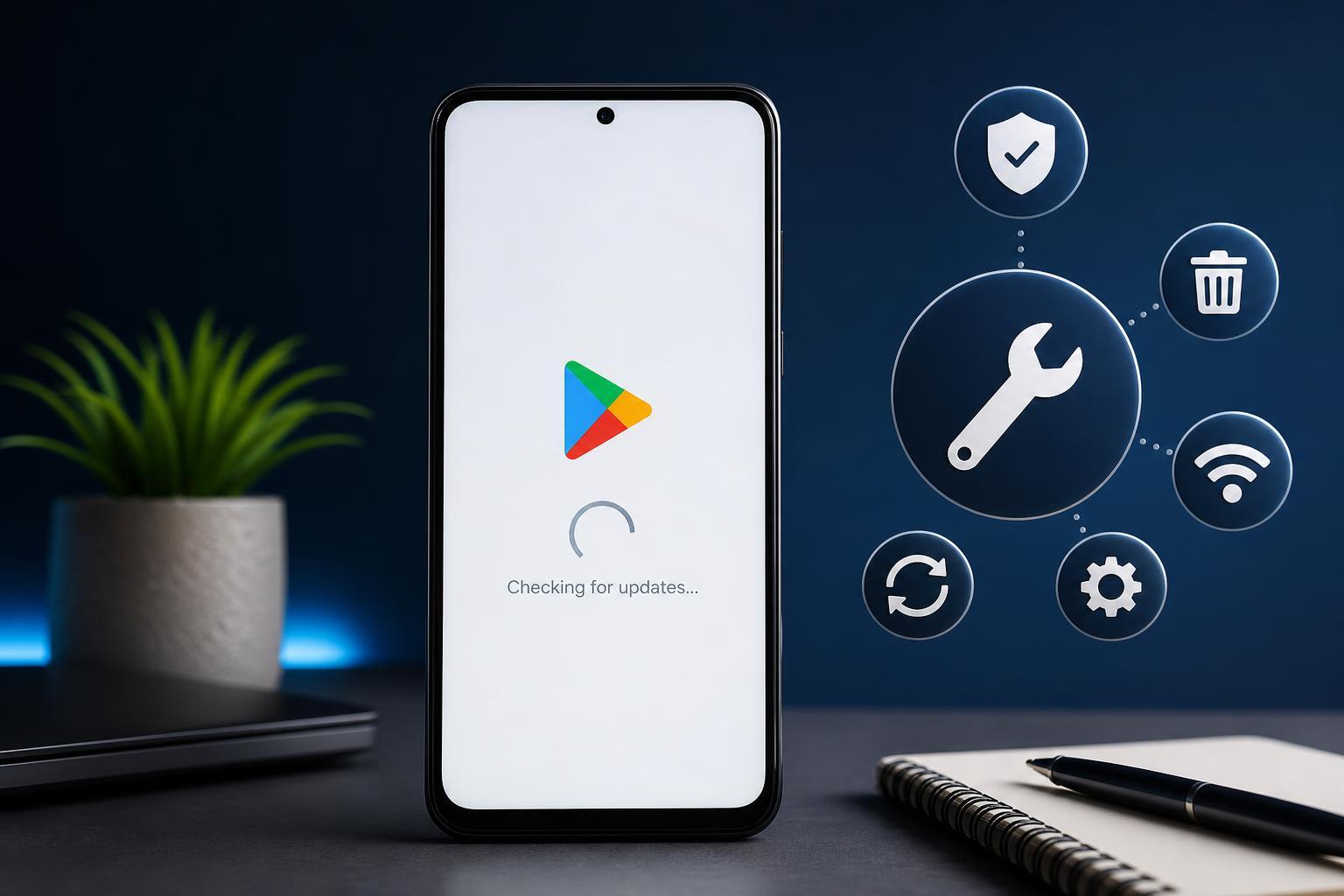
If the Google Play Store keeps getting stuck on "Checking for updates," the problem is usually caused by a temporary app issue, a network problem, or a Google account sync glitch. The good news is that you can often fix it without resetting your phone or reinstalling everything.
This guide walks through five practical fixes, starting with the simplest checks and moving to more involved steps if the Play Store still will not move past the update screen.
1. Check Your Internet Connection
The Play Store needs a stable connection to contact Google’s servers. If your Wi-Fi is weak, your mobile data is restricted, or a VPN is interfering, the app may sit on the checking screen indefinitely.
- Open a website or another app that uses the internet to confirm the connection is working.
- If possible, switch between Wi-Fi and mobile data to see whether one connection is failing.
- Turn off any VPN, proxy app, or private DNS setting temporarily.
- If you are on Wi-Fi, move closer to the router or reconnect to the network.
2. Clear the Play Store Cache and Data
Corrupted temporary files are one of the most common reasons the Play Store gets stuck. Clearing the cache removes temporary files, and clearing data resets the app’s local settings without removing your Google account from the phone.
- Open Settings on your Android device.
- Tap Apps or Apps & notifications.
- Find and open Google Play Store.
- Tap Storage & cache.
- Tap Clear cache first.
- If the problem continues, tap Clear storage or Clear data.
3. Update Google Play Services and the Play Store
The Play Store depends on Google Play services, and problems in either app can block update checks. If one component is outdated or partially broken, the store may fail before it can even list available updates.
- Open the Play Store and search for Google Play services.
- If an update is available, install it.
- Search for Google Play Store as well and update it if possible.
- After updating, return to the app and try checking for updates again.
4. Check Date, Time, and Account Sync
Incorrect time settings can break secure communication with Google’s servers. Account sync problems can also stop the Play Store from refreshing update information correctly.
- Open Settings and go to Date & time.
- Turn on automatic date and time if it is available.
- Turn on automatic time zone if that option exists.
- Go back to Settings and open Accounts or Passwords & accounts.
- Select your Google account and make sure sync is enabled.
- If sync looks stuck, open the account and force a sync if your device allows it.
5. Remove and Re-Add Your Google Account
If the Play Store still cannot check for updates, the account itself may be the problem. Removing and adding the Google account again can refresh the connection between your device and Google’s servers.
- Back up anything important first, especially if your device uses the Google account for contacts or app data.
- Open Settings and go to Accounts or Passwords & accounts.
- Select your Google account and choose Remove account.
- Restarting the device is not always required, but it can help if the account removal does not seem to take effect right away.
- Add the Google account back through the same Accounts menu.
- Open the Play Store and test the update check again.
If the Problem Still Happens
If none of the five fixes work, the issue may be tied to system-level software, a device-specific bug, or a broader Google service outage. In that case, try checking for Android system updates, reviewing any battery optimization or data saver settings that may restrict the Play Store, or testing the same Google account on another device.
If the Play Store only fails on one phone, the problem is likely local to that device. If the same issue appears on multiple devices, the account or Google service connection is the more likely cause.
Which Fix Should You Try First?
- Start with your internet connection if the Play Store cannot load anything at all.
- Clear the Play Store cache next if the app opens but stays stuck on checking for updates.
- Update Google Play services if the problem began after other app issues or system changes.
- Check date, time, and sync settings if the phone has been offline for a while or the clock is wrong.
- Remove and re-add your Google account if the store still will not refresh after the earlier steps.





