
If Chrome is draining your Android phone’s battery faster than expected, the problem is usually tied to background activity, heavy webpage loading, sync settings, or a browser issue after an update. The good news is that you can usually reduce power use without giving up Chrome entirely.
This guide walks through five practical fixes, starting with the easiest changes and moving to more detailed troubleshooting if Chrome still seems to be using too much battery.
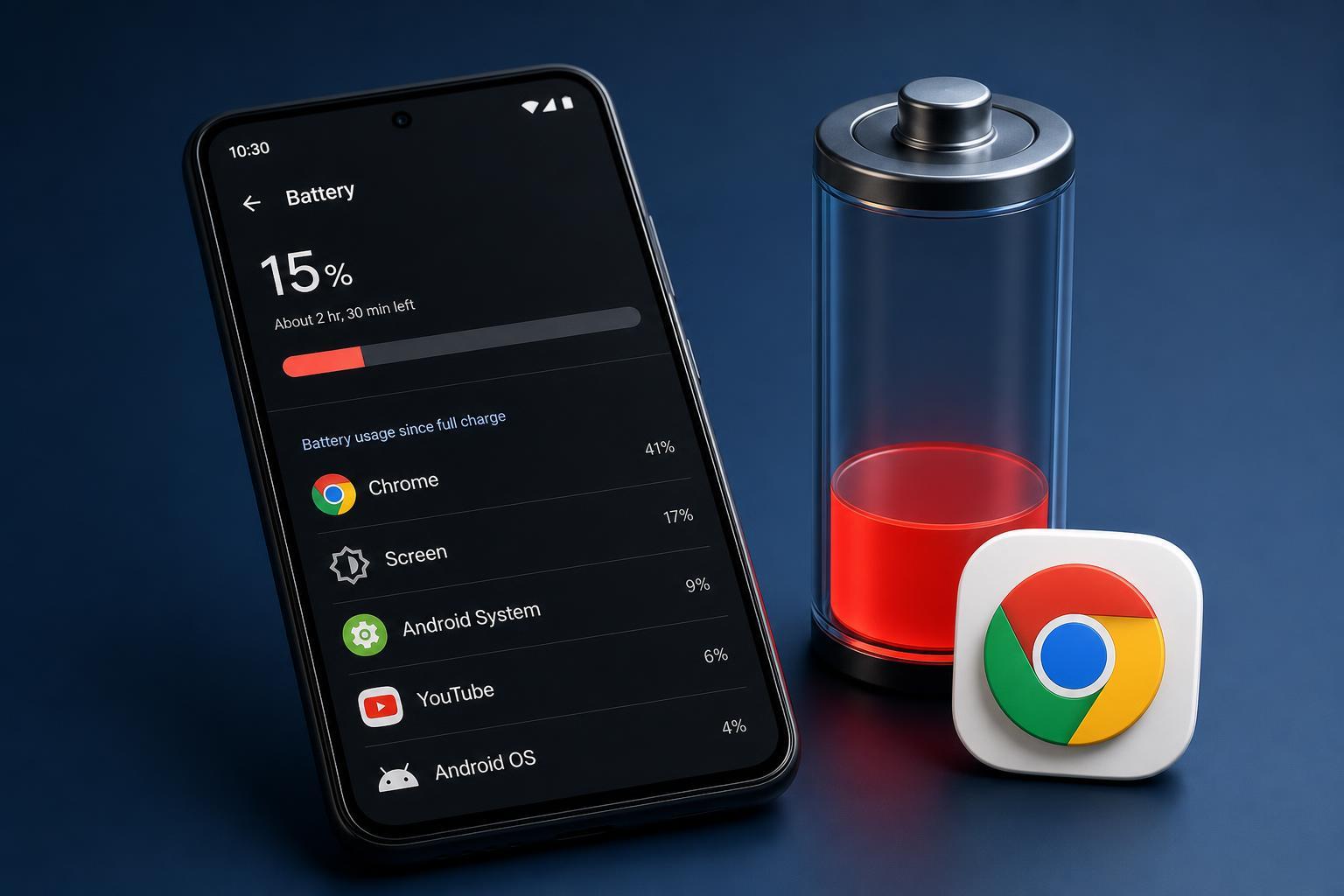
1. Check Chrome’s battery usage first
Before changing settings, confirm that Chrome is actually one of the main battery users. Android’s battery screen can show whether Chrome is using power in the foreground, in the background, or both. That helps you tell the difference between normal browsing and a browser issue that keeps running after you close pages.
- Open Settings on your Android phone.
- Tap Battery or Battery usage.
- Look for Chrome in the app list.
- Check whether the battery use is unusually high compared with your other apps.
2. Turn off features you do not need
Chrome can use more battery when it keeps several convenience features active at once. Some of these are useful, but if your phone battery is a priority, reducing them can help.
- Disable or limit sync if you do not need tabs, history, and passwords updated across devices all the time.
- Turn off notifications from websites you do not care about.
- Avoid keeping many tabs open, especially pages that refresh in the background.
- Use Chrome’s lighter browsing habits, such as closing unused tabs and avoiding constant page reloading.
To check sync, open Chrome, tap your profile icon, and review what is being synchronized. If you do not need everything to stay current across devices, reducing sync can lower background activity.
3. Clear cache for Chrome and test again
A bloated or corrupted cache can sometimes cause Chrome to work harder than it should, especially after updates or when certain sites misbehave. Clearing cache will not sign you out of most sites, but it can remove temporary files that may be causing extra load.
- Open Android Settings.
- Go to Apps, then Chrome.
- Tap Storage and cache.
- Select Clear cache.
- Open Chrome again and use it normally for a while to see whether battery use improves.
4. Update Chrome and Android
Battery drain can happen after a buggy app update or when Chrome is out of step with your current Android version. Updating both Chrome and the operating system can fix power-management problems and browser bugs that affect background behavior.
- Open the Google Play Store and update Chrome if an update is available.
- Go to Settings on your phone and check for Android system updates.
- Install any available updates and let the phone finish optimizing apps if prompted.
- Use the phone for a day or two and watch whether Chrome battery use returns to normal.
5. Try Chrome in Safe Mode-like troubleshooting steps
Android does not have a browser-specific Safe Mode, but you can still narrow down the cause by testing Chrome with a simpler setup. The goal is to find out whether the drain comes from Chrome itself, one website, or another app interfering with browsing.
- Close all Chrome tabs except one or two simple pages.
- Avoid video-heavy websites for a few hours and check battery use again.
- Disable Chrome extensions if you use them on Android through supported browser setups.
- Try another browser for a short time to compare battery drain.
- If Chrome only drains battery on certain sites, those pages may be the real cause.
Other causes that can make Chrome look worse than it is
Sometimes Chrome gets blamed for battery drain that is really caused by something else. For example, a weak mobile signal, constant page loading, or very bright screen settings can make it seem like the browser is the problem when the phone is actually working harder to stay connected and display content.
- Poor cellular or Wi-Fi signal forcing repeated retries
- Streaming video or audio in multiple tabs
- Webpages with heavy ads, animations, or auto-refresh behavior
- High screen brightness during long browsing sessions
- Background downloads or uploads running at the same time
When to reset or reinstall Chrome
If Chrome still drains battery after clearing cache, updating the app, and reducing background activity, a reset may help. On Android, that usually means clearing Chrome data and signing back in, or uninstalling updates if your device allows it.
Use this step only after trying the simpler fixes above, because it will remove local browser data and may require you to set things up again.
Which fix should you try first?
If you want the fastest path, start with checking battery usage, then reduce Chrome sync and background features, and clear the cache. After that, update Chrome and Android. If the problem still happens, test whether specific sites or tabs are causing the drain. That order solves most cases without unnecessary troubleshooting.





