
If Discord audio is not working, the problem is usually caused by the wrong input or output device, muted permissions, a bad app setting, or a Windows sound issue. The good news is that most Discord audio problems can be fixed without reinstalling anything.
This guide walks through five practical fixes, starting with the most common causes first so you can get voice chat working again as quickly as possible.
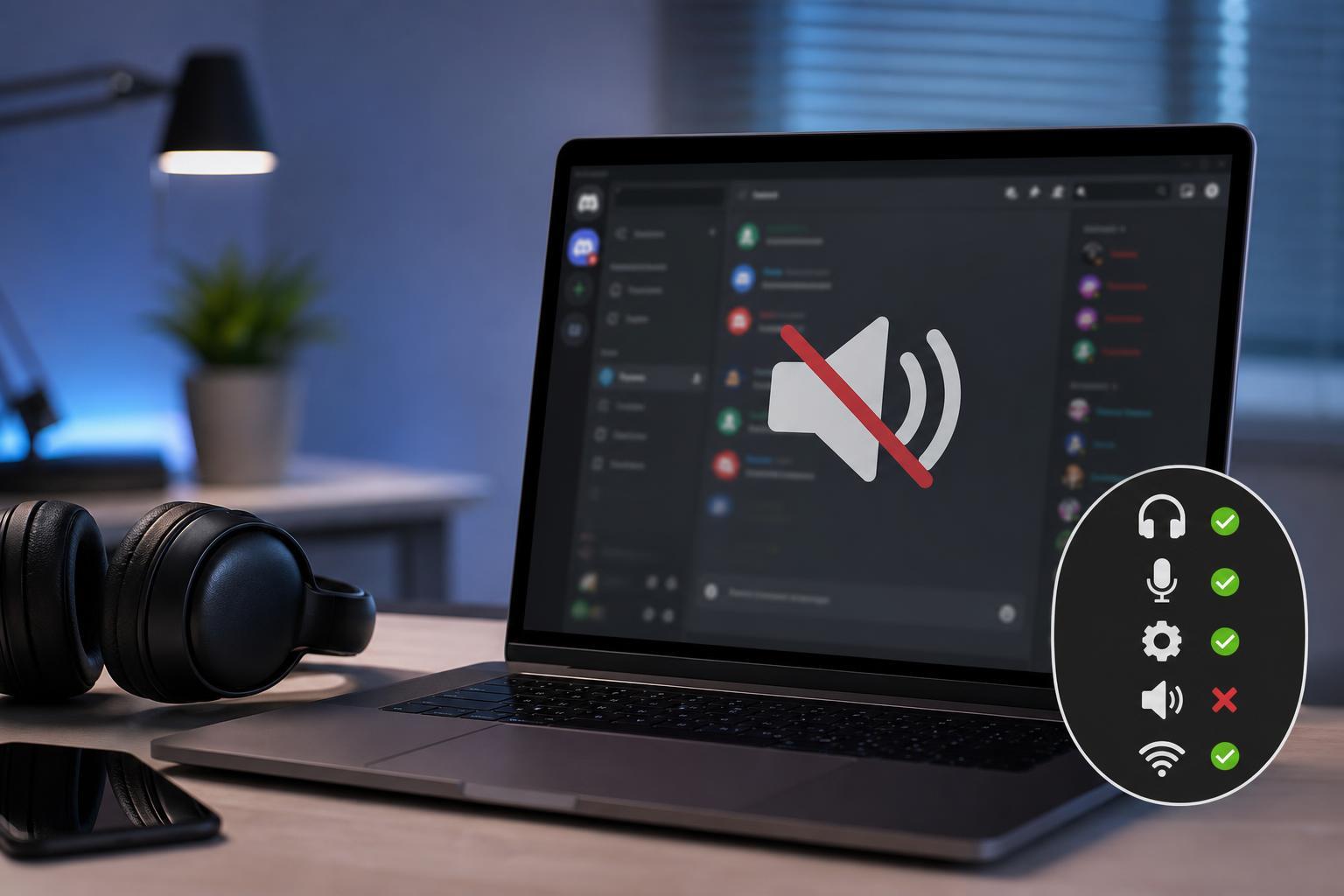
1. Check Discord's Input and Output Devices
The most common reason Discord audio fails is that the app is using the wrong microphone or speaker. This can happen after plugging in a headset, connecting Bluetooth earbuds, or switching between devices.
- Open Discord and click the User Settings gear icon.
- Select Voice & Video from the sidebar.
- Under Input Device, choose the microphone you actually want to use.
- Under Output Device, choose your headphones, speakers, or headset.
- Speak into the microphone and check whether the Input Sensitivity bar reacts.
2. Make Sure Windows Is Using the Right Sound Device
Even if Discord is set correctly, Windows can still route audio to the wrong device. This is especially common with headsets that have both a chat device and a game device, or when a Bluetooth device reconnects in a different mode.
- Right-click the speaker icon in the taskbar and open Sound settings.
- Check the Output section and select the correct playback device.
- Scroll to Input and select the microphone you want Windows to use.
- Open the volume mixer if needed and confirm Discord is not muted or turned down too low.
- Test the microphone and speakers in Windows before going back to Discord.
3. Reset Discord Voice Settings and Check Permissions
If Discord was working before and suddenly stopped, a changed voice setting or blocked permission may be the cause. Resetting the voice settings can clear a bad configuration without affecting your account.
- In Discord, open User Settings and go to Voice & Video.
- Scroll down and choose Reset Voice Settings.
- Confirm the reset when prompted.
- Check that Discord has microphone permission in Windows privacy settings.
- If you use Discord in a browser, make sure the browser is allowed to access the microphone and speakers.
4. Update or Reinstall Your Audio Driver
A broken or outdated audio driver can stop Discord from detecting sound properly. This is more likely if other apps also have audio problems, or if the issue started after a Windows update.
- Right-click the Start button and open Device Manager.
- Expand Sound, video and game controllers.
- Right-click your audio device and choose Update driver.
- If that does not help, try uninstalling the device and restarting Windows so it can reinstall the driver.
- If you use a USB headset or external audio interface, unplug it and reconnect it after Windows finishes loading.
5. Turn Off Discord Voice Features That Can Interfere
Some Discord voice processing features can cause audio to cut out, sound distorted, or fail to transmit properly on certain systems. Disabling them temporarily can help you confirm whether one of those features is the problem.
- Open Discord and go to User Settings > Voice & Video.
- Turn off noise suppression, echo cancellation, and automatic gain control one at a time.
- Test your microphone after each change.
- If you use push-to-talk, make sure the keybind is still working.
- If voice works after disabling a feature, leave that option off or adjust it carefully.
How to Narrow Down the Cause
If you are still stuck, use a quick process of elimination. The goal is to figure out whether the issue is with Discord itself, Windows, or the headset or microphone.
- Test the microphone or speakers in another app such as Voice Recorder or a browser call.
- Try a different headset, earphones, or microphone if available.
- Check whether Discord works on a different network or device.
- See whether the problem happens in the desktop app, the browser version, or both.
- Look for a muted microphone key, headset switch, or inline volume control on the hardware itself.
When to Suspect a Hardware Problem
If Discord audio still does not work after checking devices, permissions, drivers, and voice settings, the headset or microphone itself may be faulty. Loose cables, damaged USB ports, dead batteries in wireless gear, or a broken mute switch can all look like a software problem at first.
- The microphone works in one device but not another
- The headset is not detected at all in Windows
- Audio cuts in and out when you move the cable
- Bluetooth audio disconnects or switches modes unexpectedly
- The mute indicator stays on even when you try to unmute
Which Fix Should You Try First?
Start with Discord's input and output device settings, then check Windows sound settings and permissions. Those three steps solve most audio issues quickly. If the problem affects multiple apps, move on to the driver and hardware checks.





