
If casting to your Android TV suddenly stops working, the problem is usually not one single thing. It can be caused by Wi-Fi issues, app permissions, a software glitch, or a problem with the TV itself. The good news is that most casting problems can be fixed with a few straightforward checks.
This guide walks through five practical fixes for Android TV cast not working, starting with the simplest causes and moving to more advanced ones.
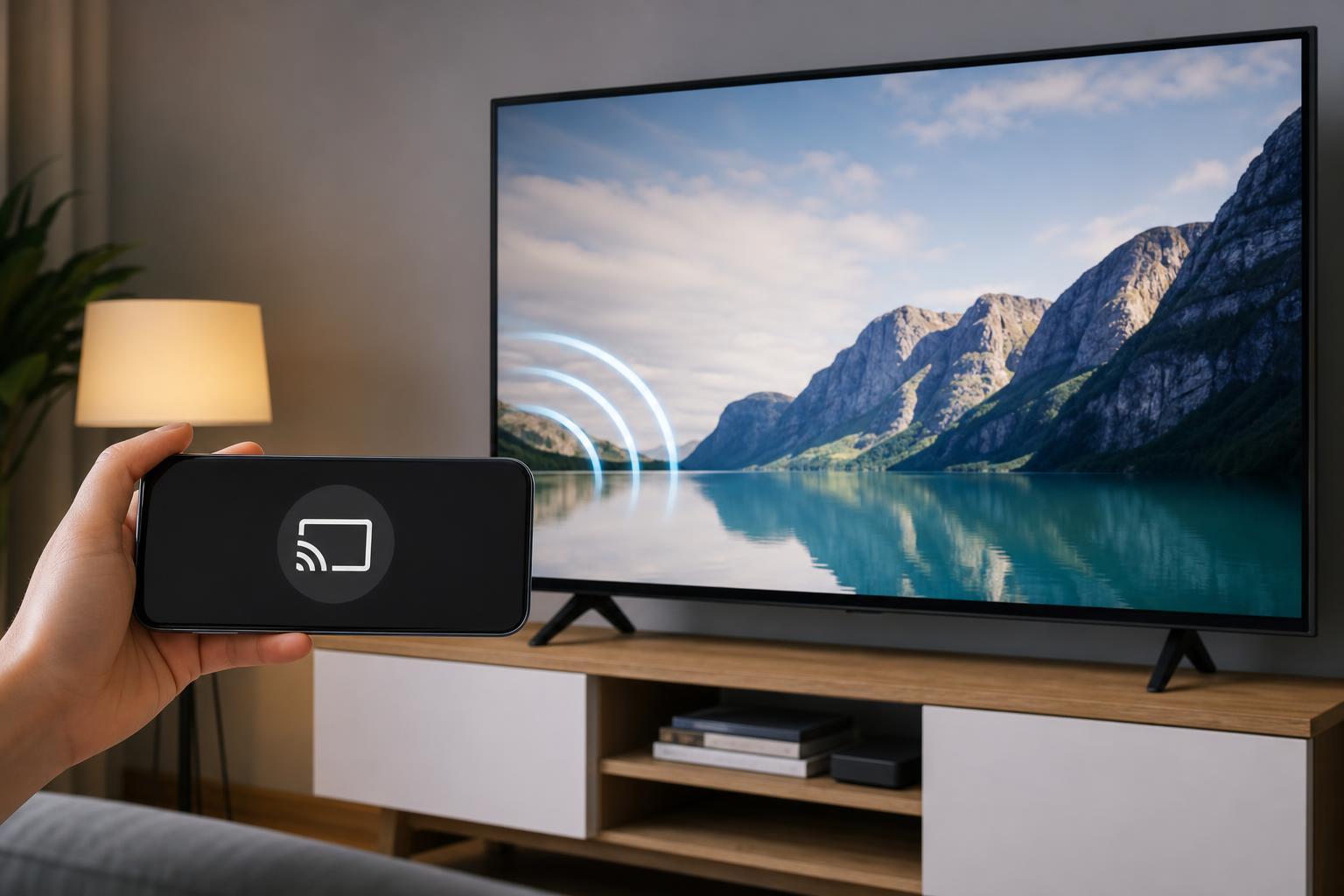
1. Make Sure Both Devices Are on the Same Wi-Fi Network
Casting usually depends on both the phone, tablet, or computer and the Android TV being on the same local network. If one device is connected to a guest network, mobile hotspot, or a different router band, the cast option may fail to find the TV.
- Check the Wi-Fi network name on your phone or tablet.
- Open the network settings on your Android TV and confirm it is connected to the same network name.
- If your router has separate 2.4 GHz and 5 GHz networks, try putting both devices on the same one.
- Disconnect from any VPN or guest network that might block local device discovery.
2. Restart the App, Phone, and Android TV
A temporary glitch in the casting app, the phone, or Android TV can stop the connection from starting correctly. Closing the app and restarting the devices clears stuck network sessions and can restore casting without changing any settings.
- Close the app you are casting from, such as YouTube, Netflix, or a browser.
- Turn off the phone or tablet and turn it back on.
- Restart the Android TV from the power menu if available.
- If needed, unplug the TV or streaming device for about 30 seconds, then plug it back in.
3. Update Google Cast, Android TV Software, and the App
Casting can fail when the phone app, Google Cast components, or Android TV software are out of date. Compatibility problems are common after app updates on one device but not the other.
- Open the Google Play Store on the Android TV and check for system or app updates.
- Update the app you are casting from on your phone, tablet, or computer.
- If your TV has a system update option, install any available Android TV or Google TV update.
- After updating, try casting again from the same app.
4. Check Permissions, App Restrictions, and Network Access
Certain permissions or restrictions can block casting discovery. On mobile devices, the app may need local network access, nearby device permission, or Bluetooth-related access depending on the app and Android version. Security apps, parental controls, or firewall features on the network can also interfere.
- Make sure the casting app has permission to access local devices or nearby devices.
- If you recently denied a permission prompt, open the app settings and allow it.
- Disable battery optimization for the app if it keeps losing connection.
- Check whether your router has client isolation, AP isolation, or similar settings enabled.
- If you are on a work or school network, casting may be blocked by network rules.
5. Reset the Cast Connection or Reinstall the App
If the problem affects one specific app or keeps returning after other fixes, the app’s saved connection data may be corrupted. Removing the app, clearing its cache, or reconnecting the cast session can often solve this.
- In the casting app, disconnect from the current cast session if one is active.
- Clear the app cache on your phone or tablet if the app allows it.
- Uninstall and reinstall the app if clearing the cache does not help.
- On the Android TV, clear the cache for Google Cast or the affected app if that option is available.
- Try casting again after signing back into the app.
How to Narrow Down Whether the Problem Is the TV or the App
If casting works in one app but not another, the issue is probably with the app. If nothing can detect the TV, the problem is more likely to be network-related or tied to the Android TV software itself.
- Works in one app only: app bug, permissions, or account issue
- No apps can find the TV: Wi-Fi, discovery, or TV software problem
- Casting starts but drops quickly: unstable Wi-Fi or power-saving settings
- TV appears but will not connect: outdated software or corrupted cast session
When to Consider a Factory Reset
A factory reset should be a last resort. It can help if Android TV casting still does not work after updates, network checks, and app resets, but it will erase TV settings and signed-in accounts.
If you do reset the TV, write down your account details first and be prepared to reconnect Wi-Fi, reinstall apps, and sign in again after the reset.
Which Fix Should You Try First?
Start with the same Wi-Fi check, then restart the app and devices. Those two steps solve many casting issues. If the problem continues, update the app and Android TV software, then look at permissions and network restrictions. Reinstalling the app or resetting the TV should be reserved for stubborn cases.





