
When location services stop working on Android, maps may place you in the wrong spot, ride-sharing apps may fail to find you, and weather or delivery apps may lose useful location-based features. The problem can come from permissions, accuracy settings, system toggles, or a temporary software issue.
The good news is that most location problems on Android can be fixed without advanced tools. Start with the quickest checks first, then move to deeper settings if your phone still cannot get an accurate location.
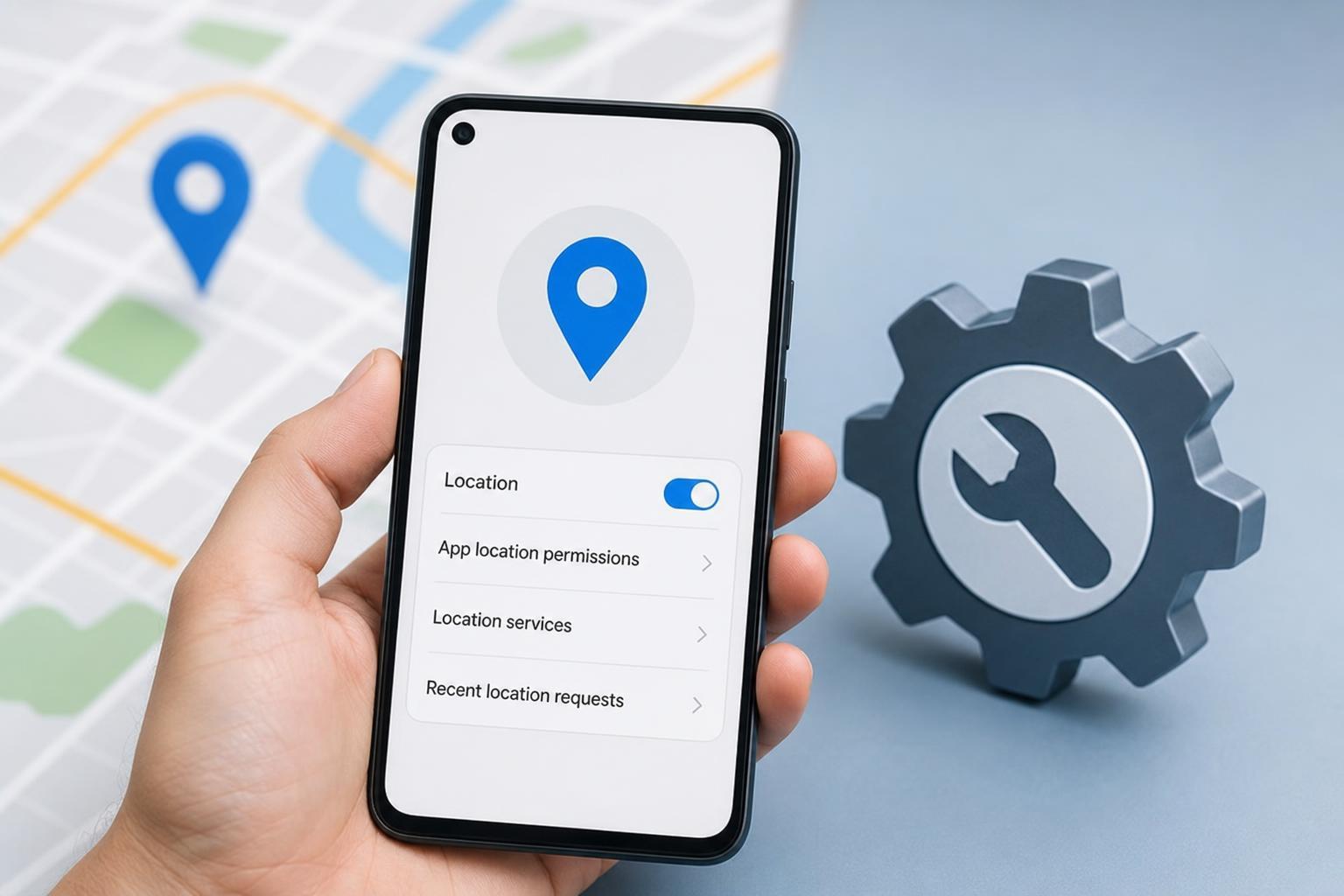
1. Make Sure Location Is Turned On
The first thing to check is the main Location switch. If it is off, Android cannot provide location data to apps, even if the app itself has permission.
- Open Settings on your Android phone.
- Tap Location, or search for Location in Settings if you do not see it right away.
- Turn Location on.
- If your phone has a Quick Settings panel, check that Location is not disabled there as well.
2. Check App Location Permissions
Even if Location is enabled globally, each app still needs permission to use it. If an app was denied access, it may not be able to detect your position at all or may only get an approximate result.
- Open Settings and go to Apps.
- Select the app that is having trouble, such as Google Maps, Uber, or a weather app.
- Tap Permissions.
- Choose Location.
- Set the permission to Allow only while using the app or Allow all the time, depending on what the app needs.
3. Turn On Location Accuracy and Scanning
If Android can see your rough area but not your exact position, the issue may be related to accuracy settings. Android can improve location by using Wi-Fi, Bluetooth, and other signals alongside GPS.
- Open Settings and tap Location.
- Look for Location services, Improve accuracy, or a similar menu name.
- Turn on Wi-Fi scanning and Bluetooth scanning if they are available.
- If your phone offers Google Location Accuracy, make sure it is enabled.
4. Calibrate the App and Improve Signal Conditions
Sometimes location services are technically working, but the phone has trouble getting a good fix. This often happens indoors, near tall buildings, or when the app has not had a clear signal for a while.
- Move to an open area with a clearer view of the sky if possible.
- Open your maps app and wait a moment for the location dot to settle.
- If the app offers a compass calibration or location calibration option, use it.
- Make sure Airplane mode is off, since it can interfere with GPS assistance and network-based location features.
5. Clear the App Cache or Update Android Services
If one app consistently has location trouble while others work normally, the issue may be inside that app or one of Android's supporting services. Clearing cache or updating system components can often fix stubborn location bugs.
- Go to Settings > Apps and open the affected app.
- Tap Storage and cache, then clear the cache.
- If the problem continues, check for app updates in the Play Store.
- Also update Google Play services and your phone’s system software if updates are available.
If Location Still Does Not Work
If none of these fixes help, the issue may be caused by a deeper system problem, a disabled sensor, or a hardware fault. At that point, it is worth testing location in multiple apps to see whether the problem affects only one app or the whole phone.
- If only one app fails, reinstall it and check its permissions again.
- If every app fails, check whether GPS works after a system update or safe mode test.
- If the phone has recently been dropped or exposed to moisture, hardware damage may be involved.
You can also compare your results outdoors and indoors. If the phone works outside but not inside, that is usually a signal strength issue rather than a software fault.
How to Narrow Down the Cause
- No apps can see your location: check the main Location switch and system accuracy settings.
- Only one app cannot find you: check that app's permissions and cache.
- Location is inaccurate but not completely off: improve accuracy settings and test outdoors.
- Location worked before but recently stopped: look for recent app, Android, or Google Play services updates that may need attention.
Most Android location problems come down to a disabled setting, a missing permission, or weak signal conditions. Working through the five fixes above should solve the majority of cases without needing a factory reset.





