
When an Android alarm fails to go off, the cause is often a setting rather than a broken phone. The problem can come from alarm volume, silent or Do Not Disturb modes, battery optimization, or even the Clock app itself.
This guide covers five reliable ways to fix an alarm that is not working on Android phones, starting with the most common causes and moving to more specific checks.
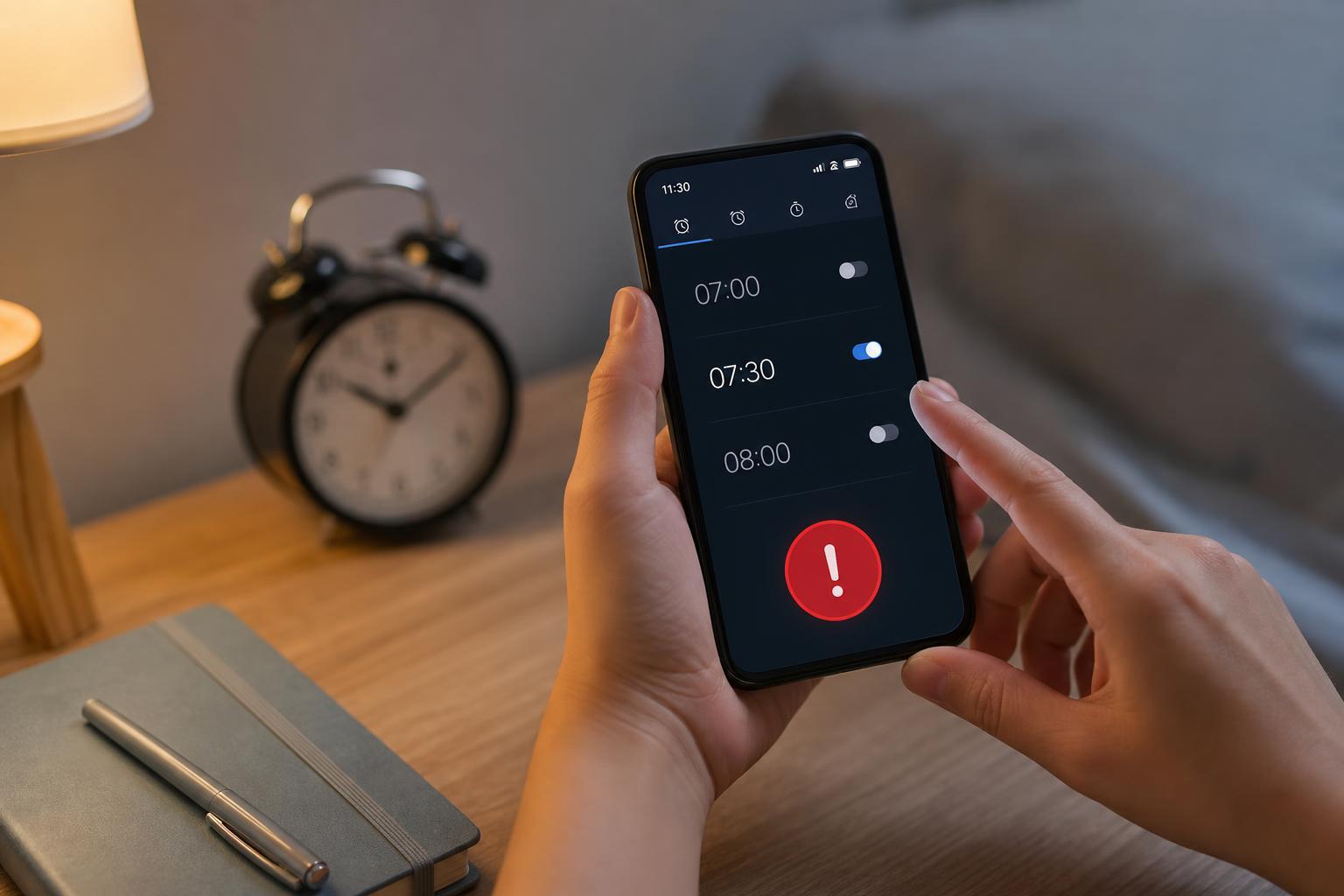
1. Check the Alarm Volume and Sound Settings
Many Android phones use separate volume controls for ringtones, notifications, media, and alarms. If the alarm volume is too low or muted, the alarm may technically be set correctly but still be easy to miss.
- Open Settings and go to Sound or Sounds and vibration.
- Look for the alarm volume slider and raise it.
- Open your Clock app and edit the alarm sound if needed.
- Choose a loud, clear ringtone instead of a quiet tone or no sound.
2. Make Sure Do Not Disturb Is Not Blocking the Alarm
Do Not Disturb can silence calls, notifications, and other sounds. Alarms usually still work, but some phone brands, custom settings, or special modes can interfere with them or make the alert easy to overlook.
- Swipe down the quick settings panel and check whether Do Not Disturb is enabled.
- Open Settings and review the Do Not Disturb rules or schedules.
- Make sure alarms are allowed to make sound if your phone offers that option.
- Test the alarm again after adjusting the mode.
3. Disable Battery Optimization for the Clock App
Aggressive battery saving can prevent the Clock app from running properly in the background. If the app is restricted, the alarm may be delayed, skipped, or fail to trigger at the right time.
- Open Settings and go to Apps.
- Find the Clock app you use for alarms.
- Open Battery or Battery usage for that app.
- Set the app to Unrestricted, Not optimized, or allow background activity depending on your phone model.
4. Check for the Right Time, Date, and Alarm Settings
A wrong clock setting, the wrong AM/PM choice, or a disabled repeating alarm can make it seem like the alarm failed when it was simply scheduled incorrectly.
- Open the Clock app and confirm the alarm time is correct.
- Check whether the alarm is set for AM or PM correctly.
- Make sure the alarm is switched on.
- If the alarm repeats, confirm the correct days are selected.
- Check whether your phone’s time and time zone are set automatically in Settings.
5. Clear the Clock App Cache or Try a Different Alarm App
If the Clock app is glitching, clearing its cache can remove temporary corrupted data without deleting your alarms on many devices. If that does not help, a different alarm app can show whether the issue is app-specific.
- Open Settings and go to Apps.
- Select the Clock app.
- Tap Storage and cache.
- Clear cache first, then test the alarm again.
- If the problem continues, install a trusted alarm app and test whether it behaves normally.
Other Checks That Can Help
If none of the five fixes solve the issue, a few extra checks may reveal the cause.
- Make sure the phone is not powered off overnight.
- Check whether a Bluetooth headset, speaker, or car connection is stealing the alarm sound.
- Look for third-party apps that manage sleep, battery, or automation and may suppress alarms.
- Update the Clock app and Android system software if updates are available.
- Test multiple alarms at different times to see whether the problem is random or consistent.
When to Suspect a Bigger Problem
If alarms still do not work after checking sound, Do Not Disturb, battery settings, and the Clock app, the issue may be tied to a system bug or a manufacturer-specific feature. In that case, a software update, app update, or a different alarm app is often the best next step.





