
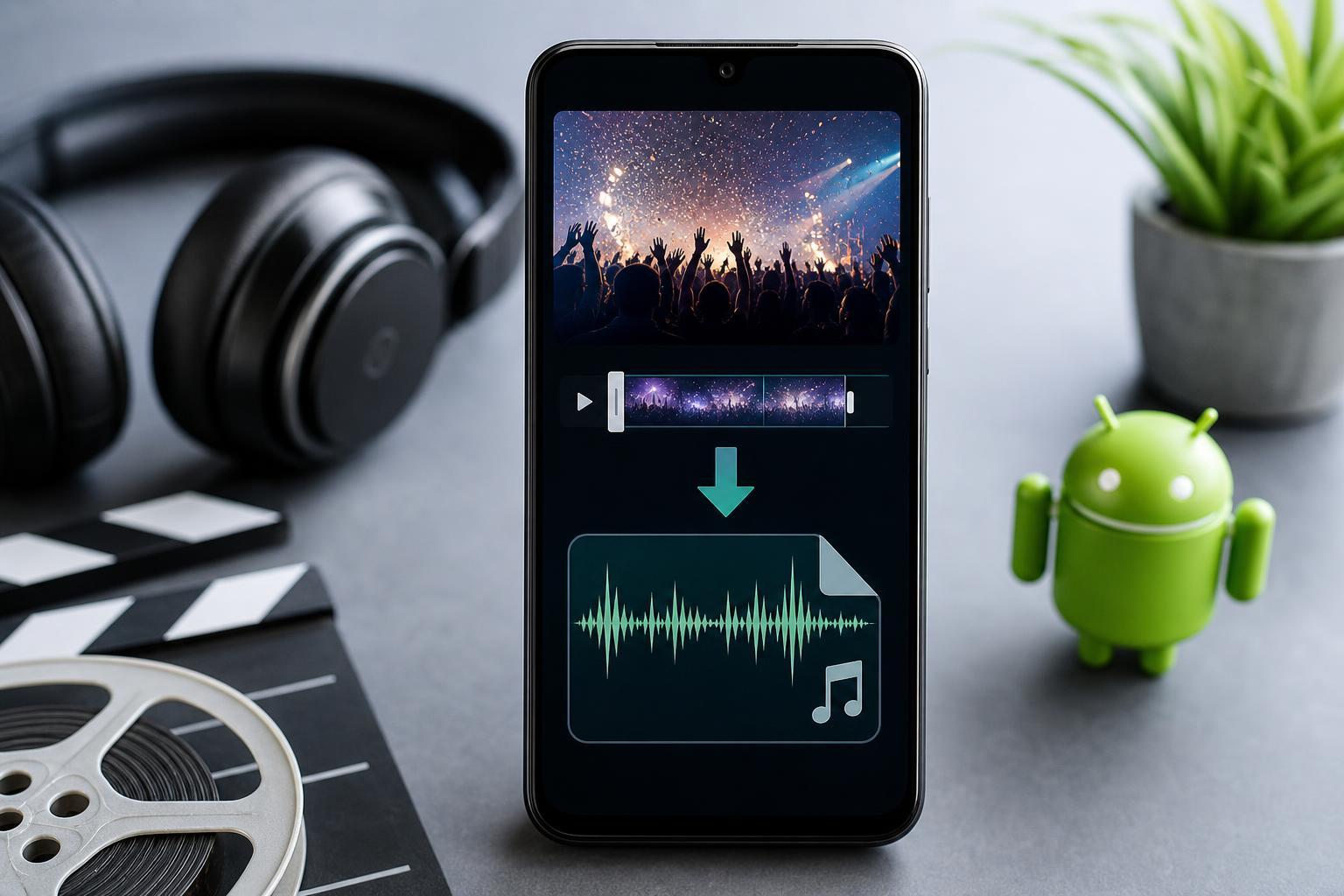
If you want to save music, dialogue, a voice memo, or a sound clip from a video on your Android phone, the right app can make the job quick and painless. Some tools focus on simple video-to-audio conversion, while others also let you trim, compress, or choose the output format.
This guide looks at five useful Android apps for extracting audio from video, along with what each one is best for and what to watch for before you convert.
What to Look for in a Video-to-Audio App
- Support for common formats such as MP3, AAC, WAV, or M4A
- A simple trim or cut tool if you only need part of the audio
- Fast conversion without watermarks or heavy ads
- Easy file saving and sharing options
- Good audio quality settings for smaller files or better fidelity
1. Video to MP3 Converter
Video to MP3 Converter is one of the most straightforward choices if you mainly want a quick way to pull audio from a clip. It usually keeps the process simple: select a video, choose an audio format, and export the result.
This type of app is useful when you do not need advanced editing. If your goal is to save a podcast segment, a spoken clip, or a song from a video you already own, a basic converter is often the easiest option.
2. MP3 Video Converter
MP3 Video Converter is a popular choice because it often gives you more control over the output than the most basic converters. In addition to extracting audio, it may let you change bitrate, trim the clip, and pick different audio settings.
This is a good middle-ground app if you want something simple but still care about the final audio quality. Higher bitrates can produce better sound, while lower bitrates make smaller files that are easier to store or share.
3. VidCompact
VidCompact is more than just an audio extractor, but that can be a benefit if you also want to compress, trim, or convert videos. For users who handle media files regularly, having audio extraction inside a broader toolbox can save time.
If storage space is limited on your phone, a tool like this can be especially handy. You can reduce the video size, then extract the audio, or convert only the part you need without switching apps.
4. Audio Extractor
Audio Extractor does exactly what its name suggests: it focuses on pulling sound from video files with as little confusion as possible. That makes it a good option for people who want a dedicated tool instead of a full media editor.
Dedicated extractor apps are often easier to learn because the interface is usually built around a single workflow. Open the video, choose the output format, and save the audio file. That is all many people need.
5. Timbre
Timbre is a flexible Android media editing app that can handle audio extraction as well as trimming and format conversion. It is a strong choice if you want more than one tool in the same app, especially for quick media edits on the go.
Timbre is especially useful when you want to cut out a section of a video, save only the audio, or make a small edit before exporting. That makes it a practical option for content clips, voice recordings, or social media use.
How to Extract Audio from a Video on Android
- Install one of the apps above from the Google Play Store.
- Open the app and allow access to your media files if prompted.
- Select the video you want to convert.
- Choose the output format, such as MP3, AAC, or M4A.
- Trim the clip if you only want part of the audio.
- Start the conversion and wait for the file to finish saving.
- Find the exported audio file in your device storage, downloads folder, or the app's output folder.
Which App Should You Choose?
- Choose Video to MP3 Converter if you want the simplest possible workflow.
- Choose MP3 Video Converter if you care about output settings and file size.
- Choose VidCompact if you also want compression and video tools.
- Choose Audio Extractor if you want a dedicated audio-only app.
- Choose Timbre if you want audio extraction plus quick editing features.
A Few Practical Tips Before You Convert
- Check whether the app saves files locally or to a cloud location.
- Use headphones or a playback app to confirm the exported audio sounds correct.
- If the video is large, trim it first to reduce conversion time.
- Be careful with copyrighted content and only extract audio you have the right to use.
- If the app supports bitrate settings, use a higher setting for better quality and a lower one for smaller files.
Saving the Right Audio Format
MP3 is the most common choice because it works on almost every device and is easy to share. AAC and M4A can offer good quality at small file sizes, while WAV is better if you want uncompressed audio and do not mind larger files.
If you are not sure which format to choose, MP3 is usually the safest option for everyday use. If you are editing the audio later, you may want a higher-quality format instead.





